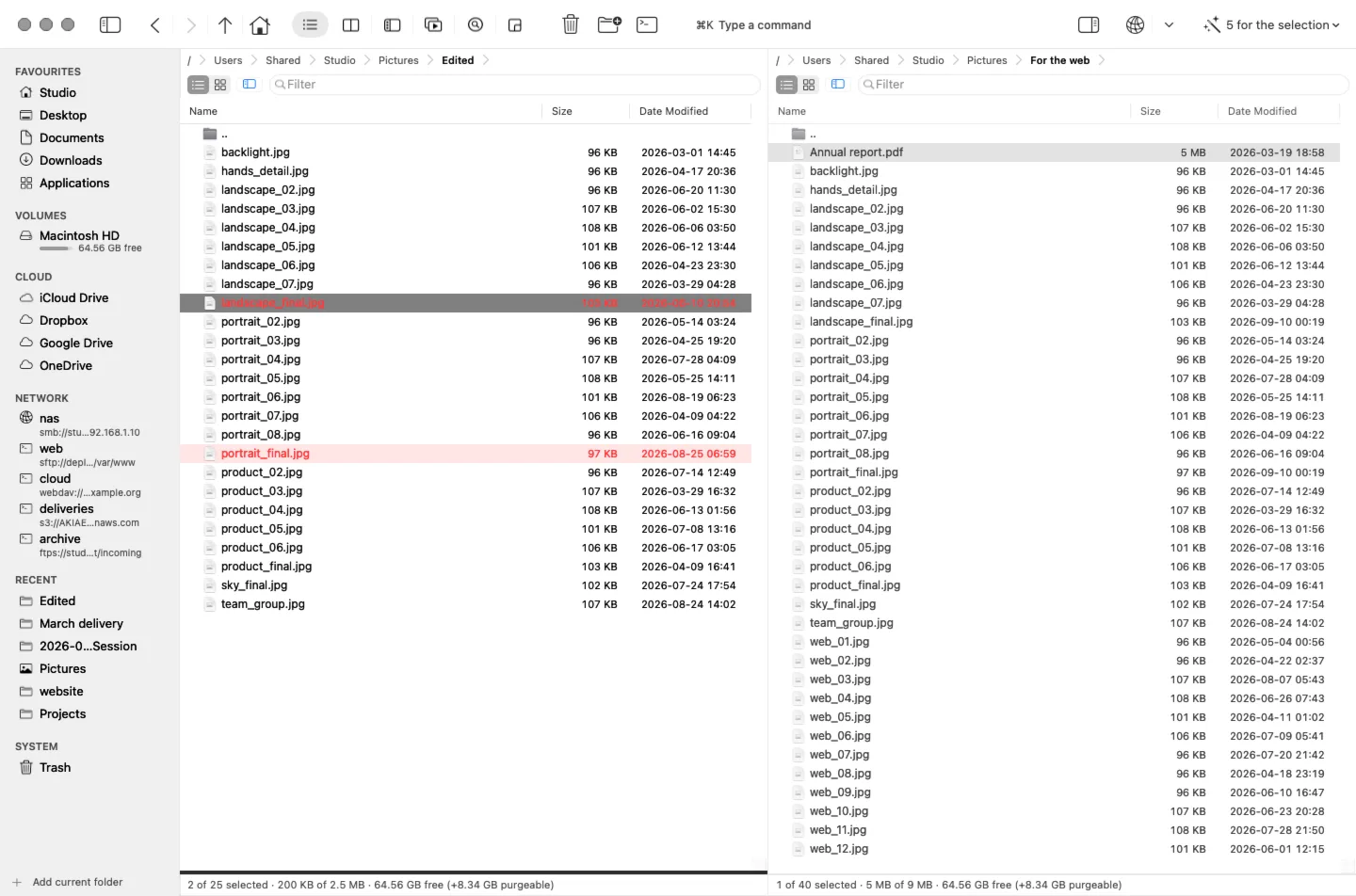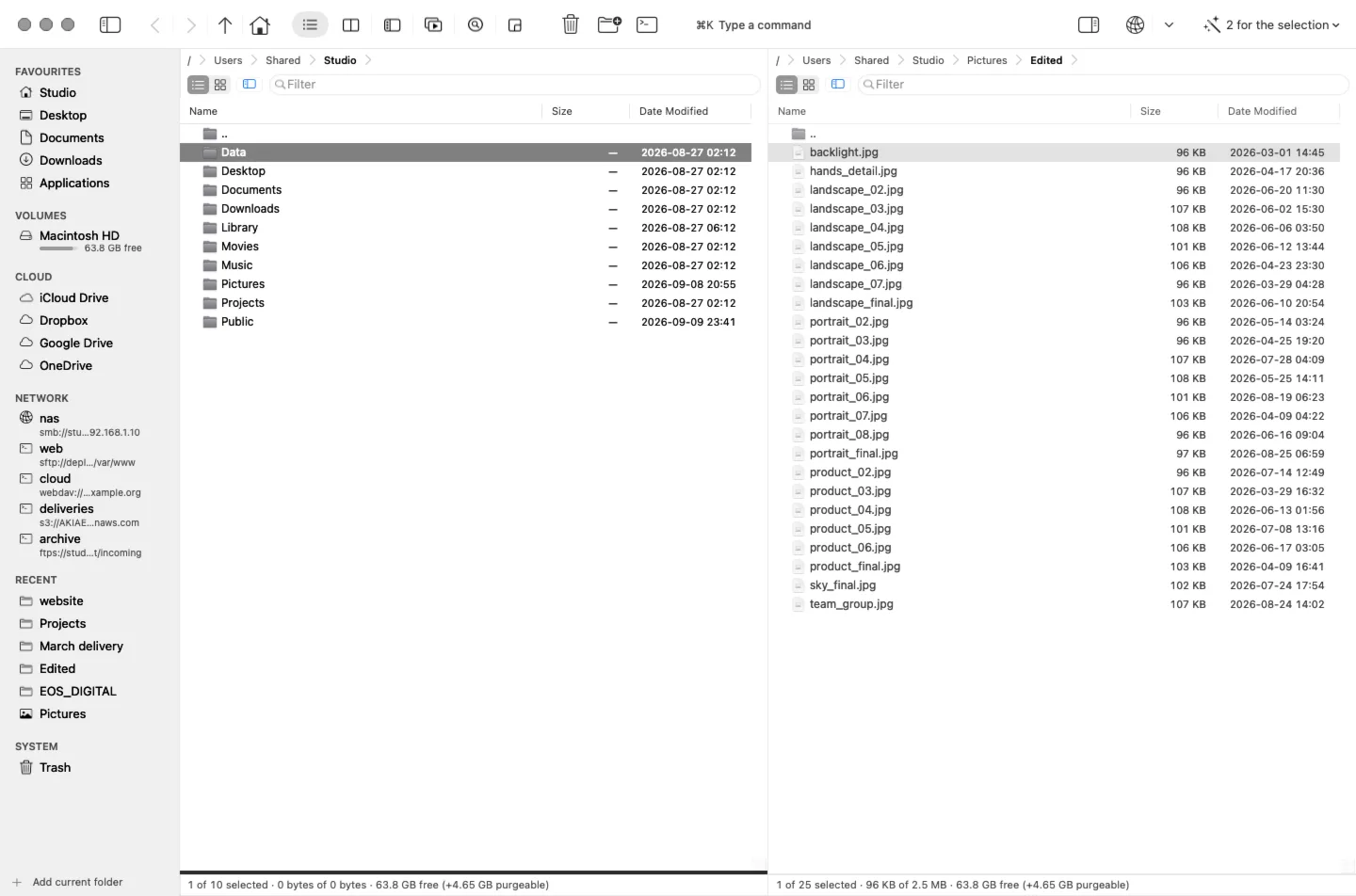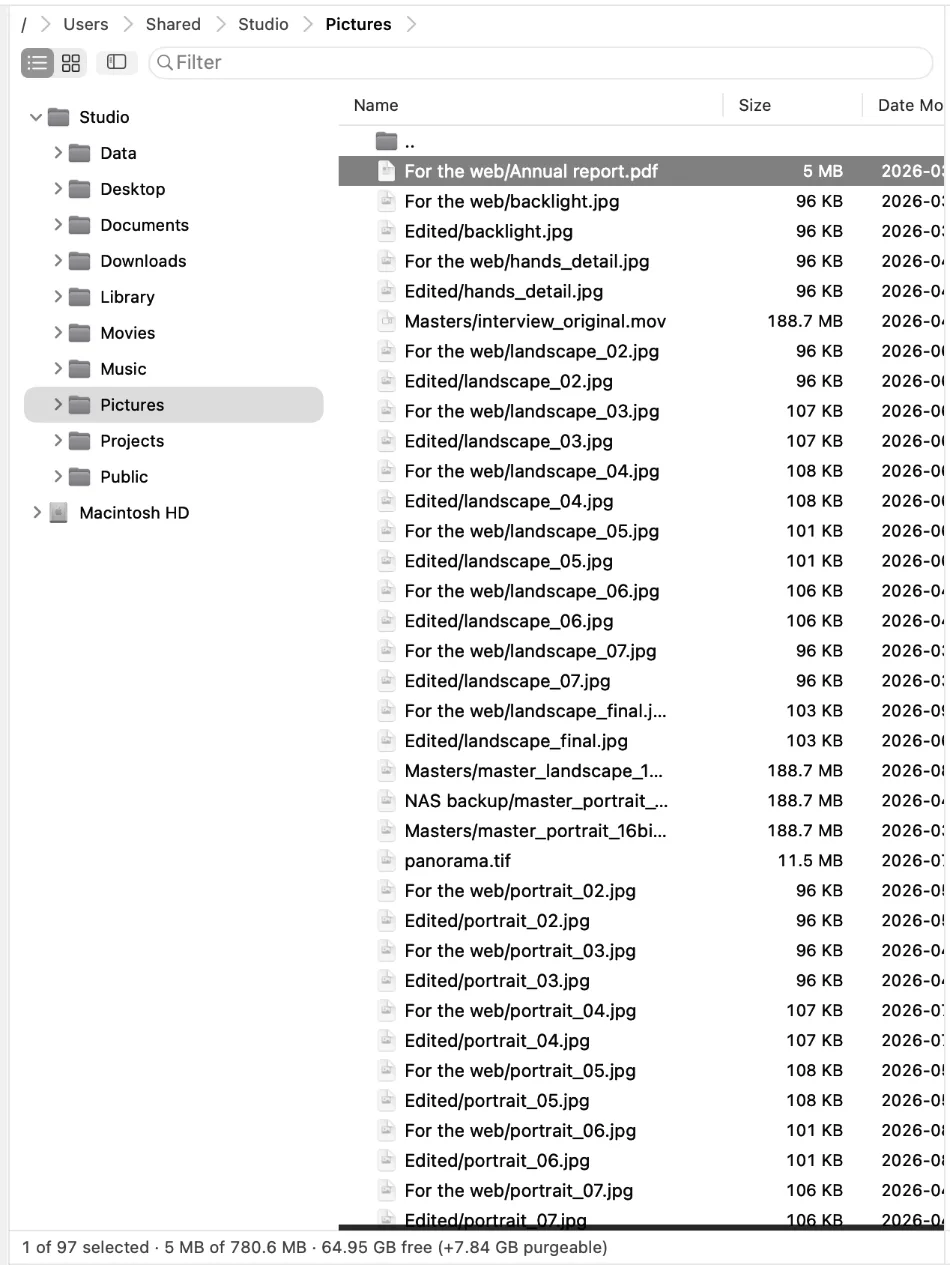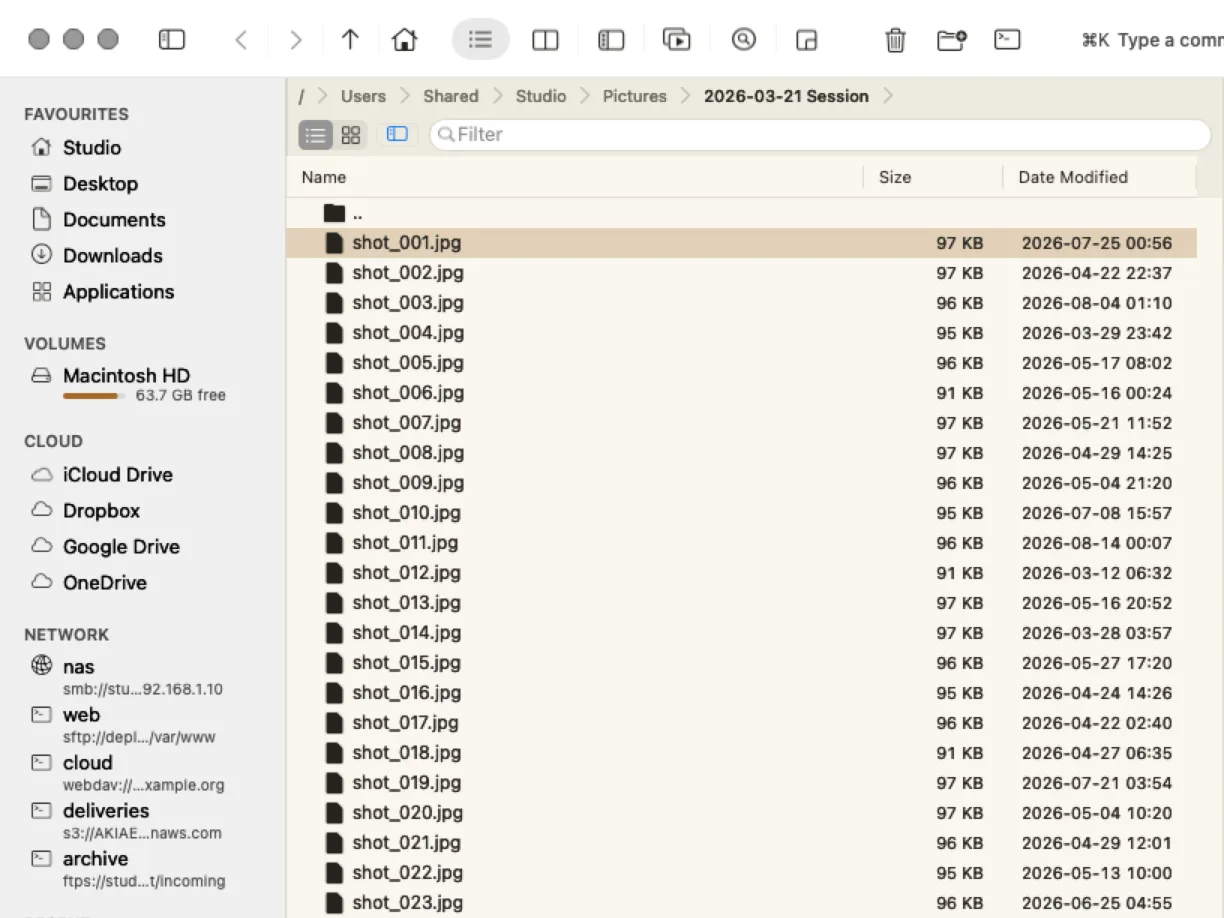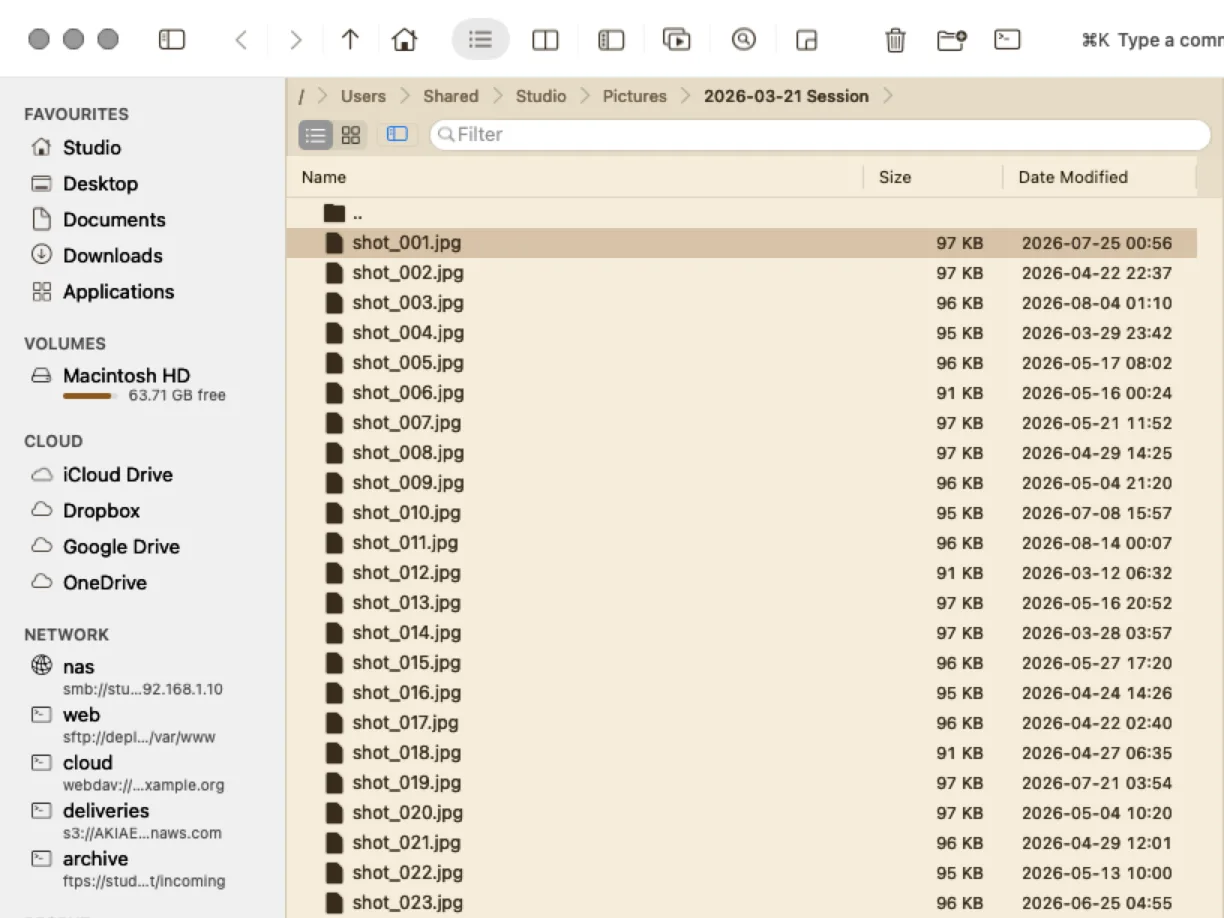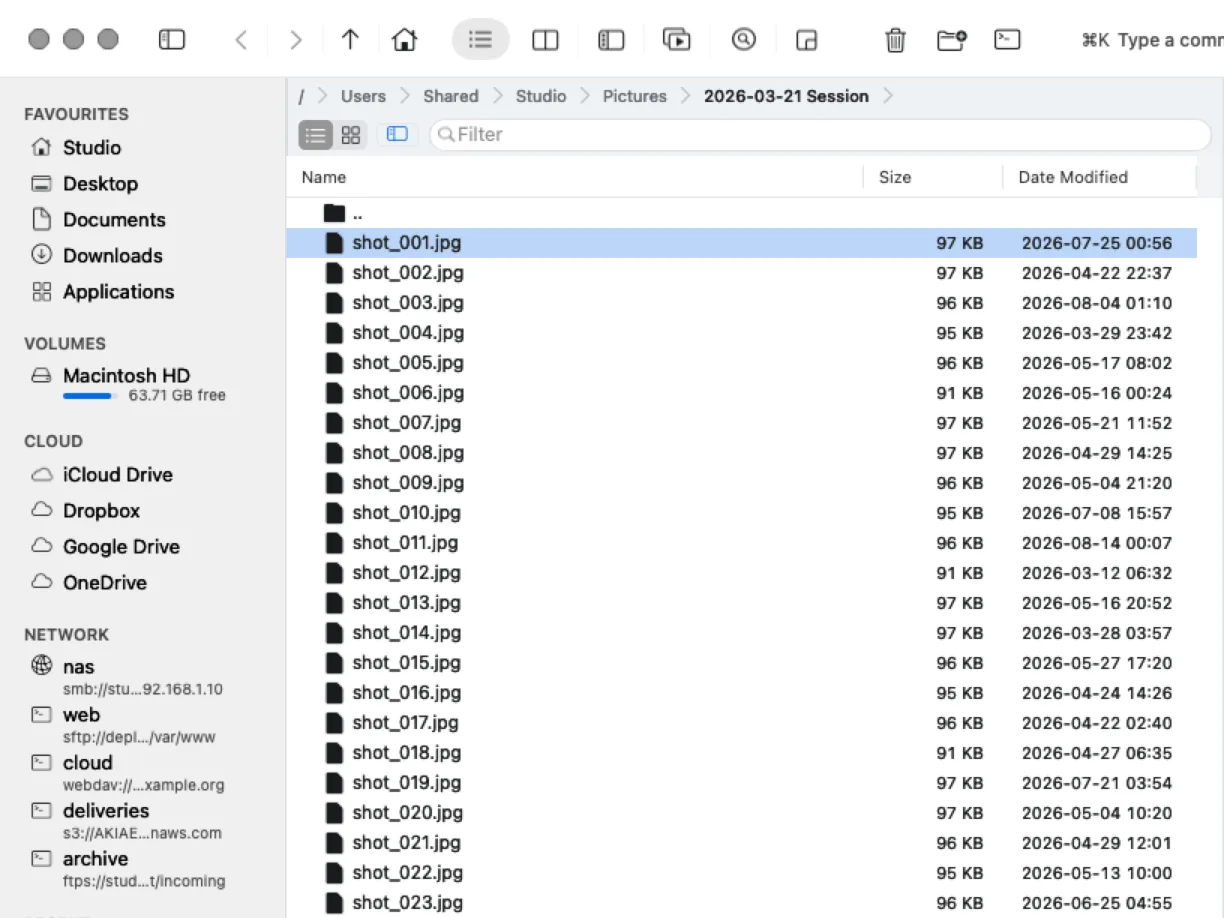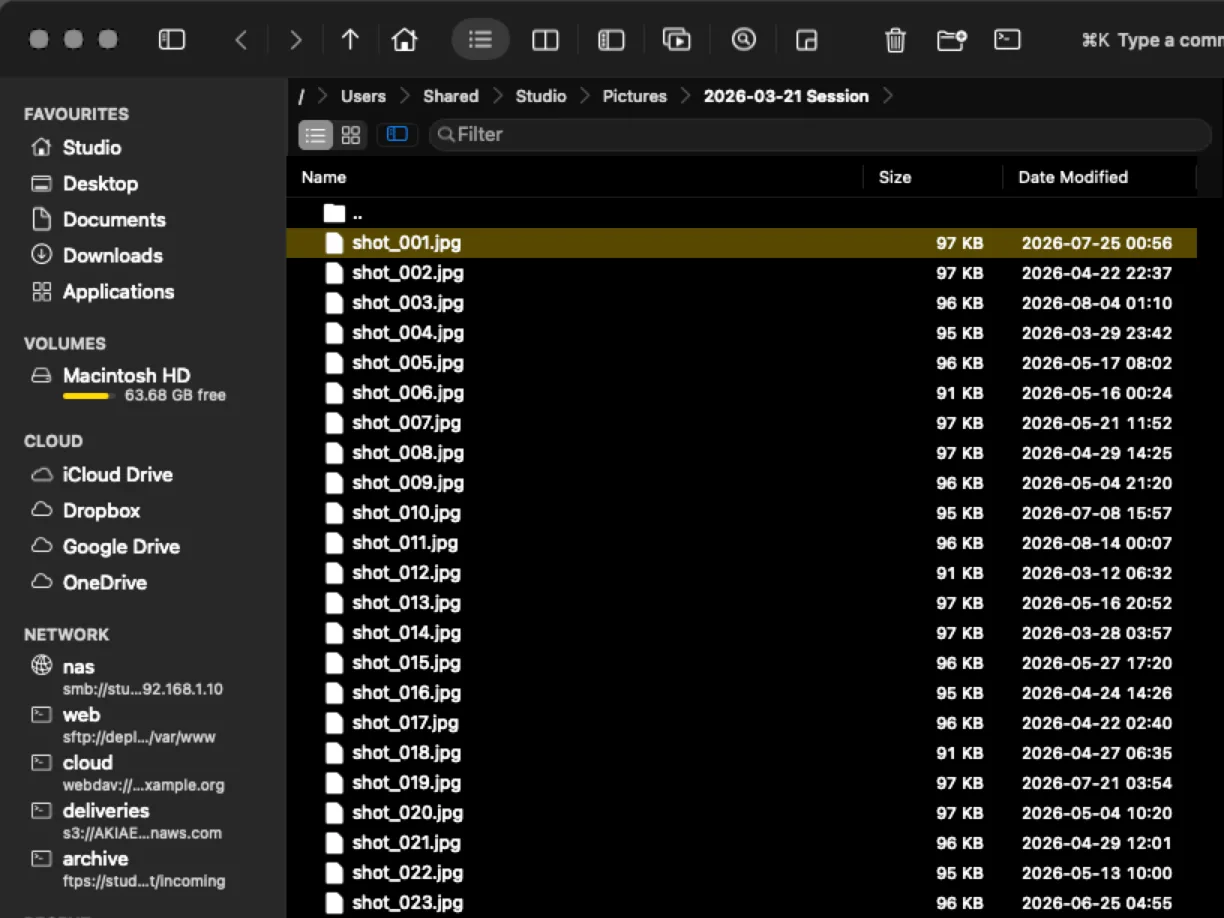
Two panels
From here to there.
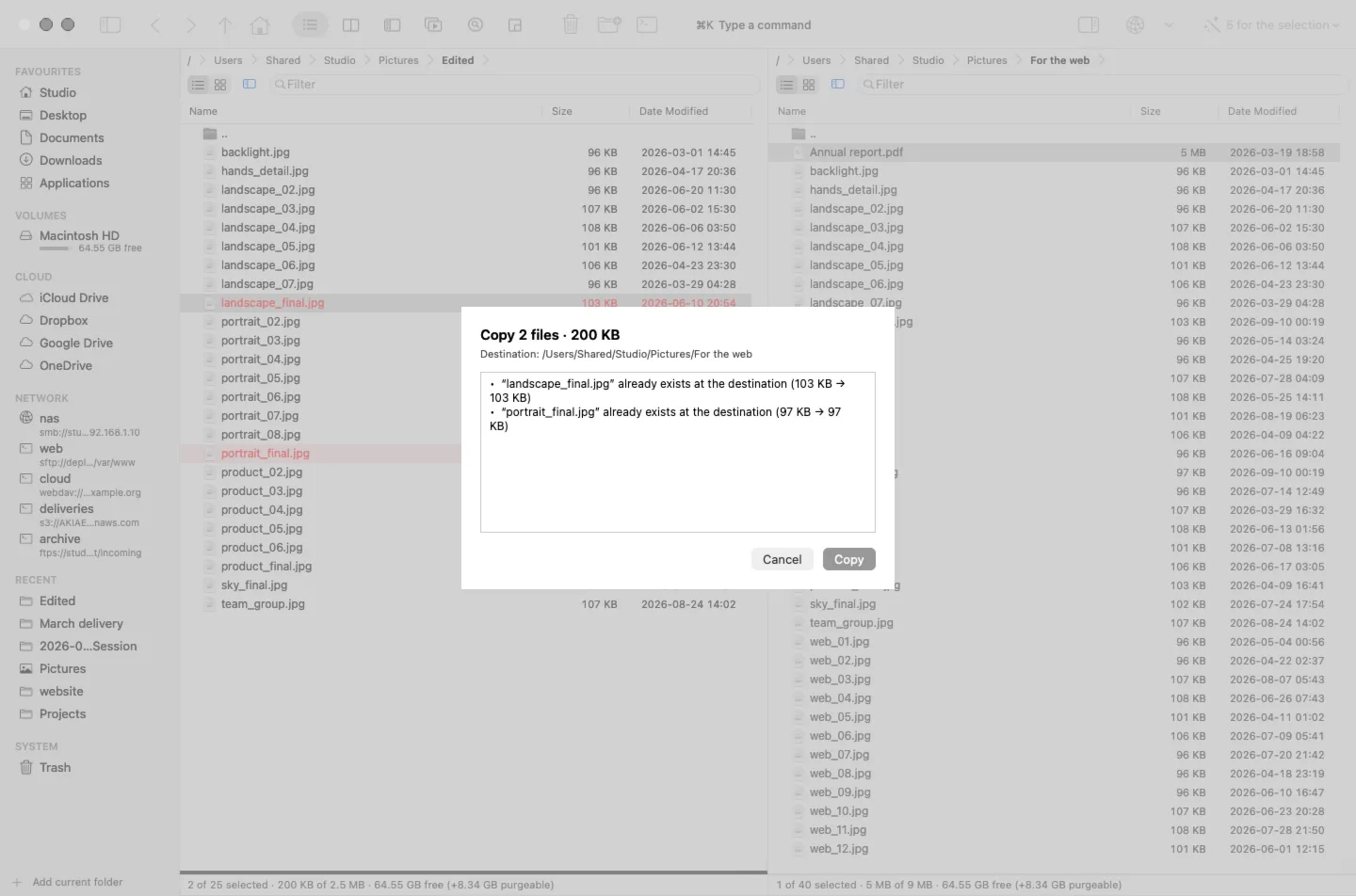
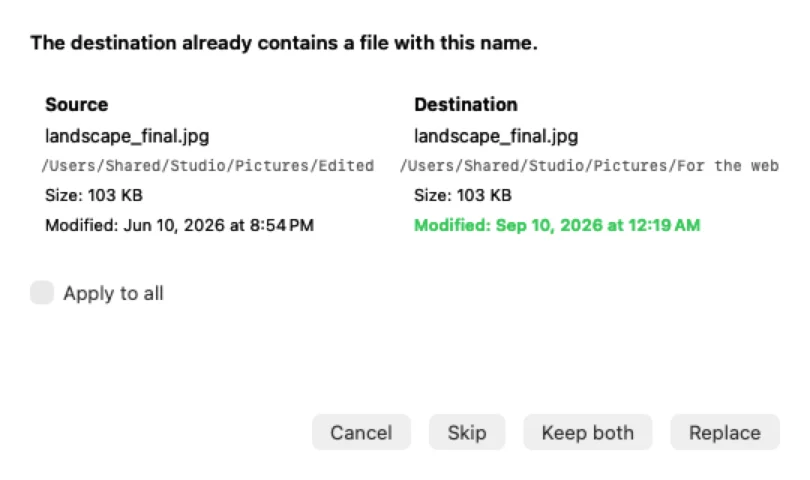
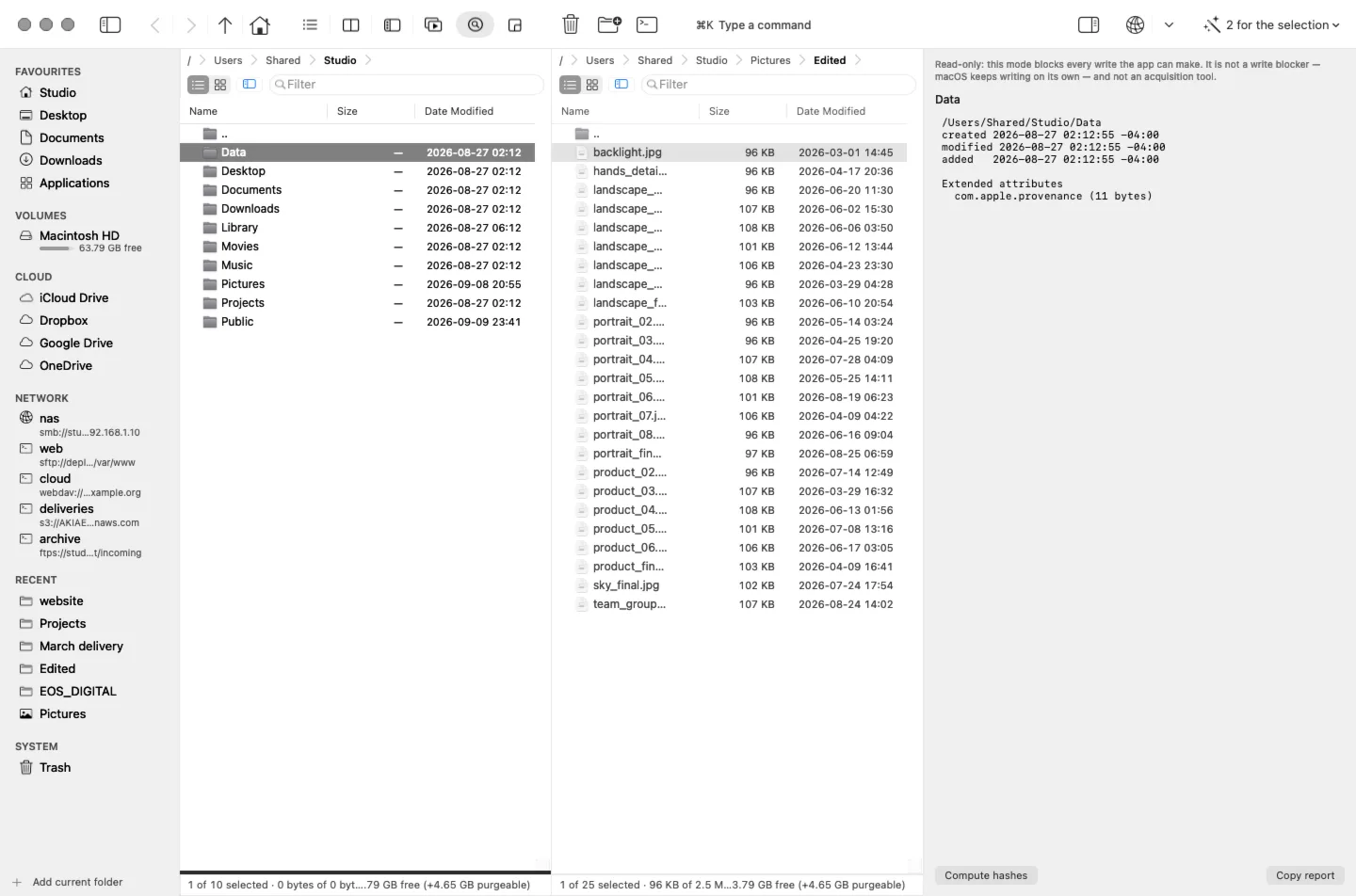
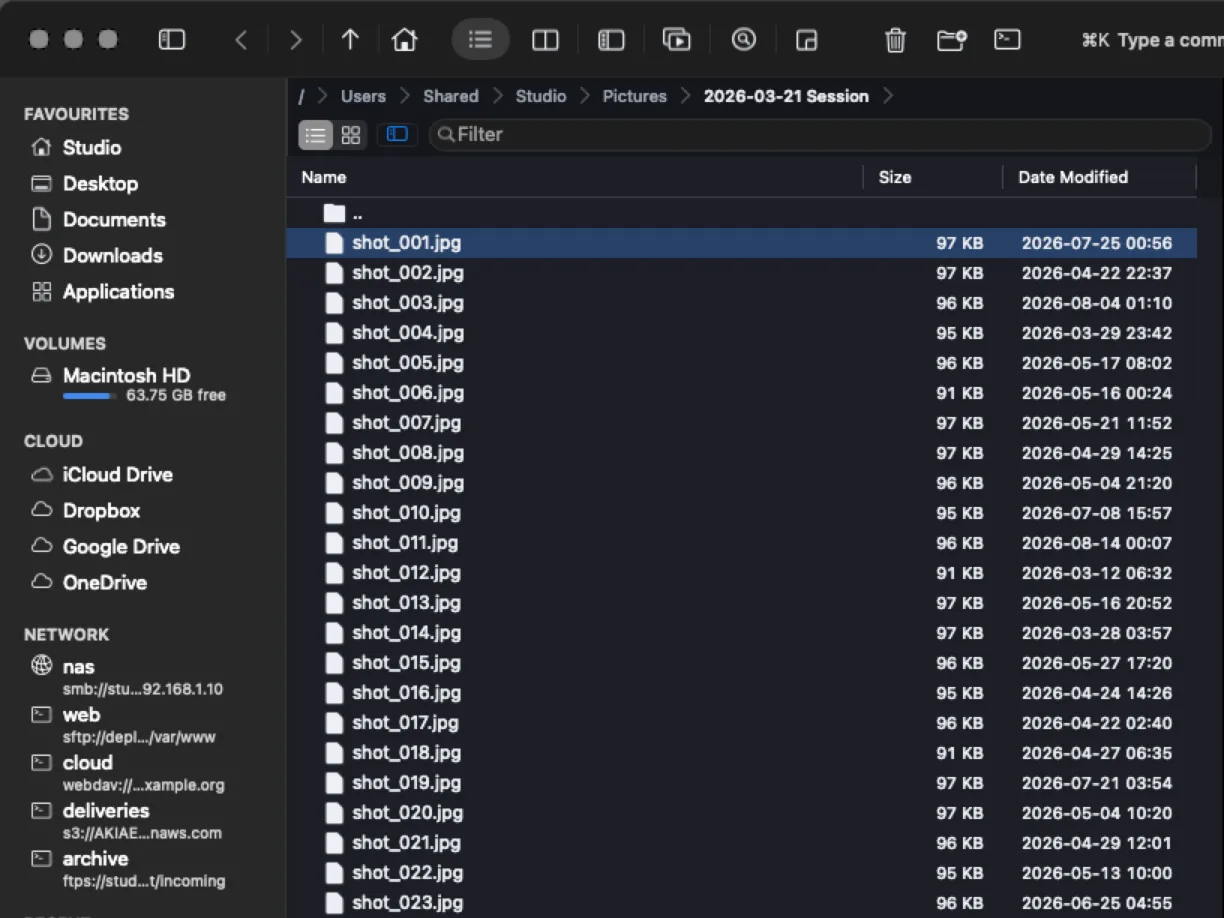
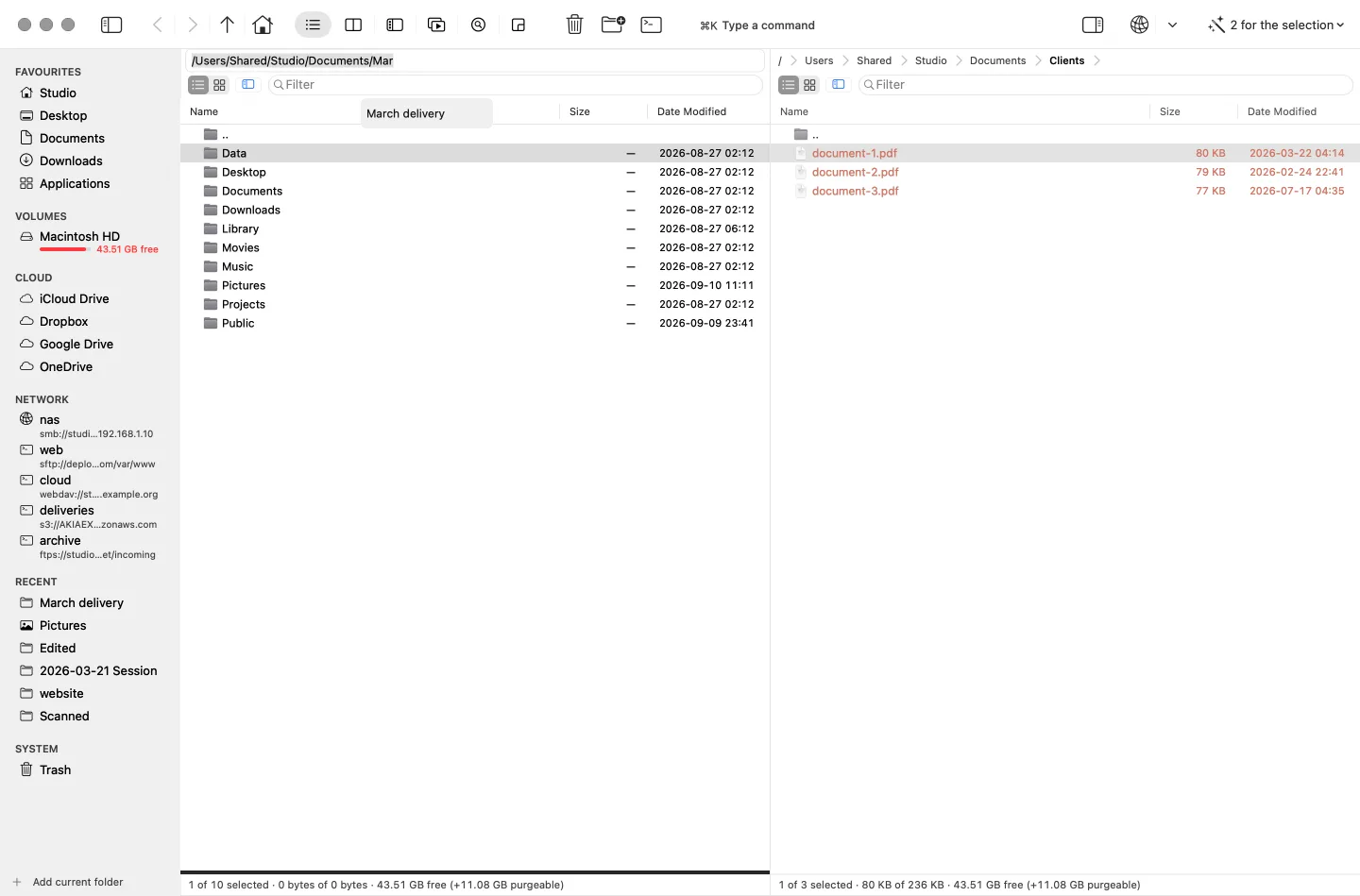
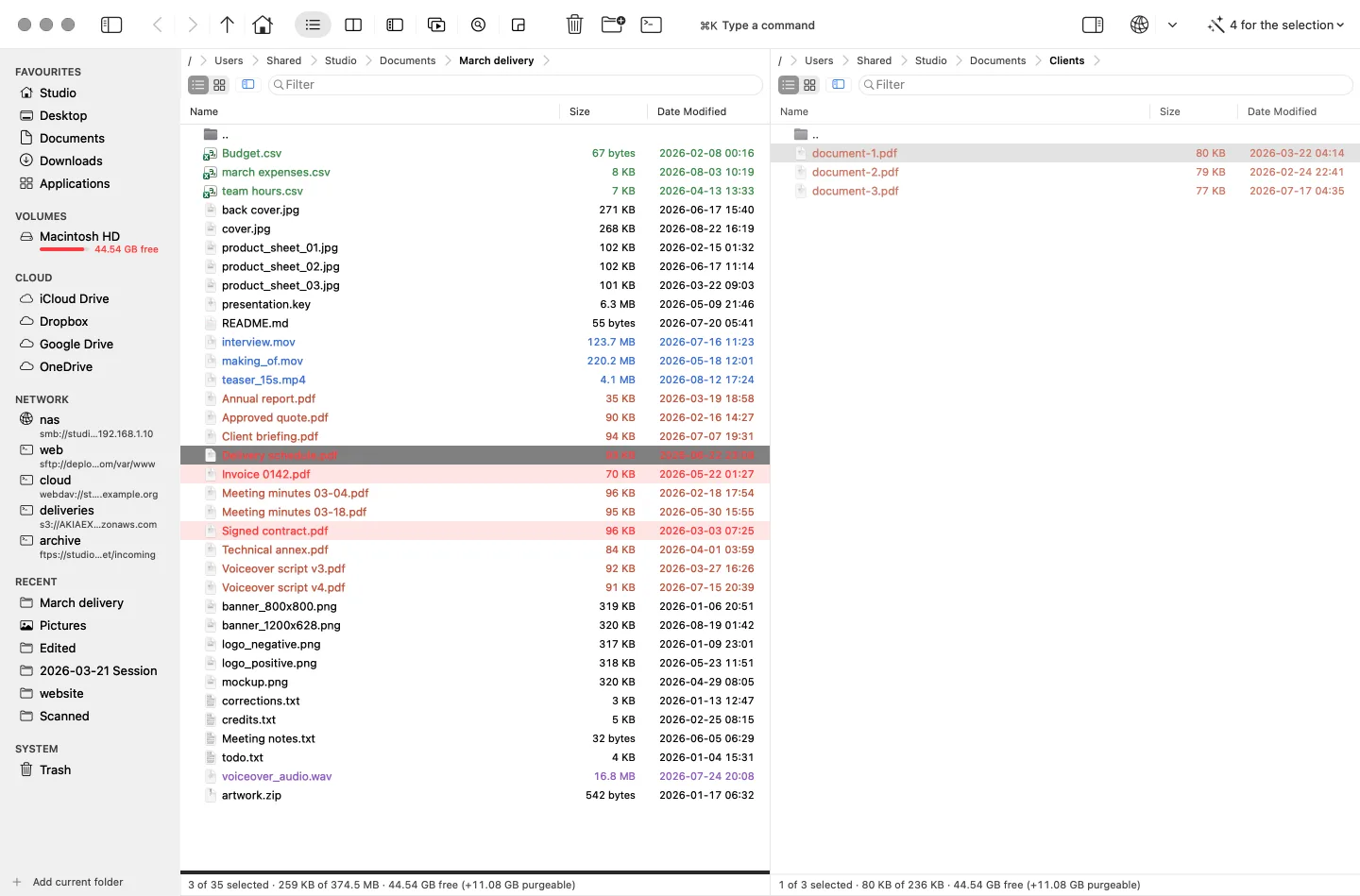
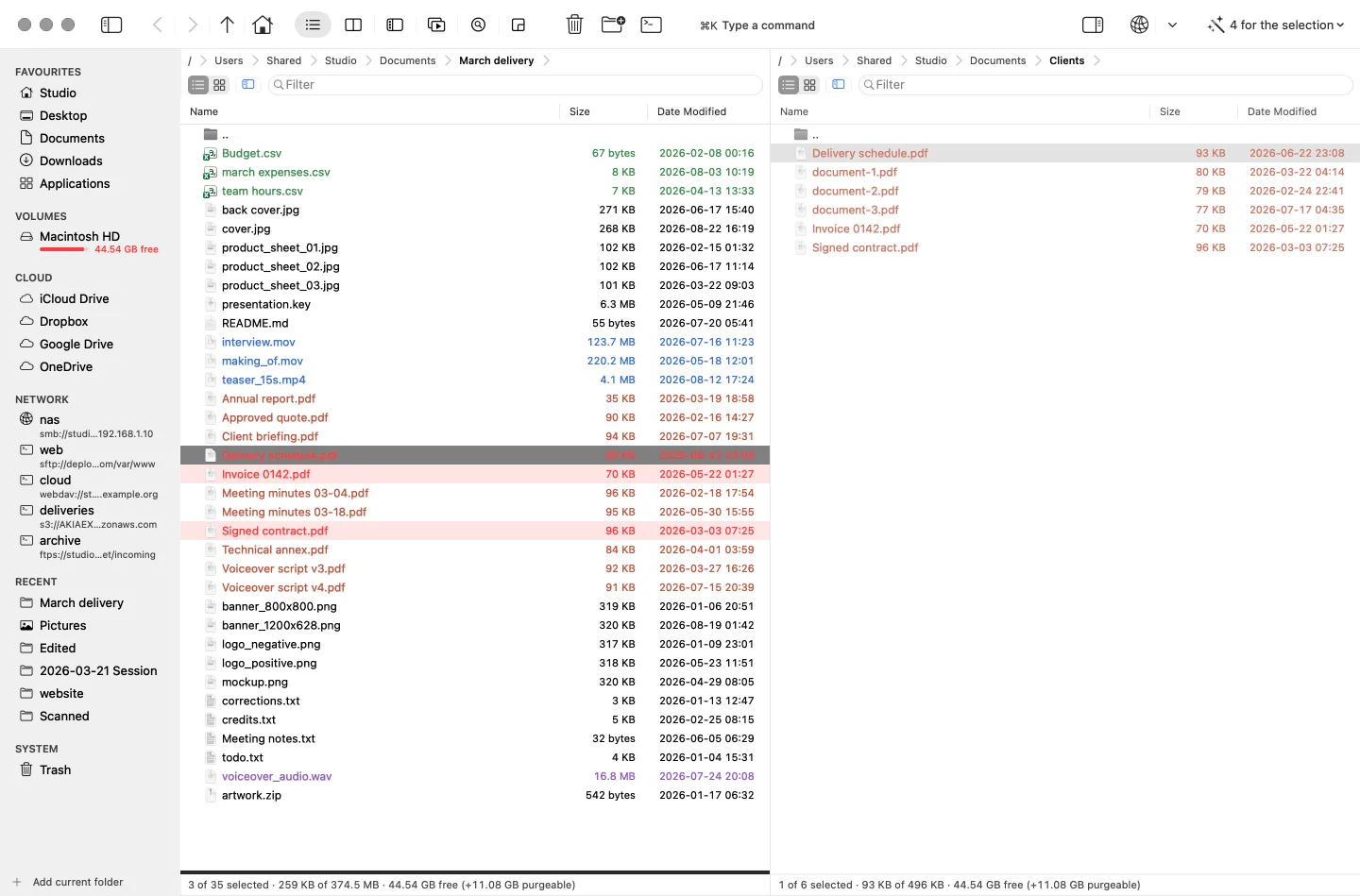
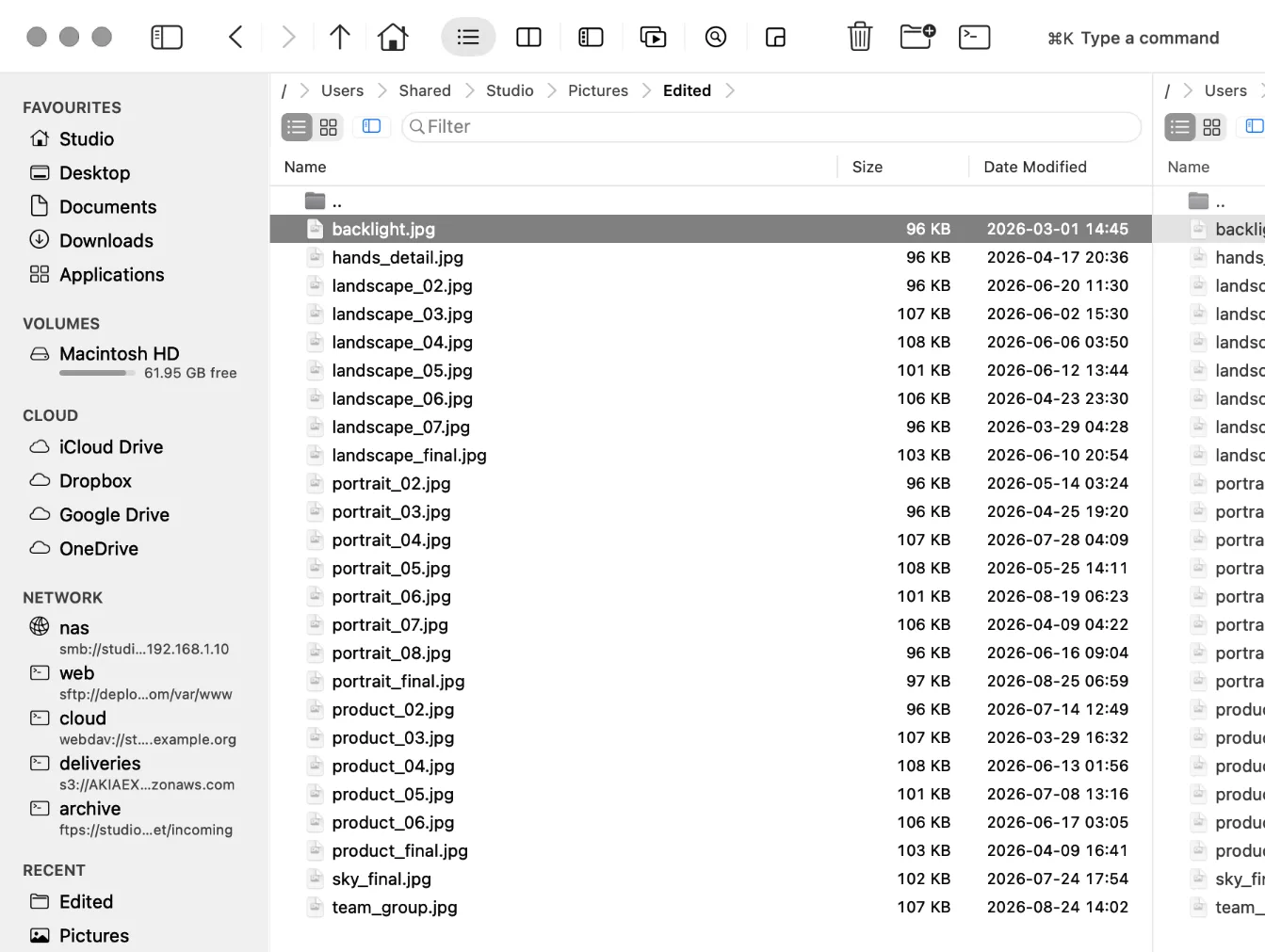
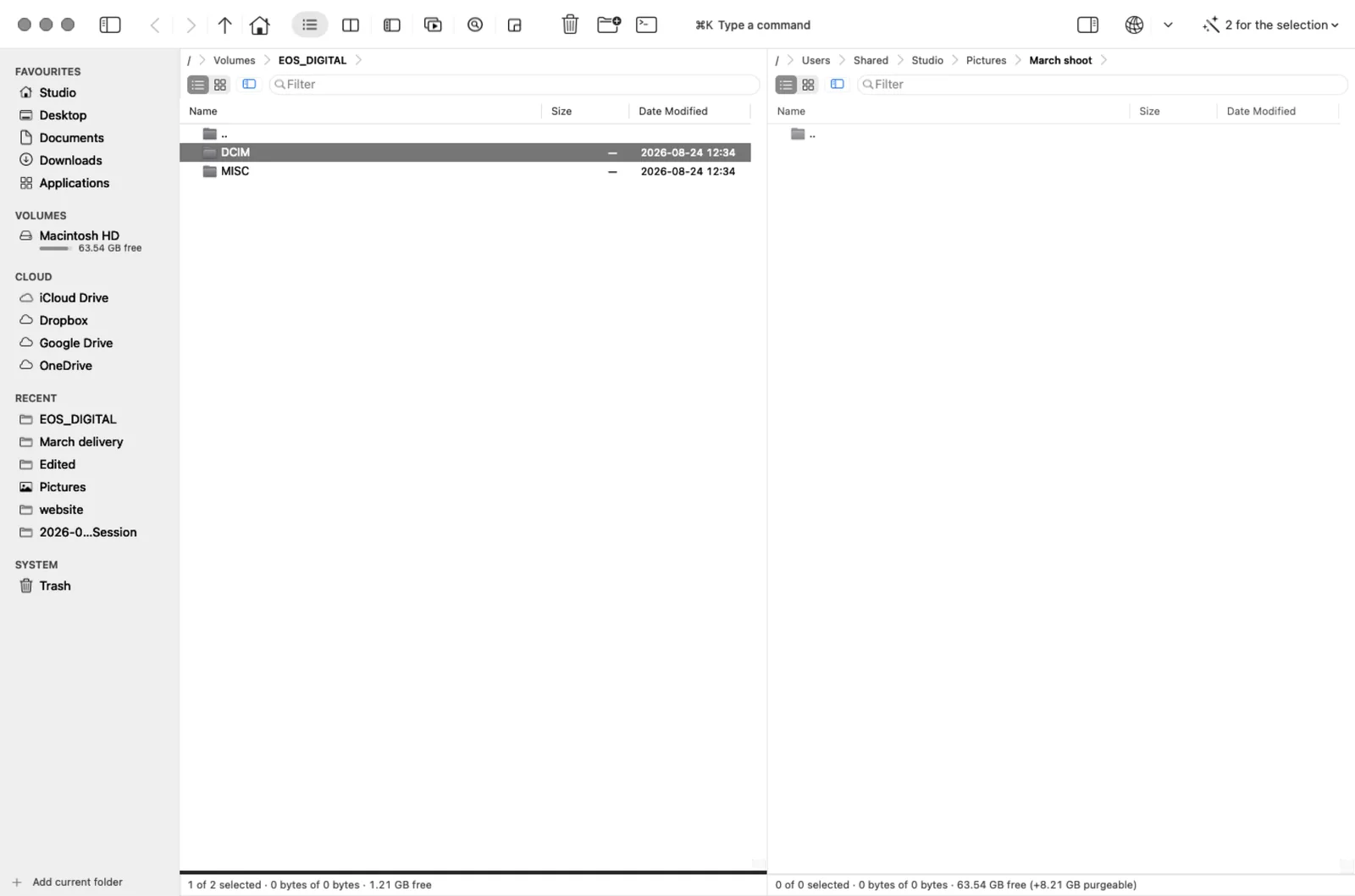
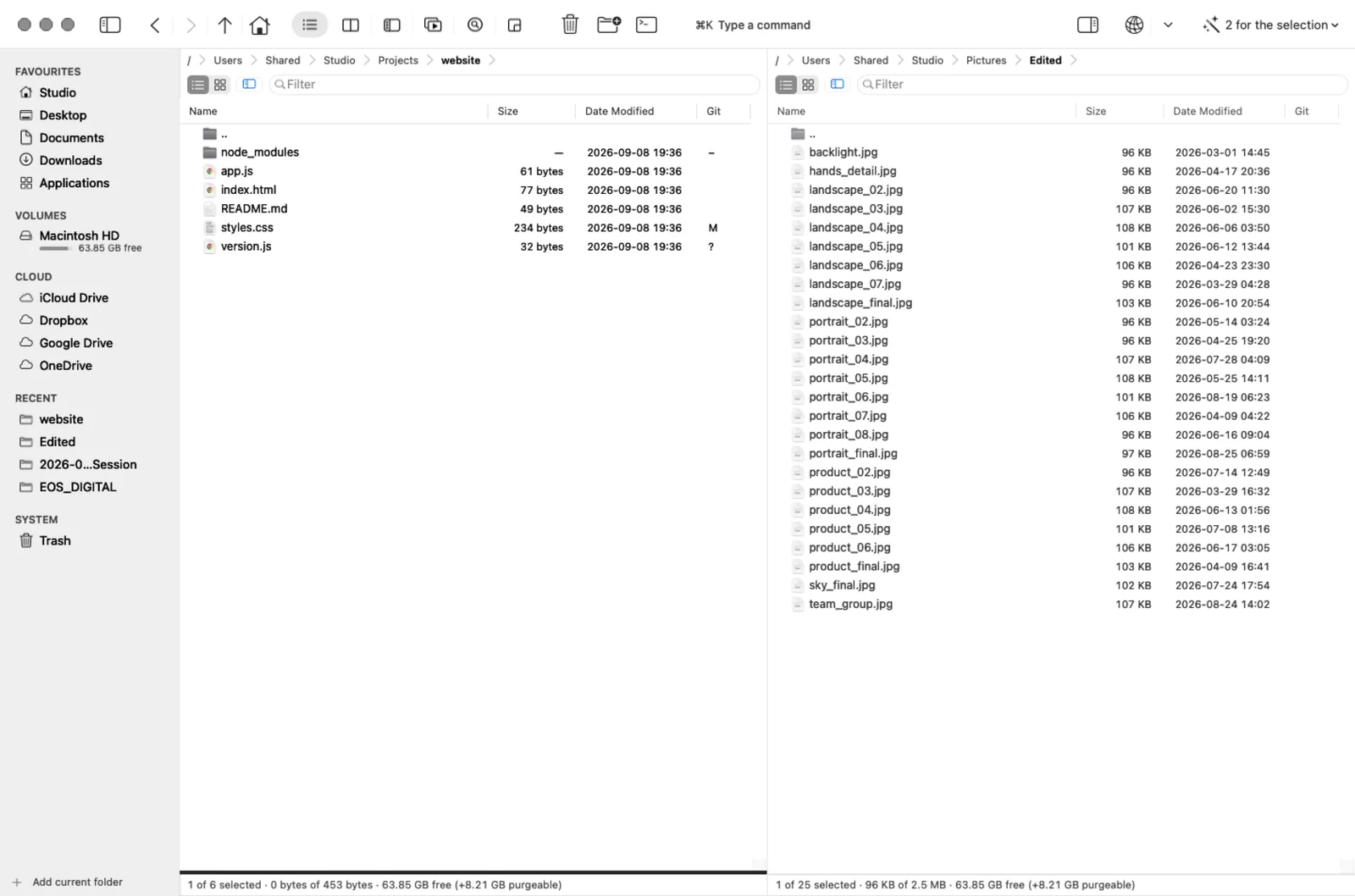
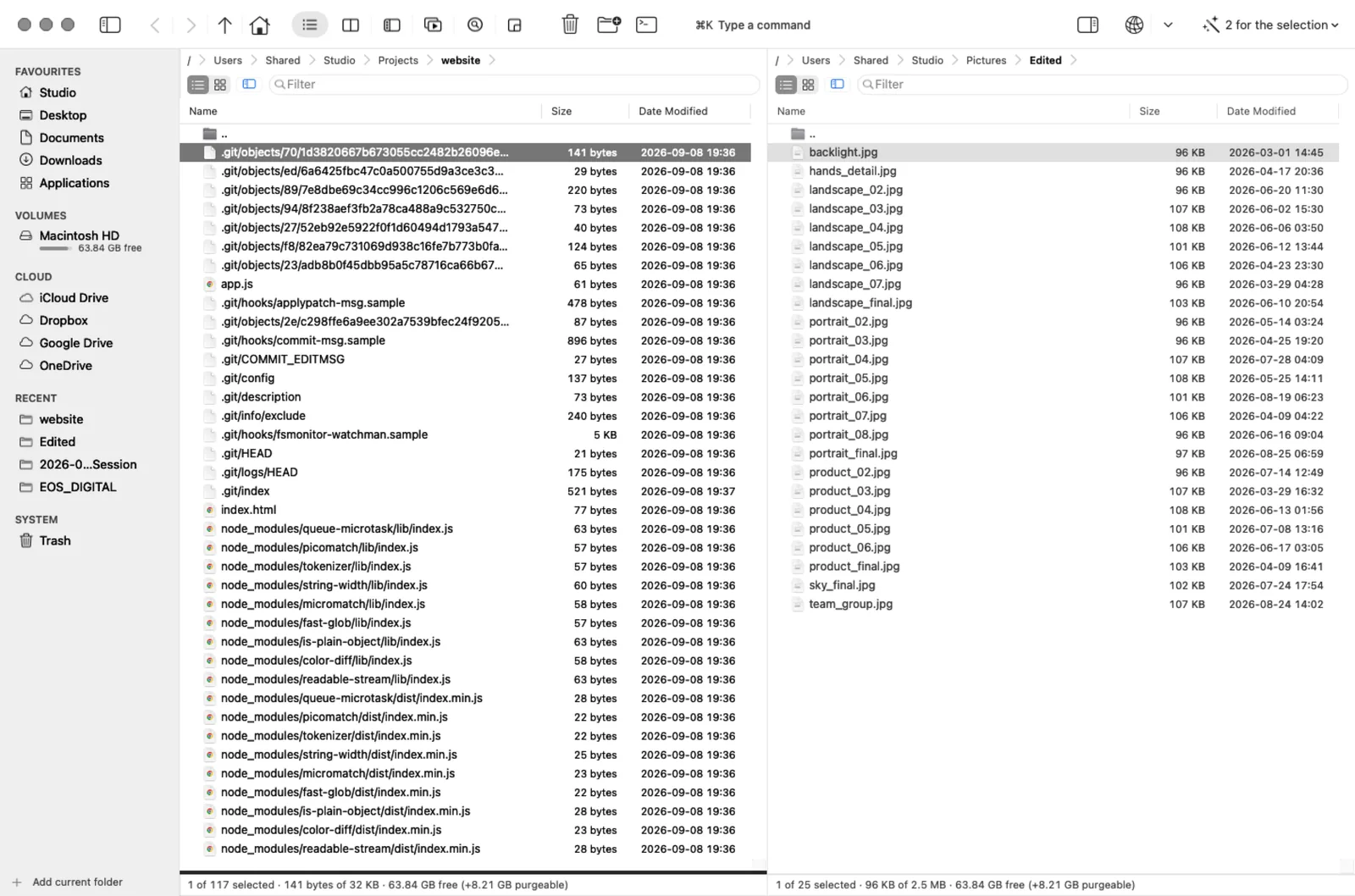
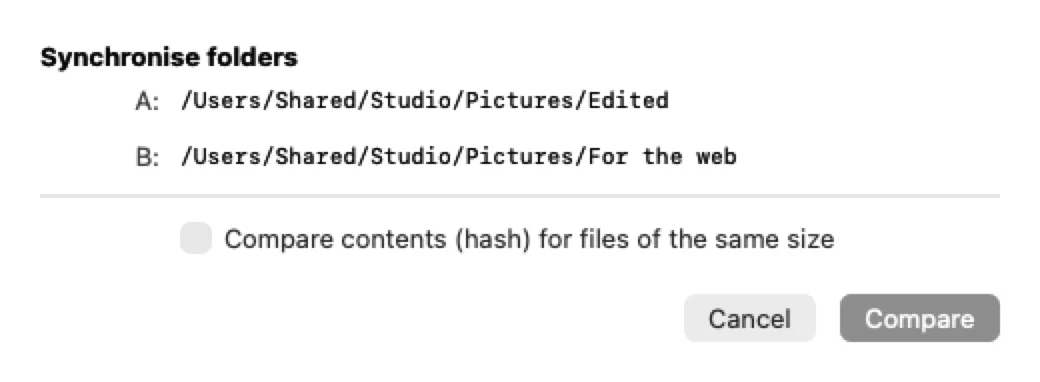
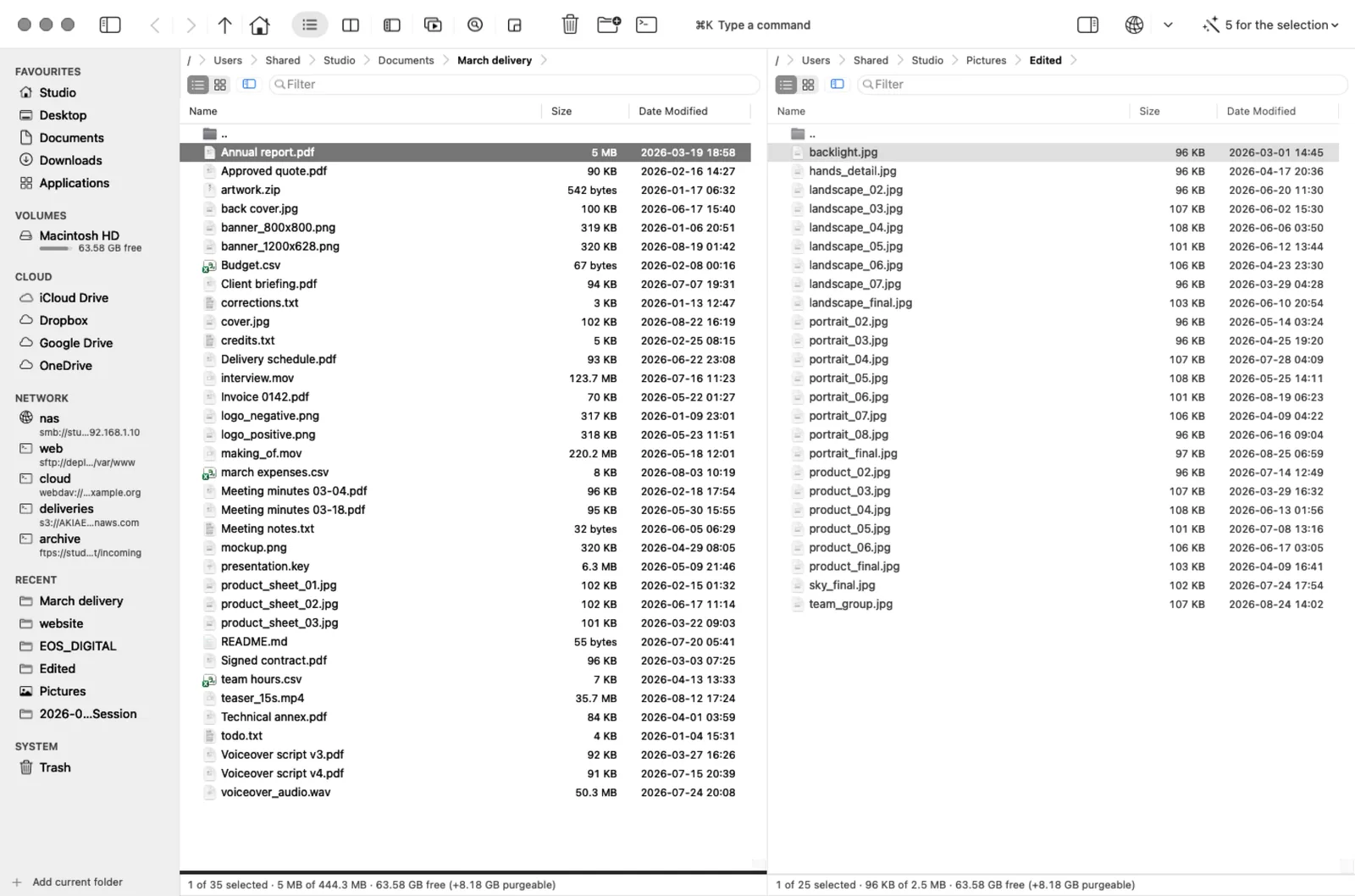
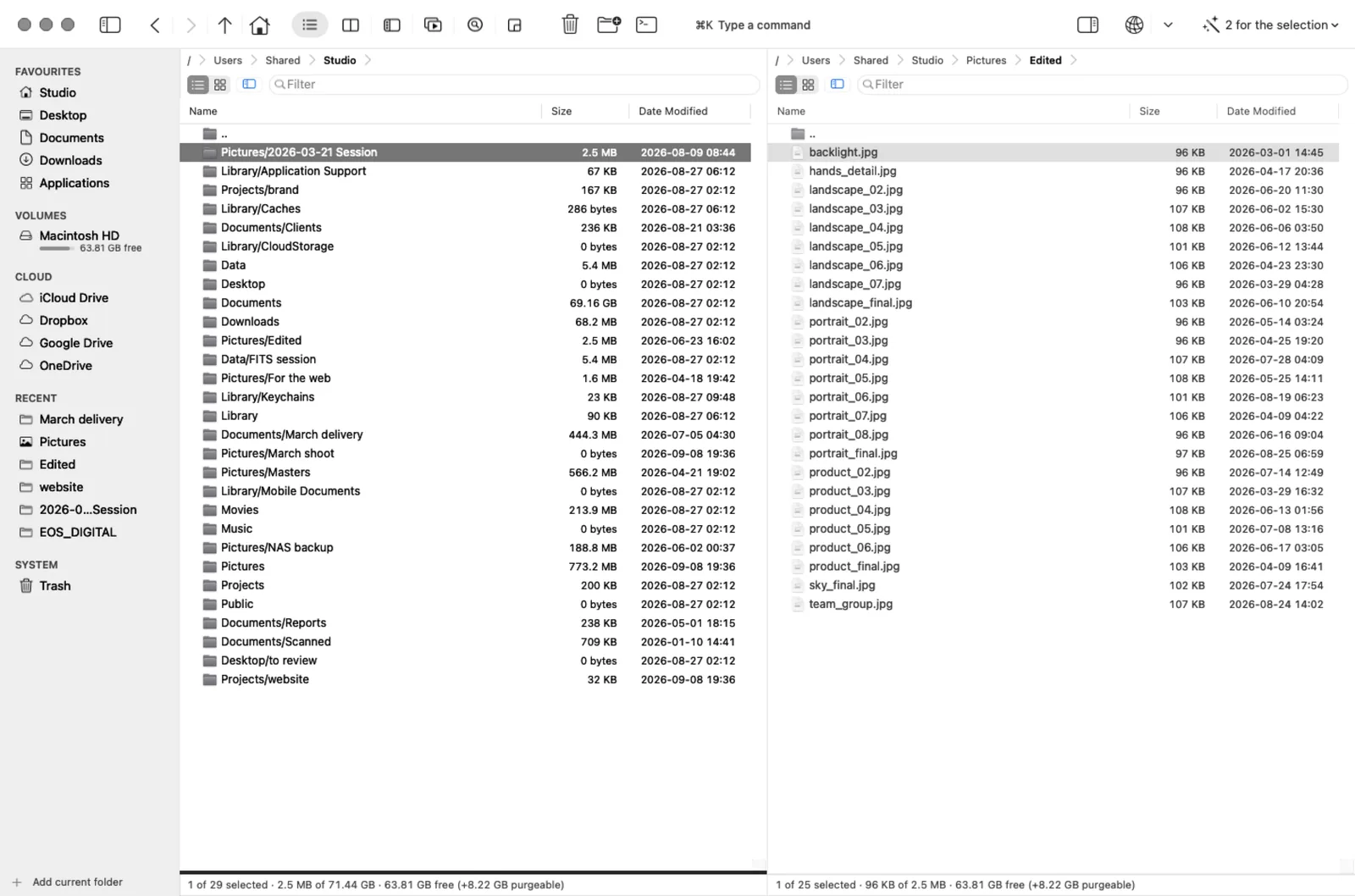
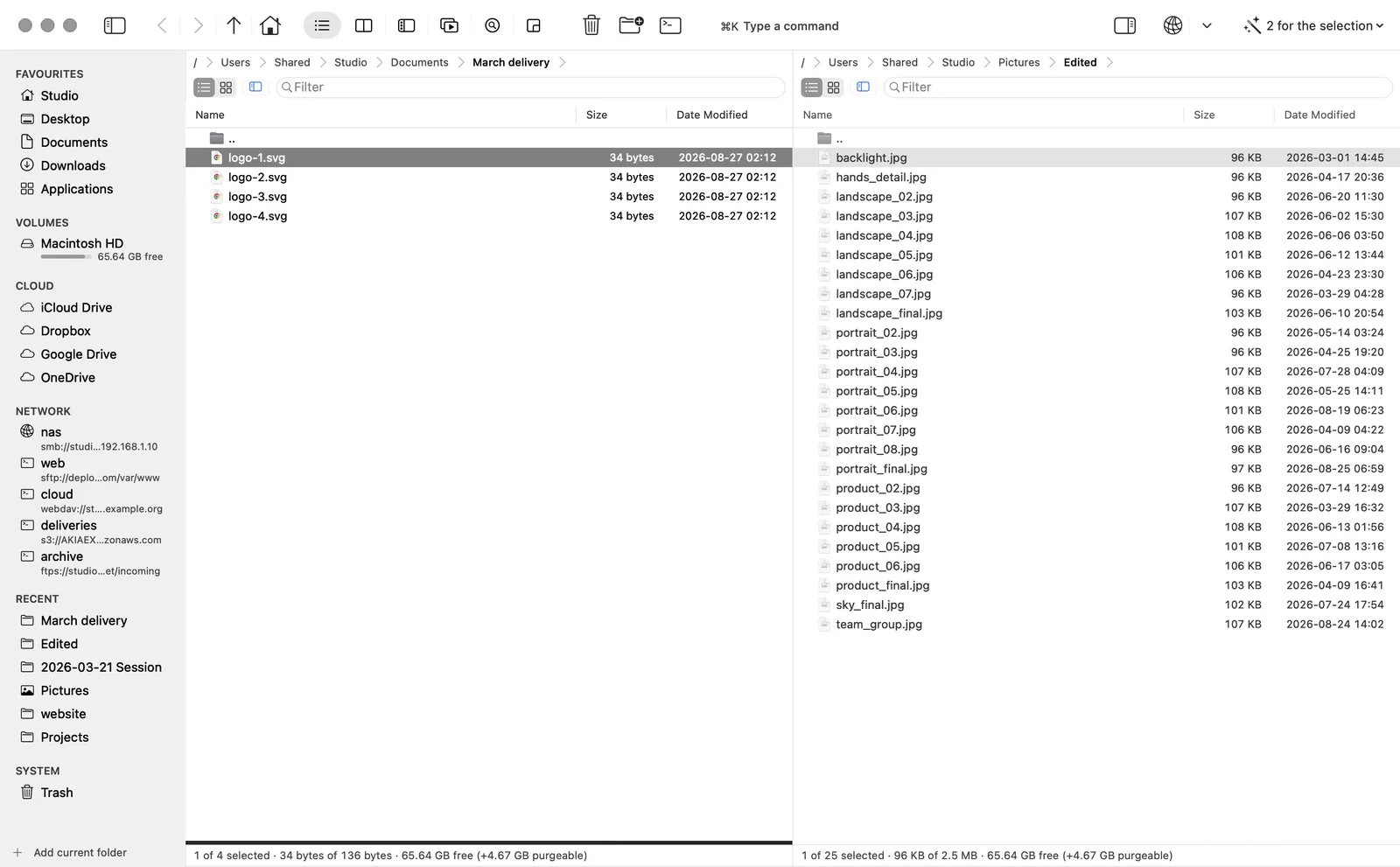
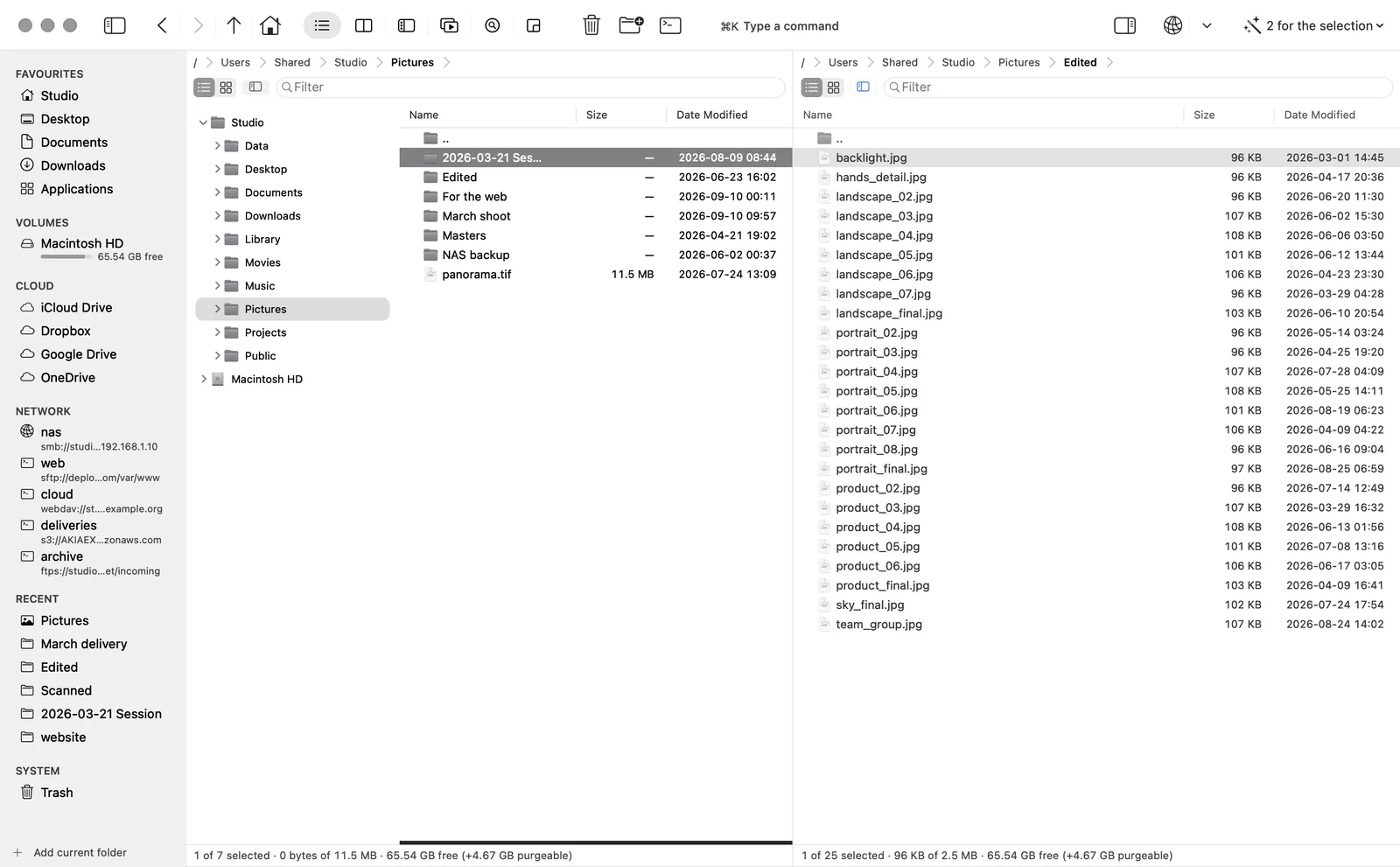
The second panel is the destination, so copying is one key and no dragging. And nothing moves until the plan has been read: how many files, how much space, what is already over there.
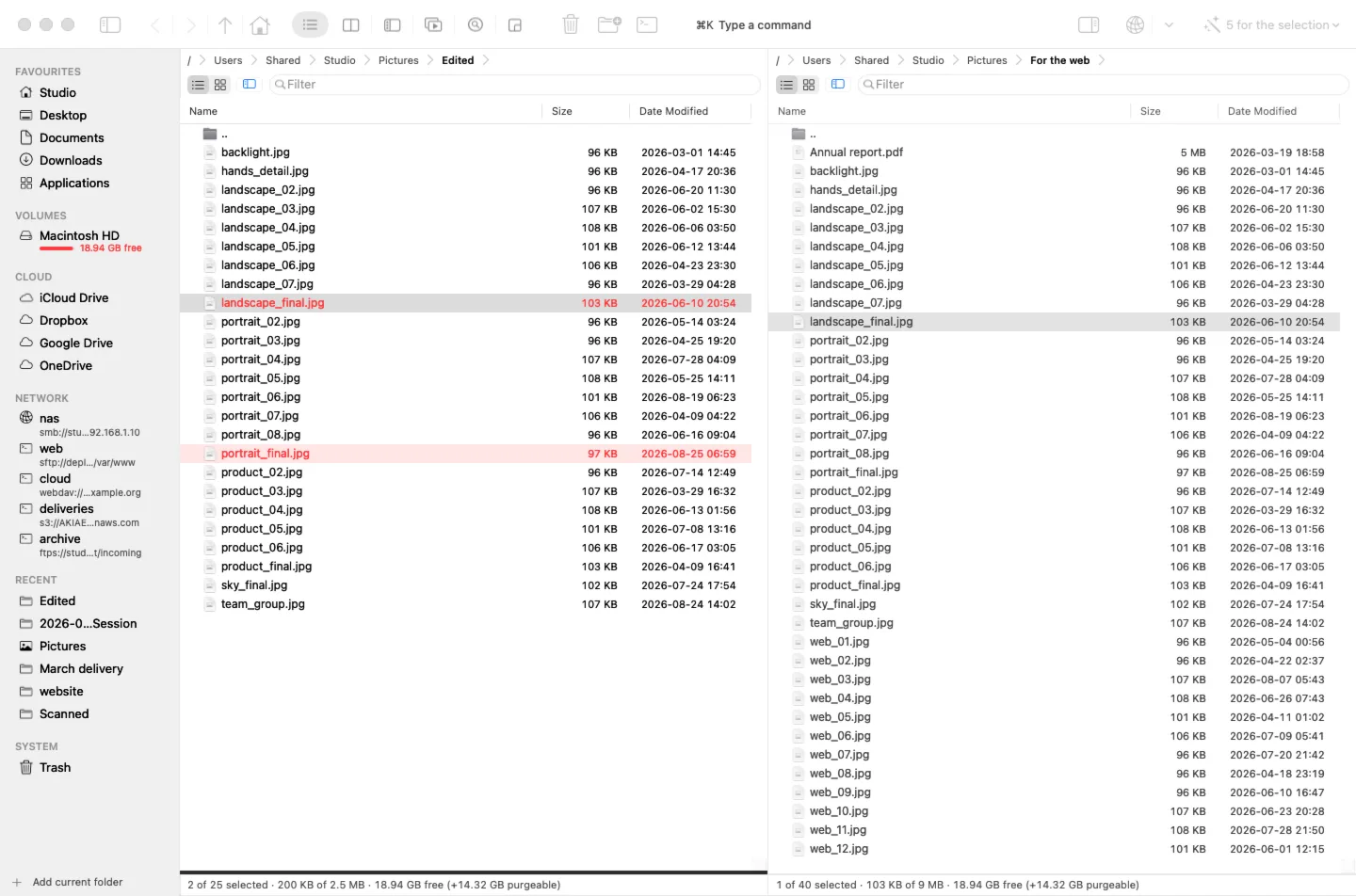
Two panels, the keyboard back, and copies that are read again to prove they arrived.
The path bar
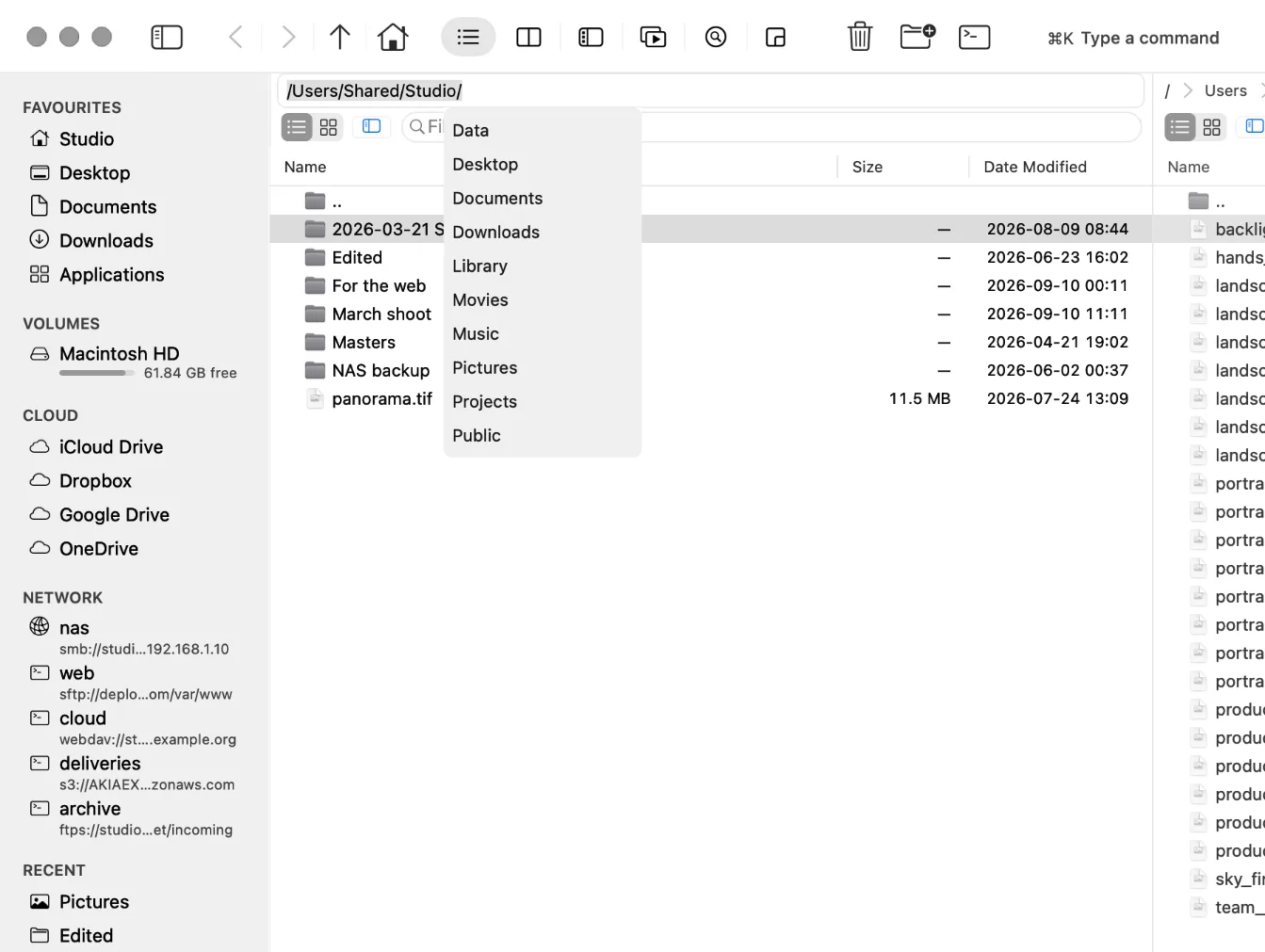
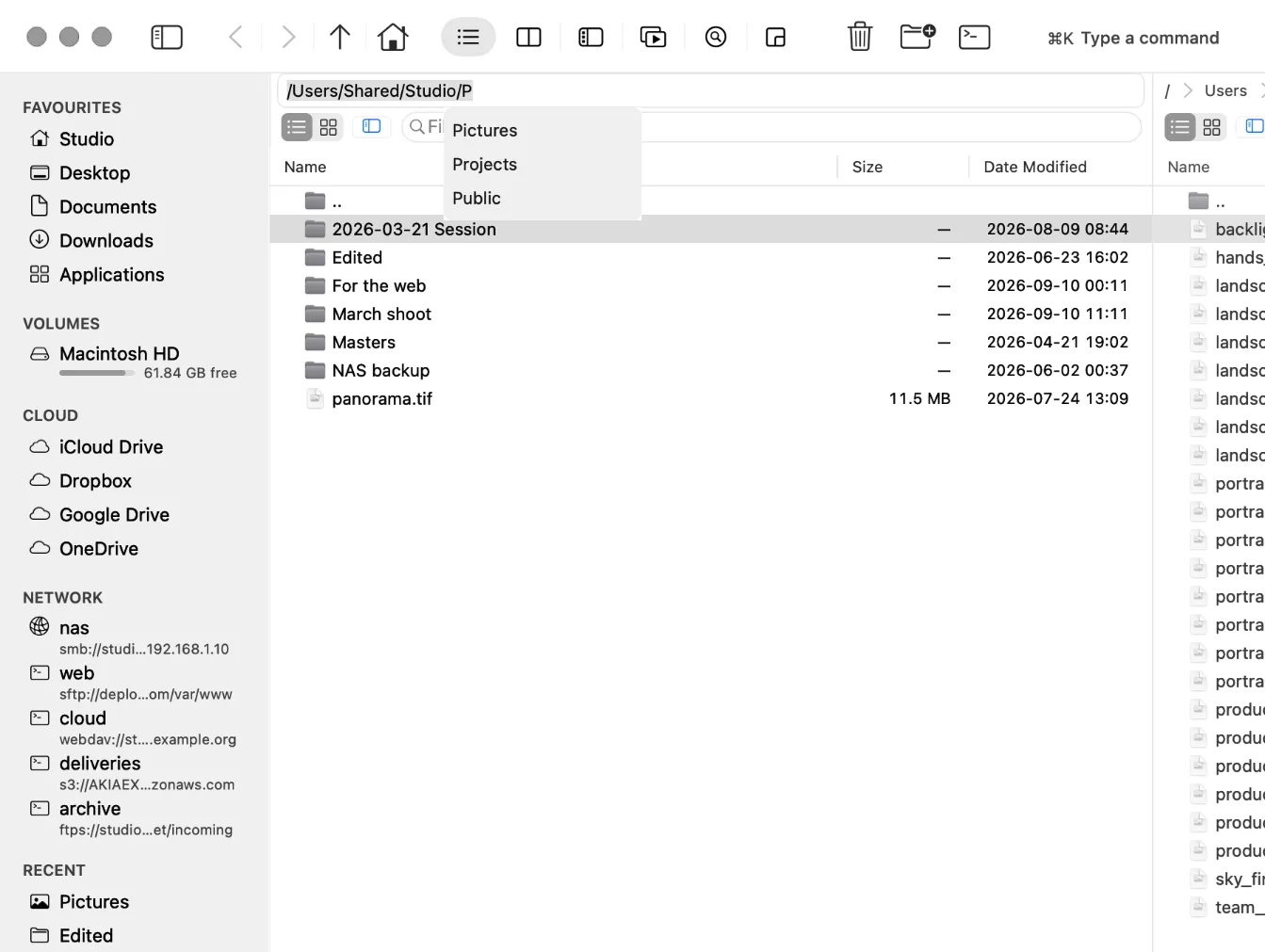
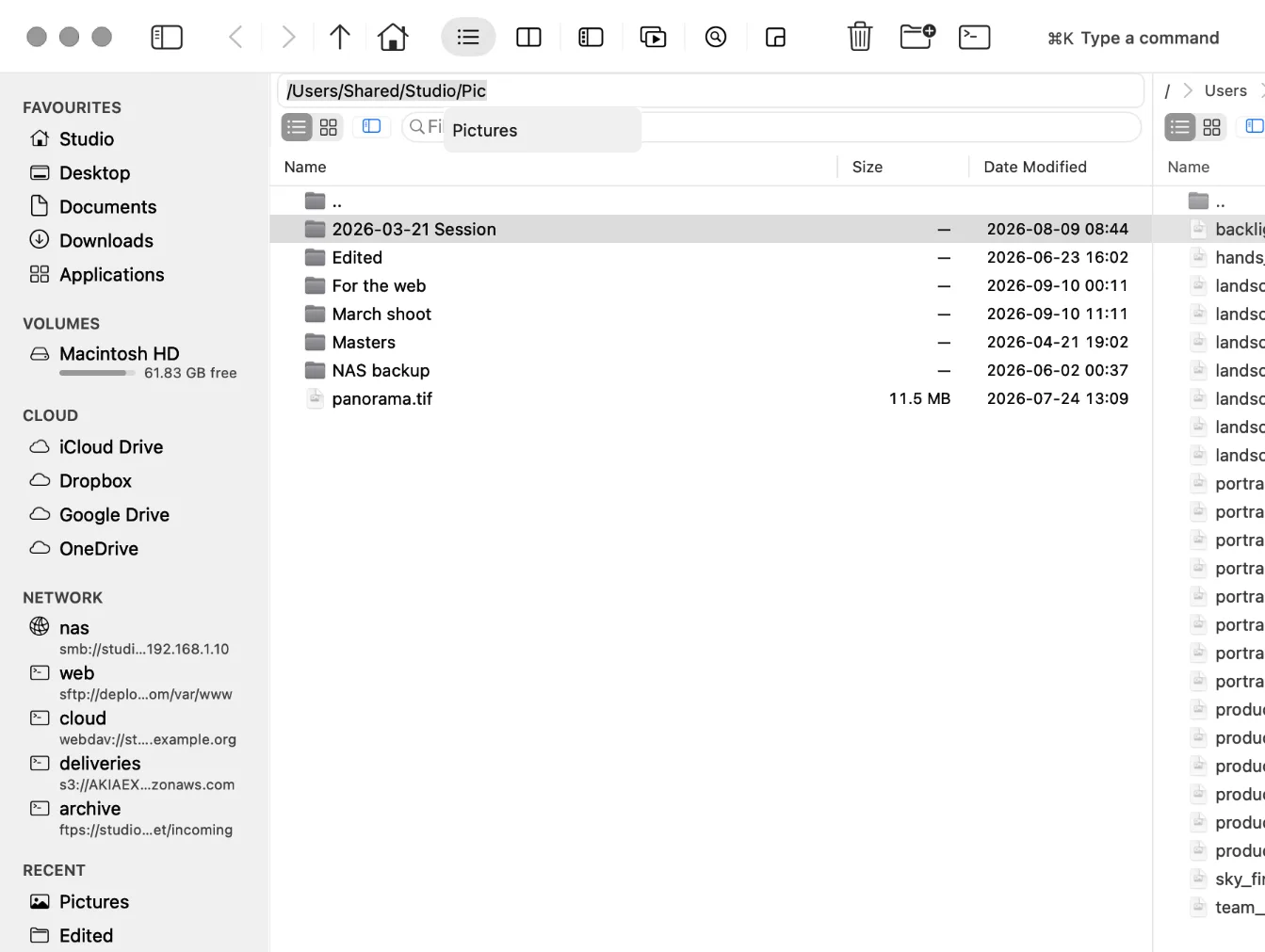
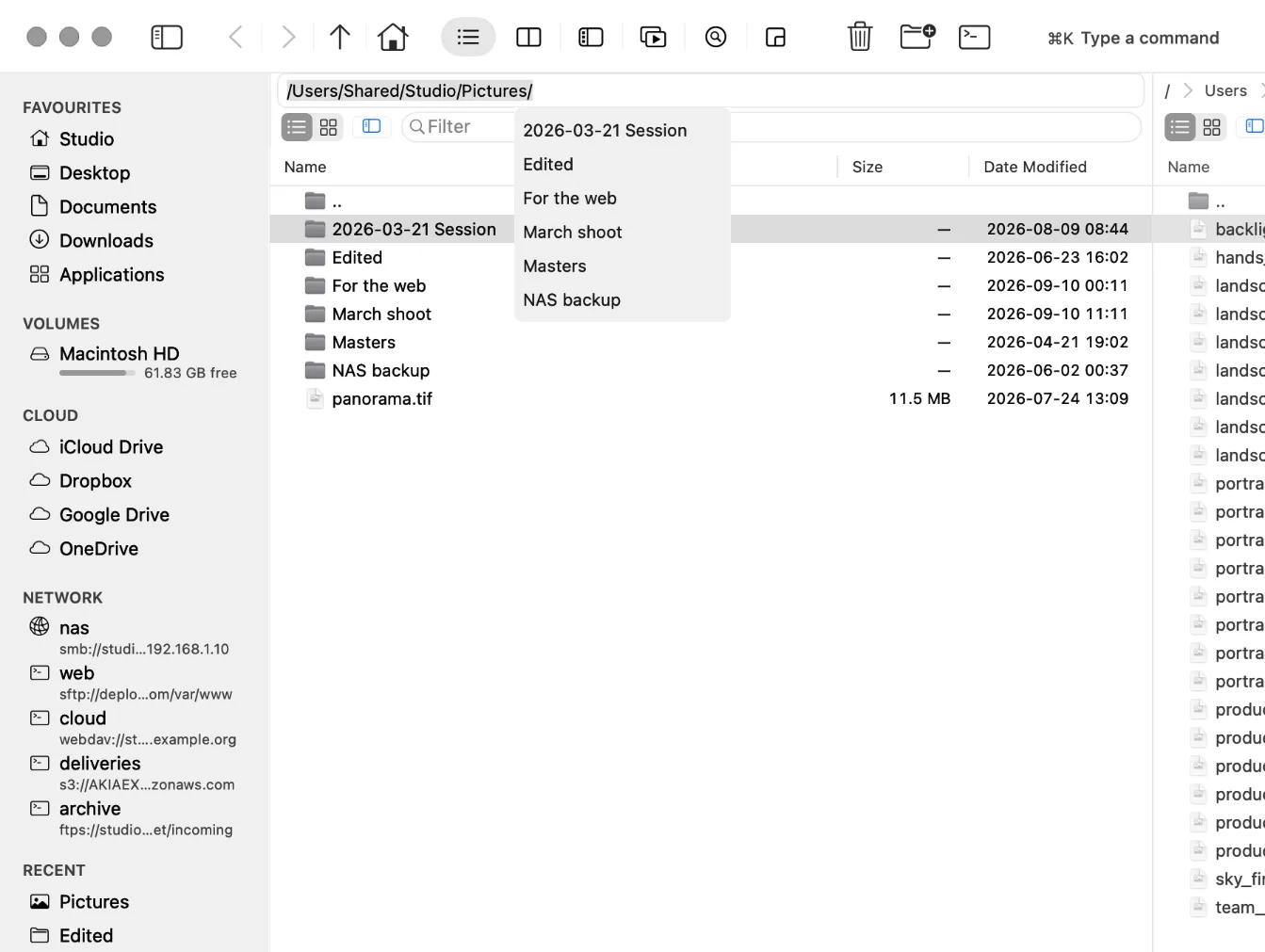
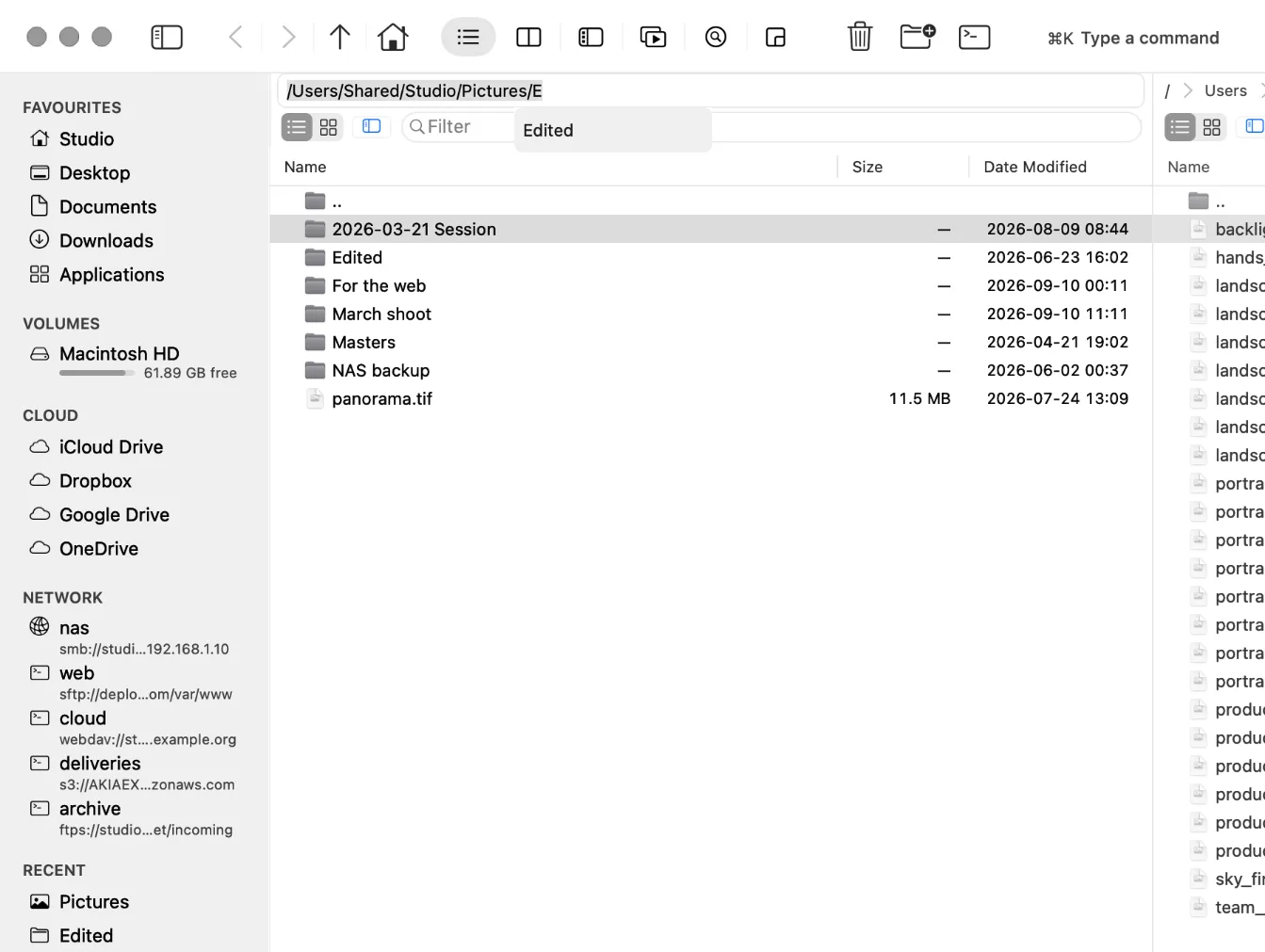
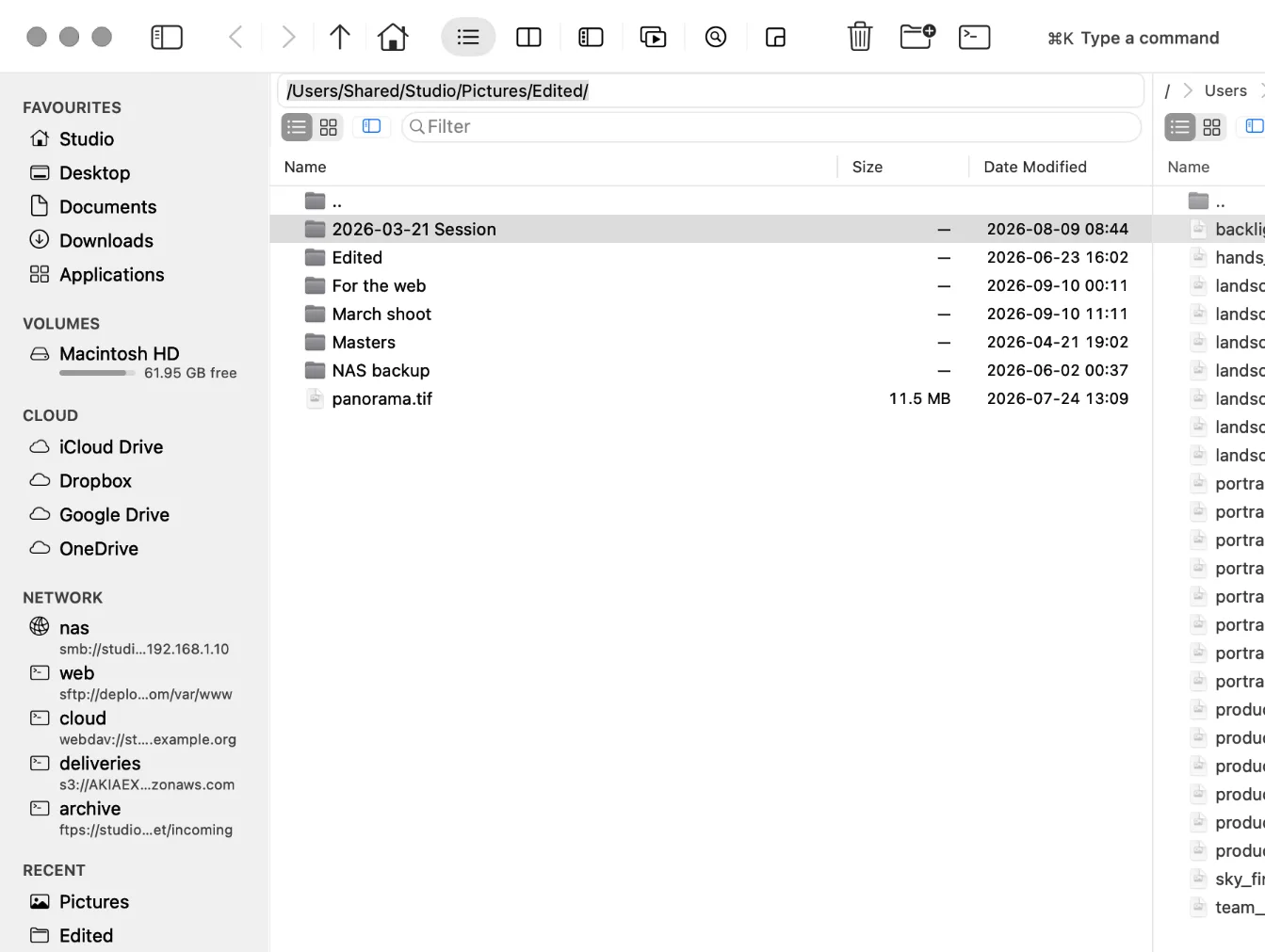
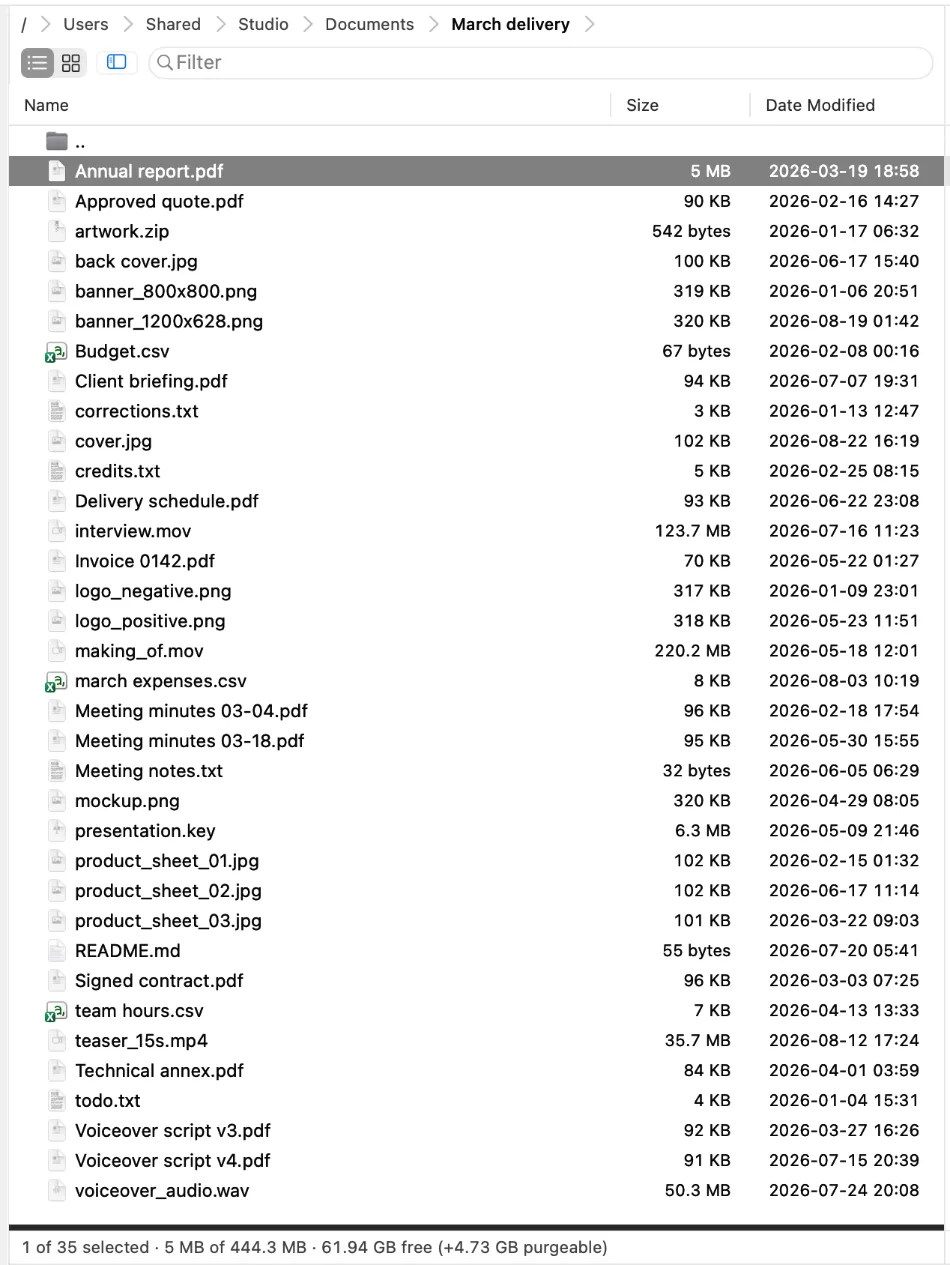
Delete the last part of the path and its sisters appear. The list suggests and never rewrites what you typed — Tab fills in only what they all share, and Esc puts the breadcrumbs back.
Finding
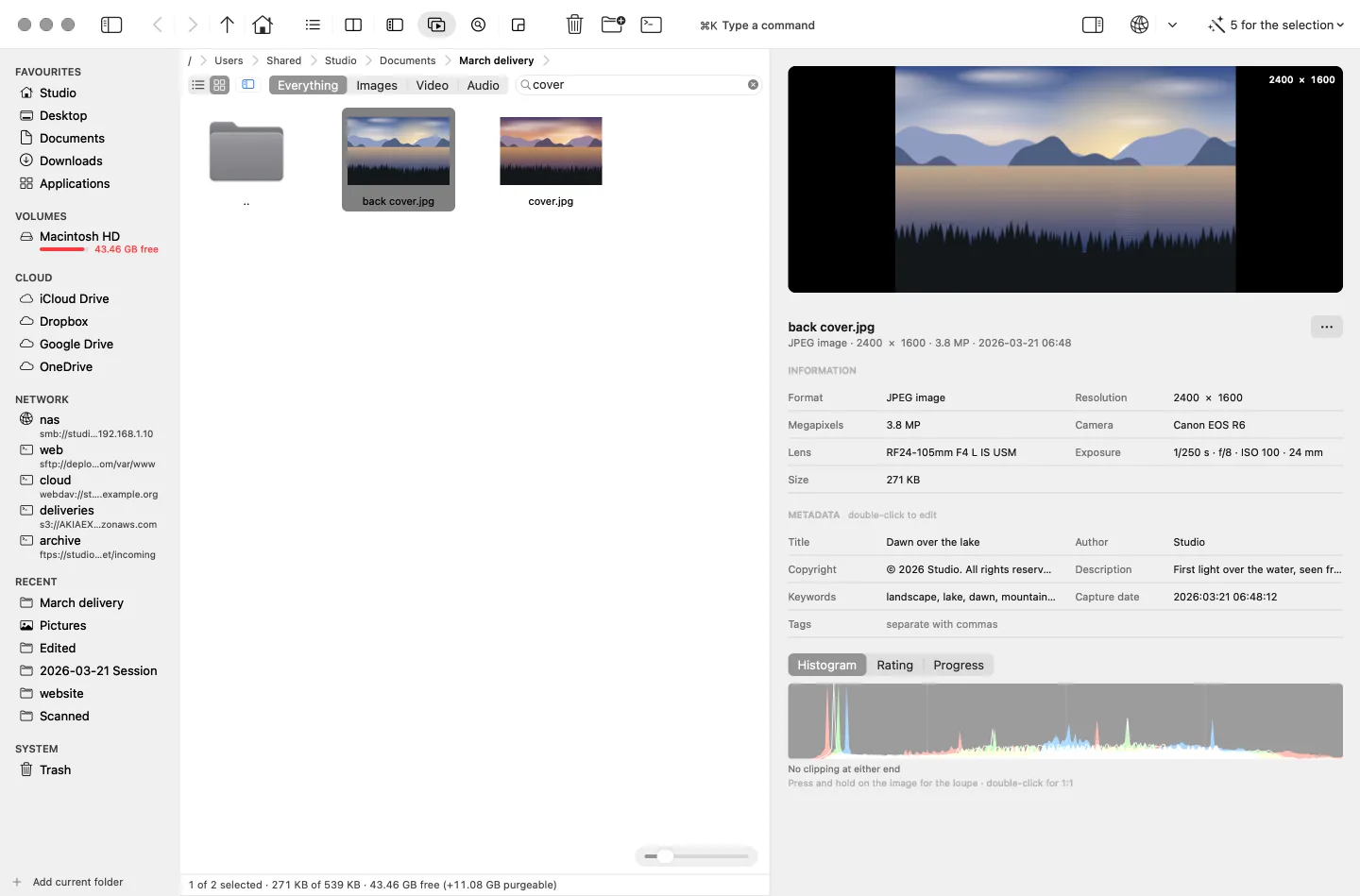
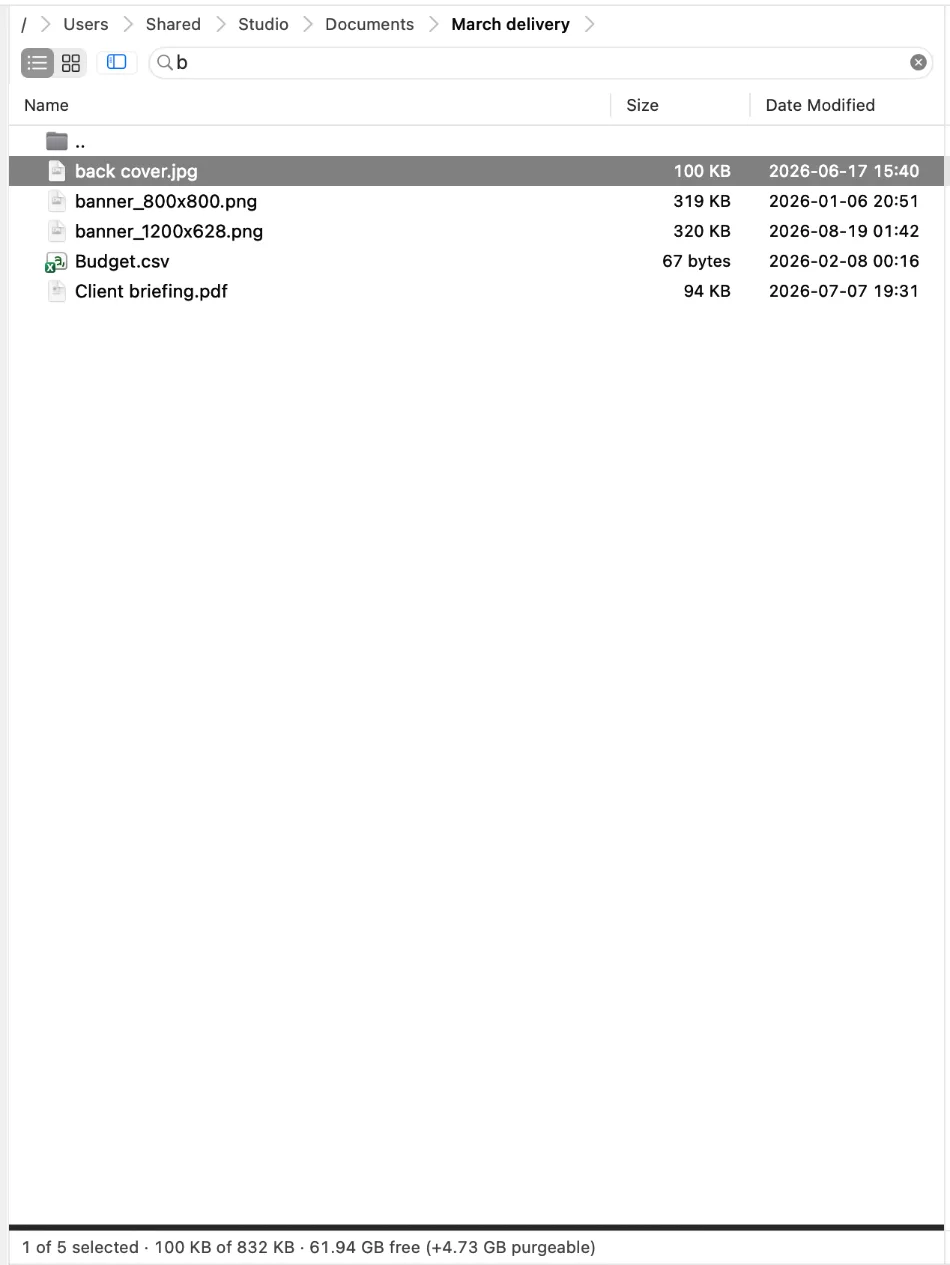
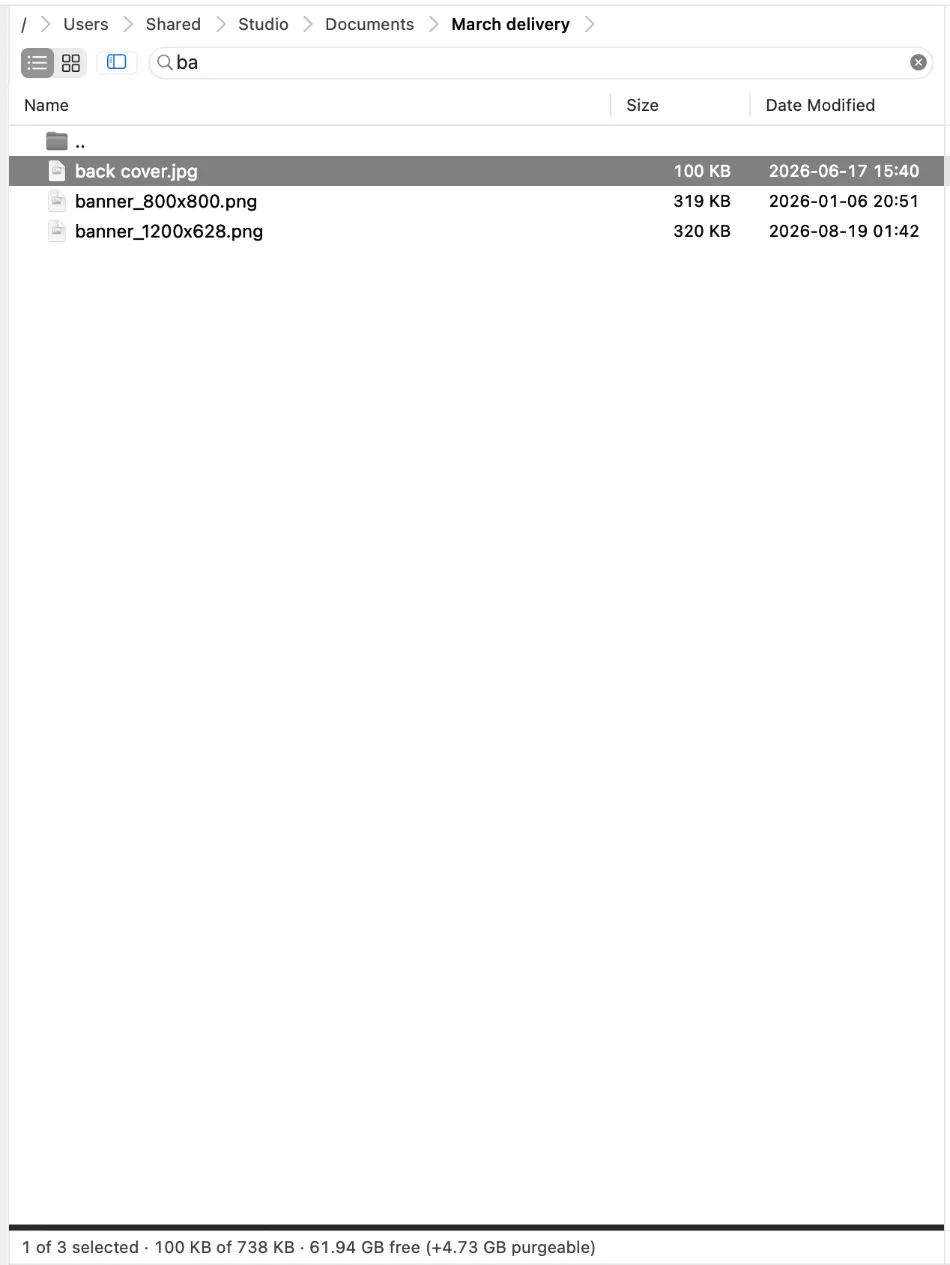
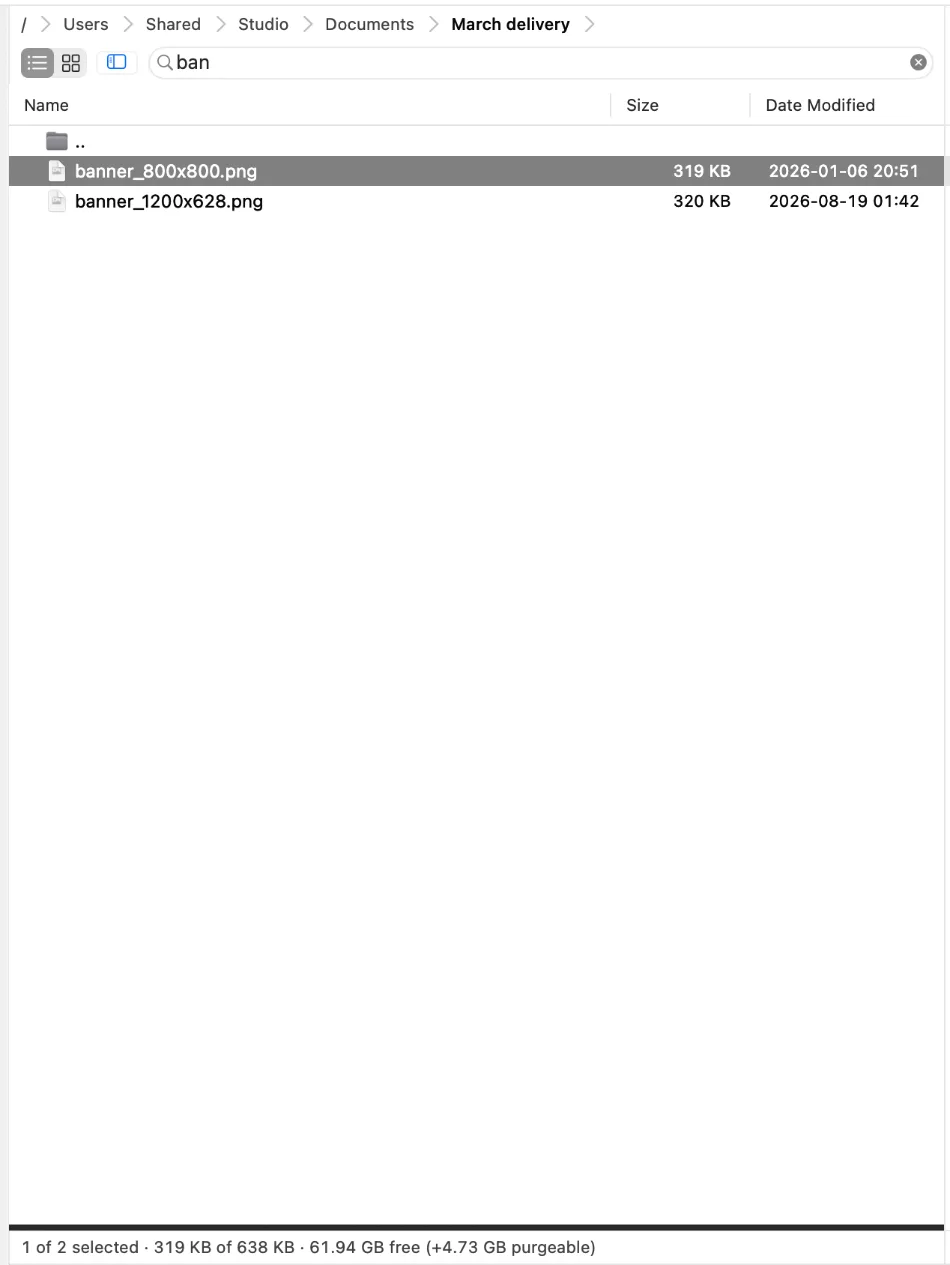
It says Filter because that is what it does: it narrows the folder on screen while you type. Return turns the same box into a real search — recursive, with the results in the panel where every command still works on them.
Two panels
The second panel is the destination, so copying is one key and no dragging. And nothing moves until the plan has been read: how many files, how much space, what is already over there.
Modes
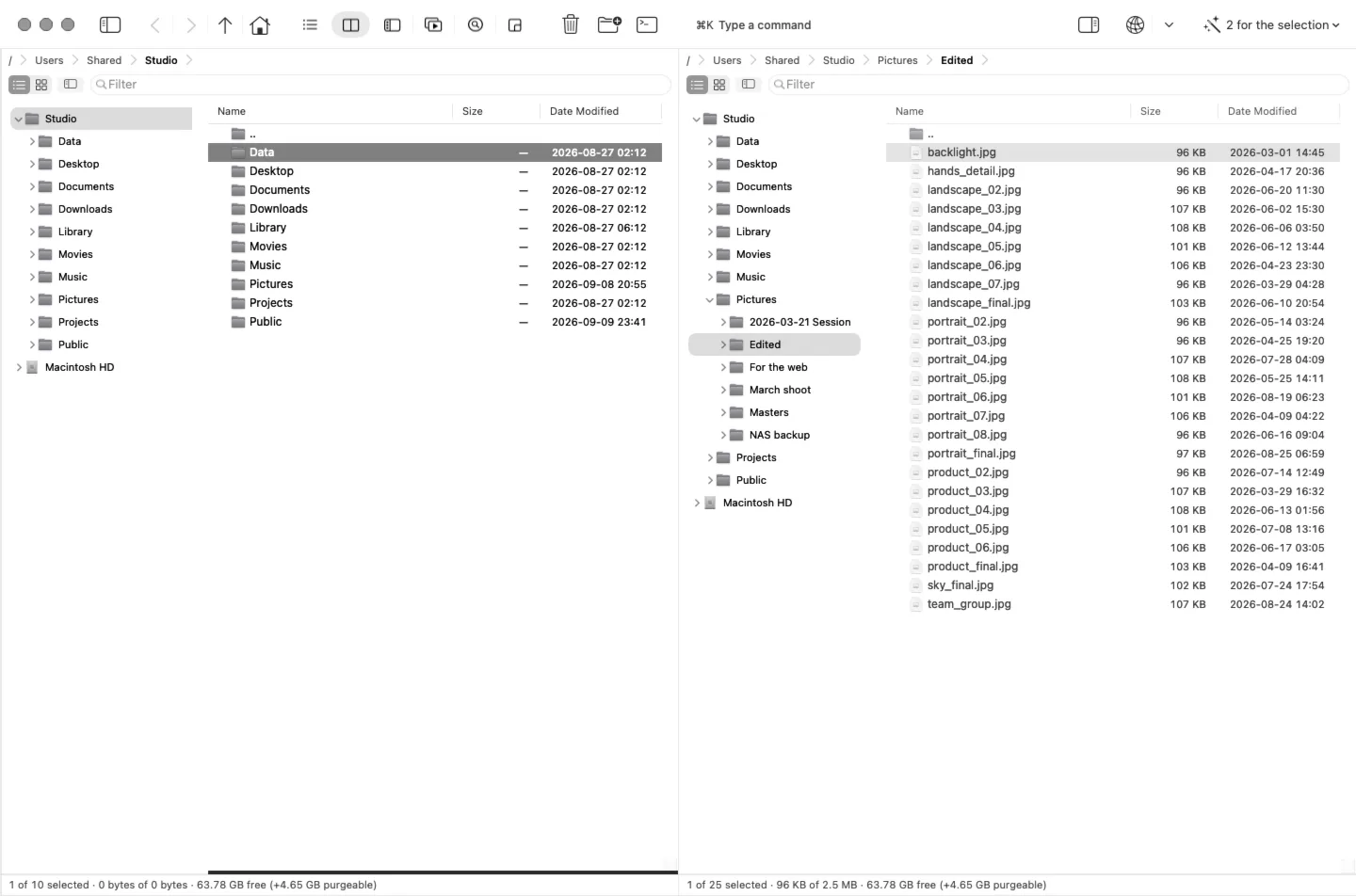
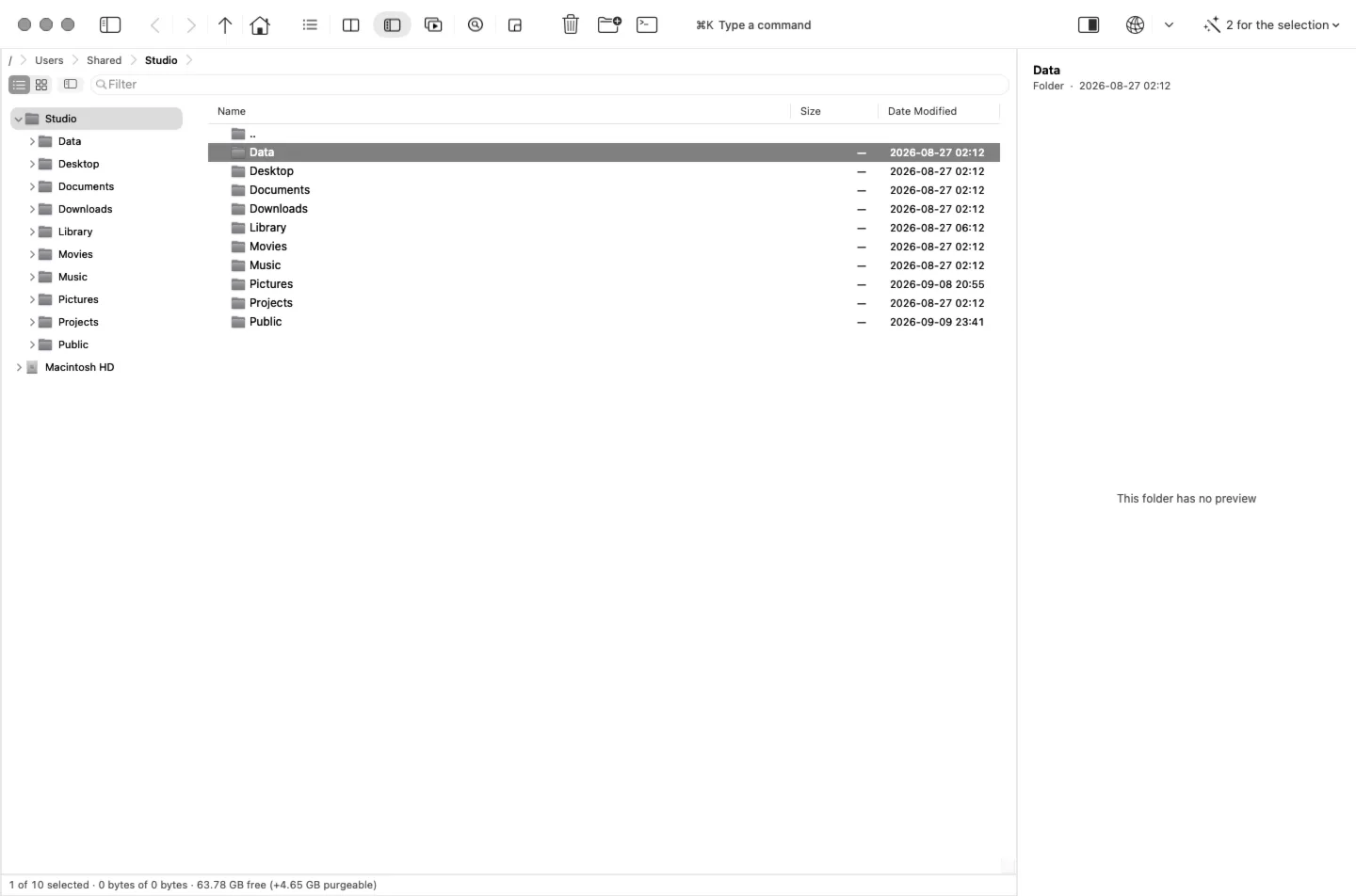
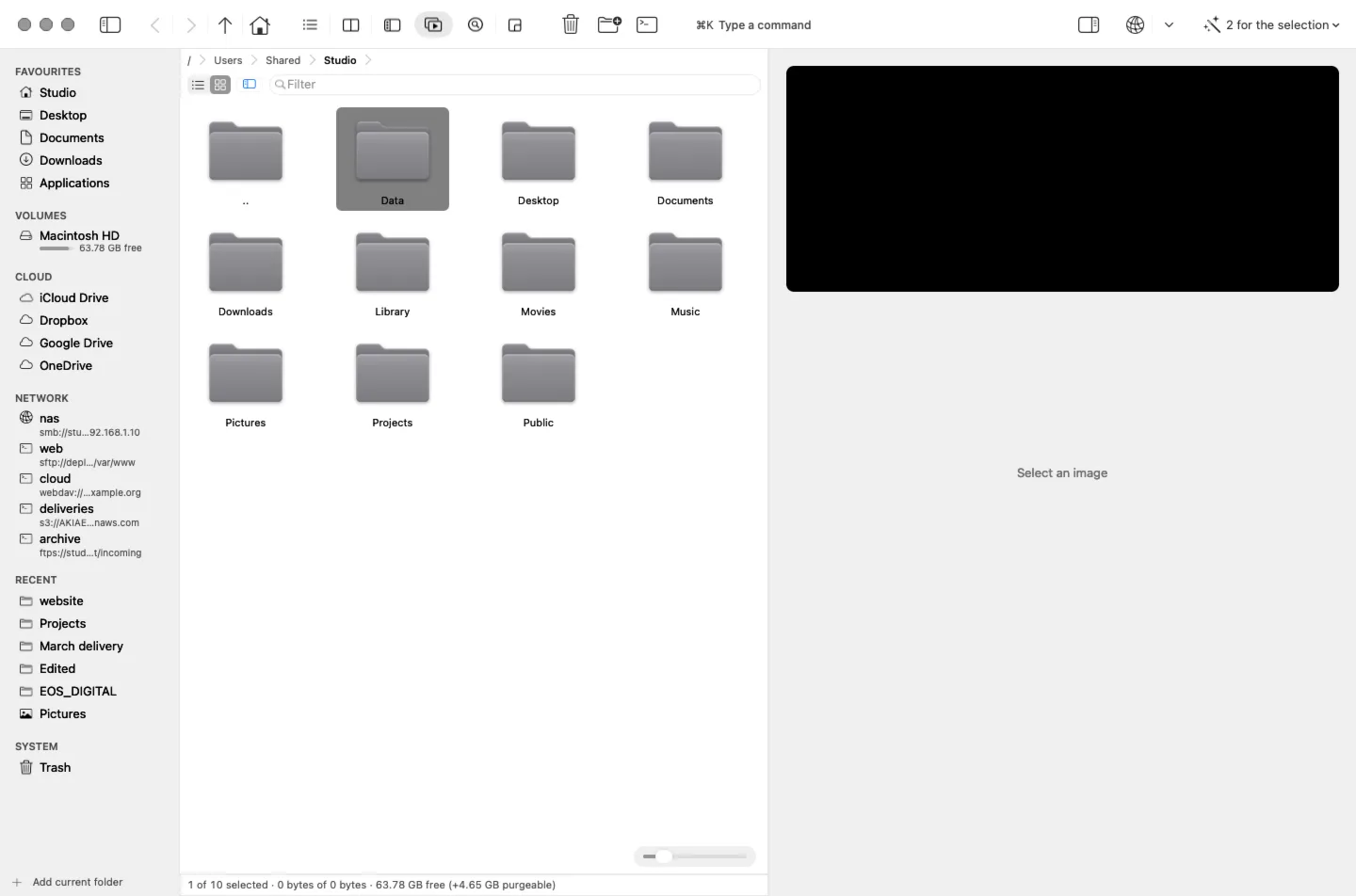
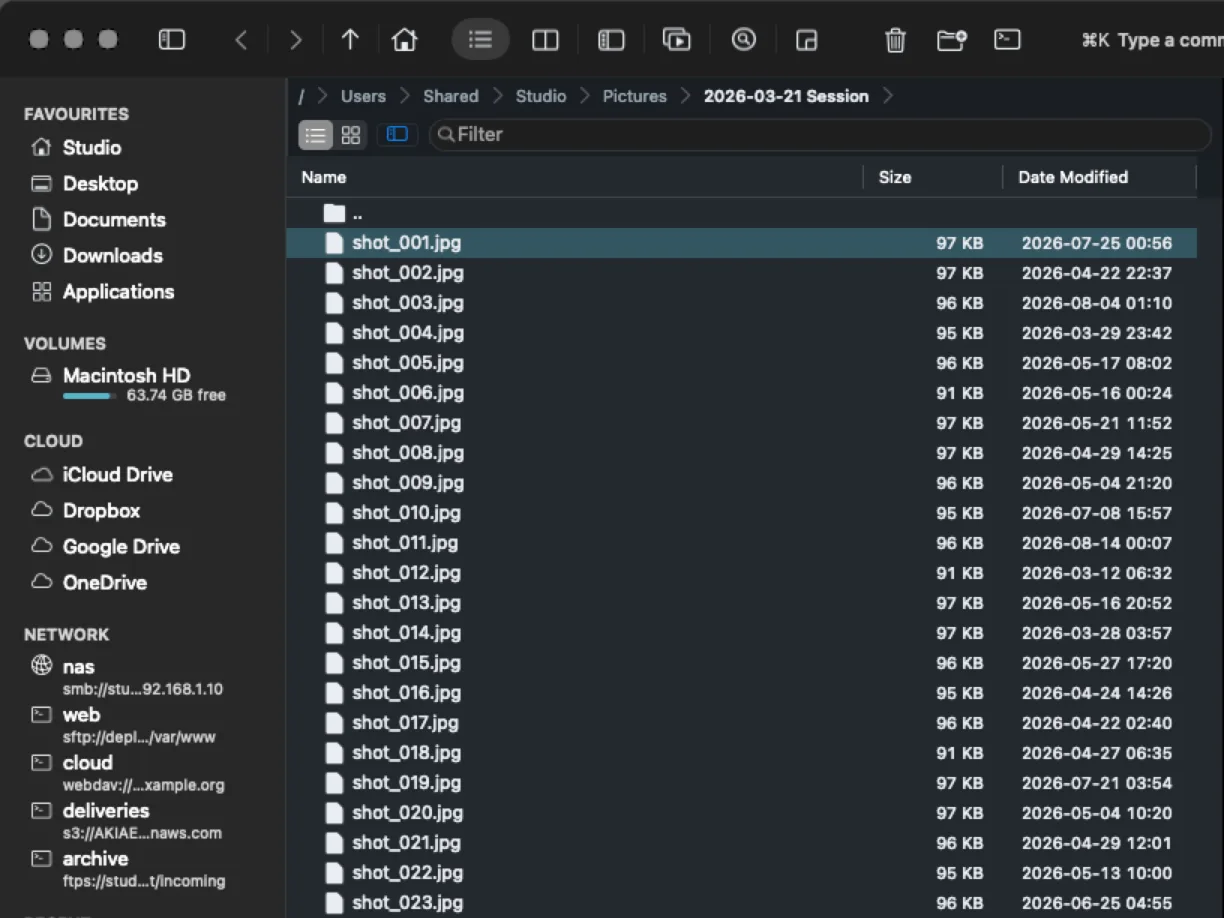
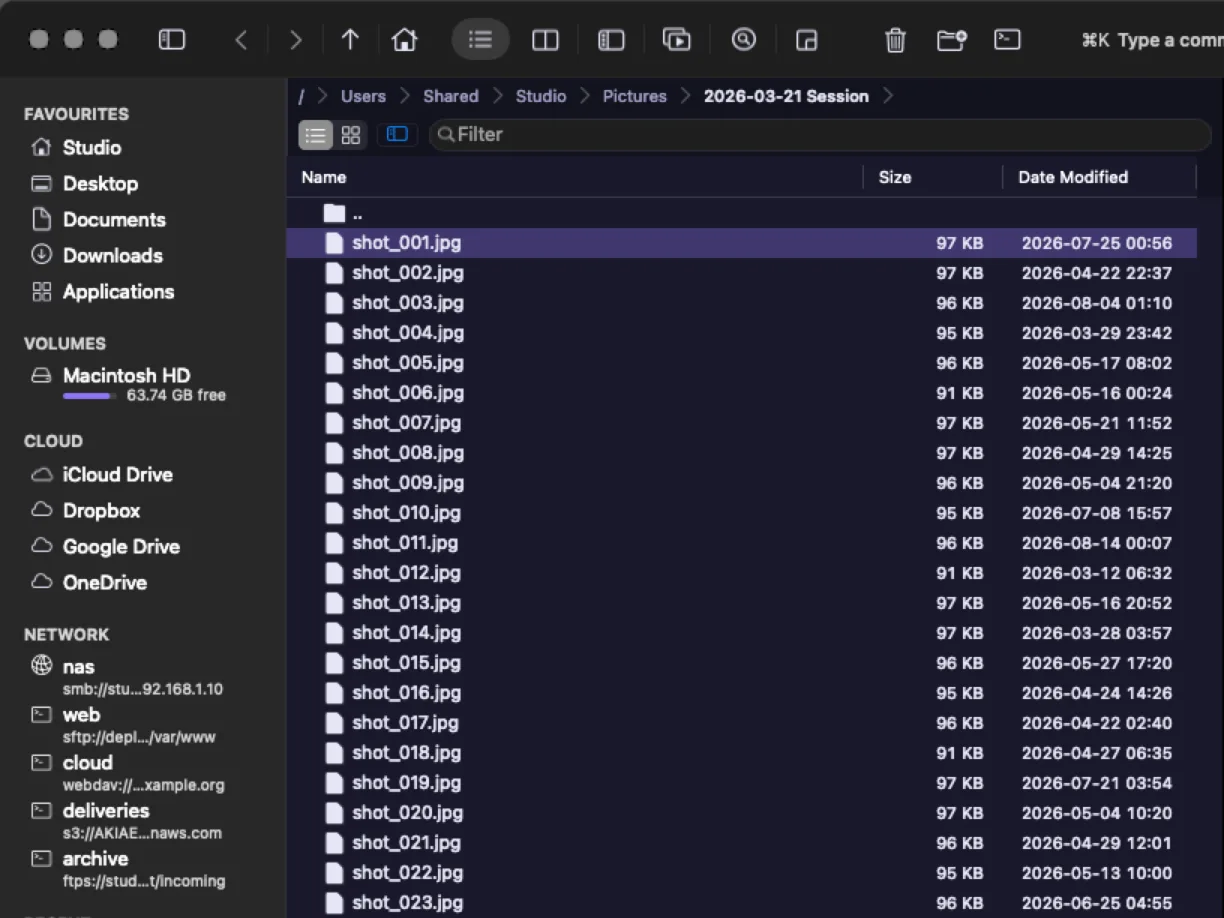
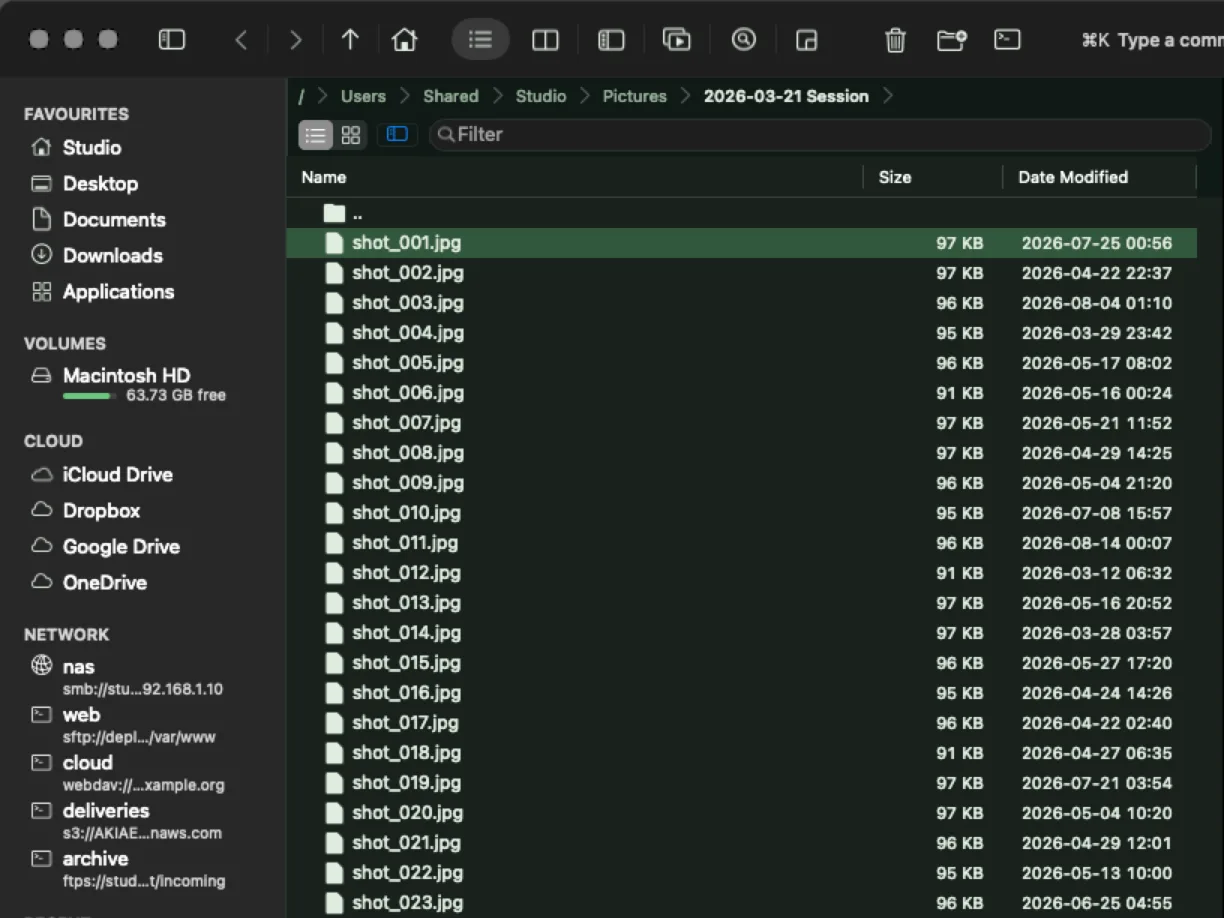
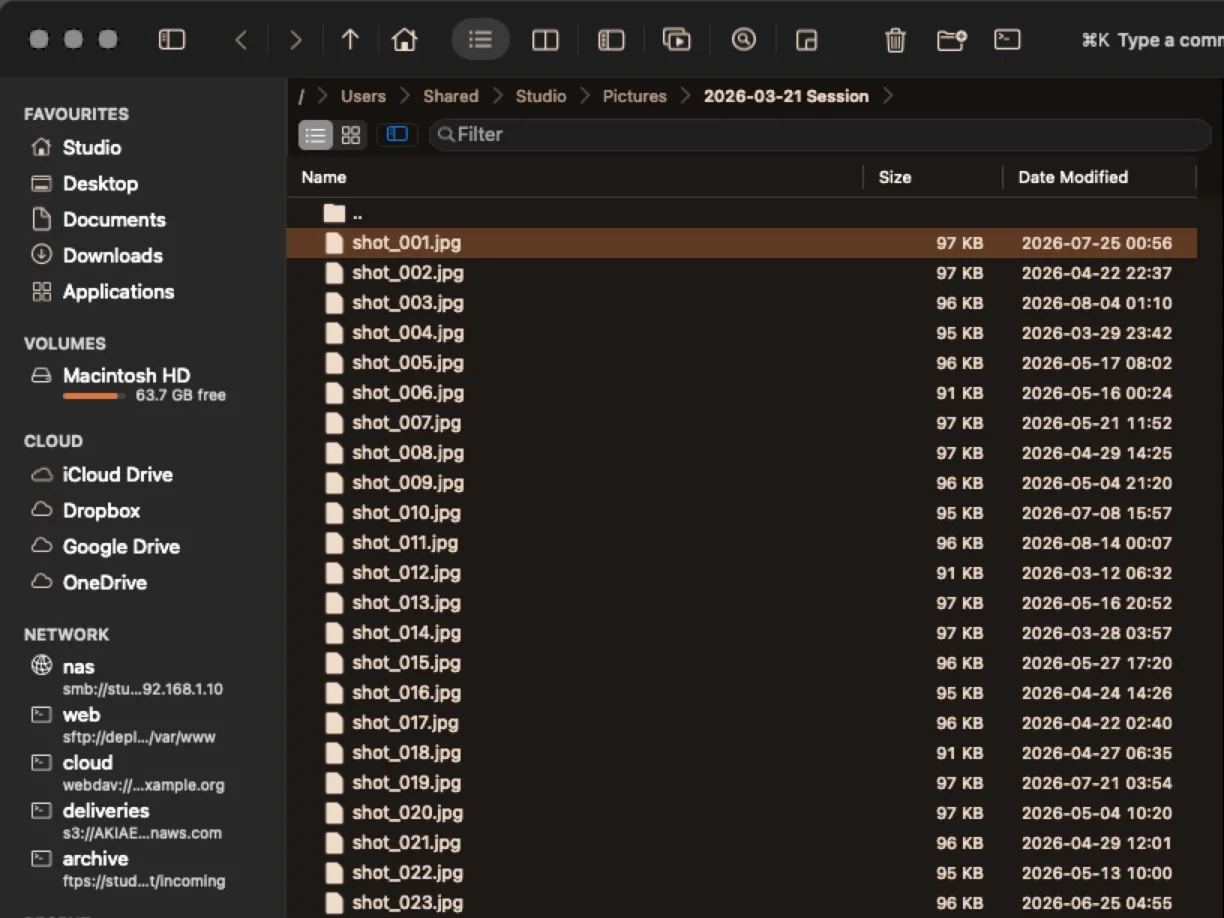
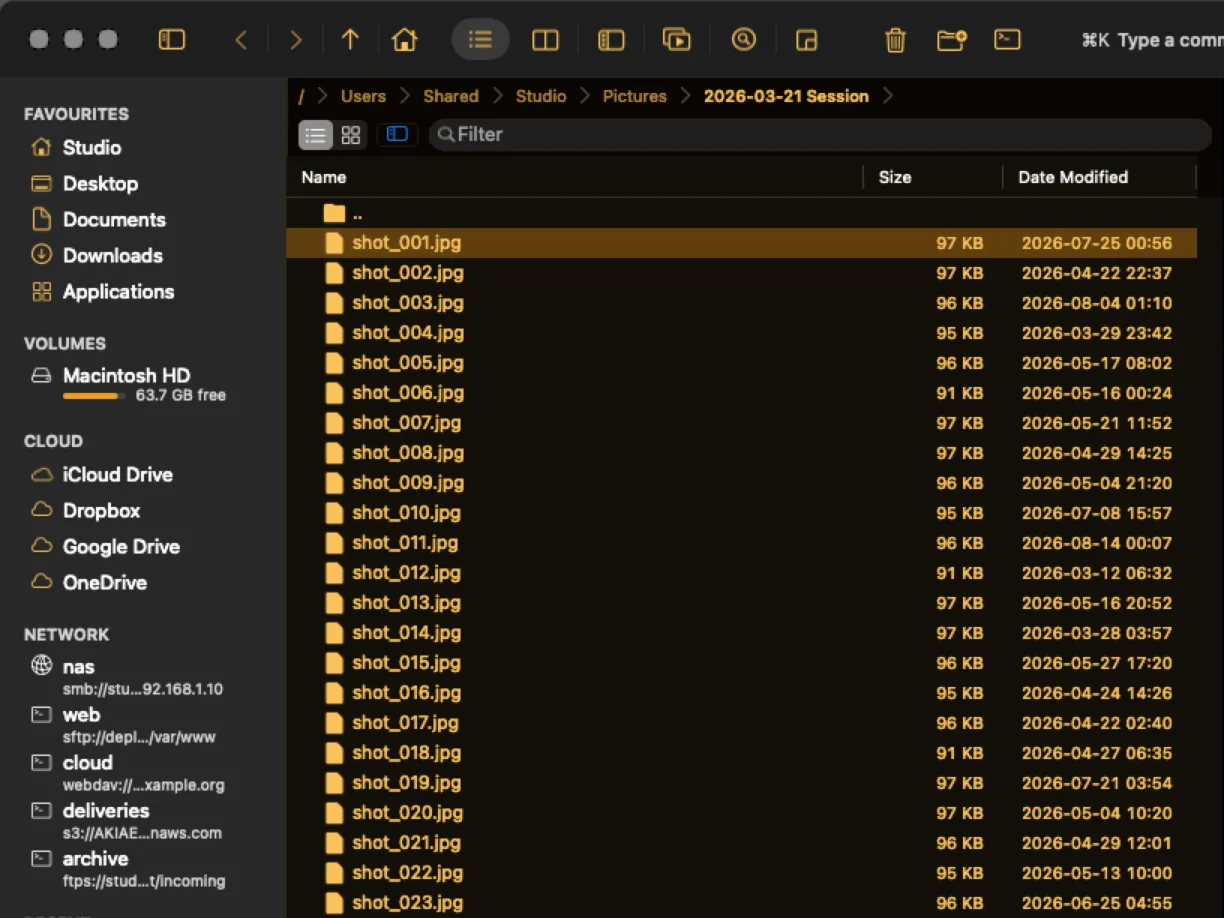
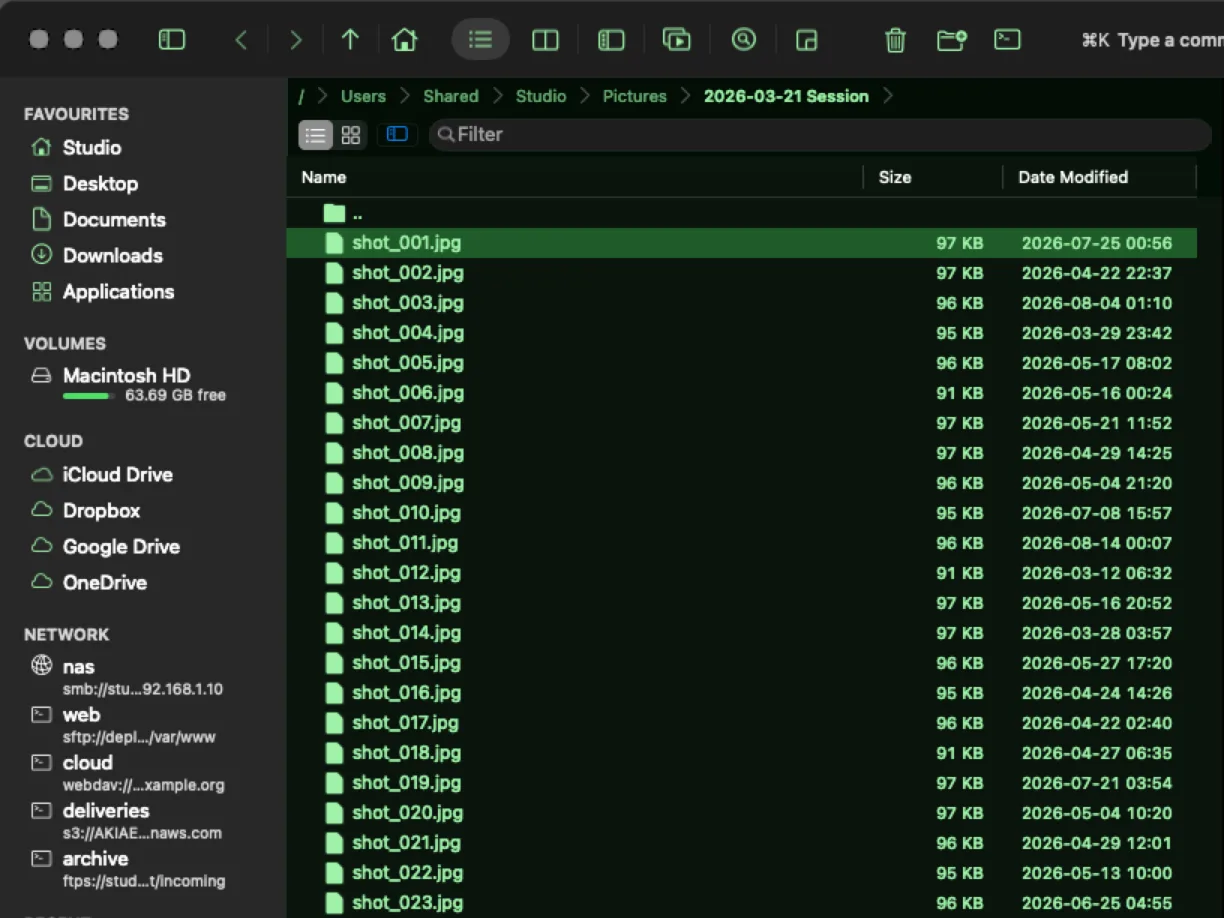
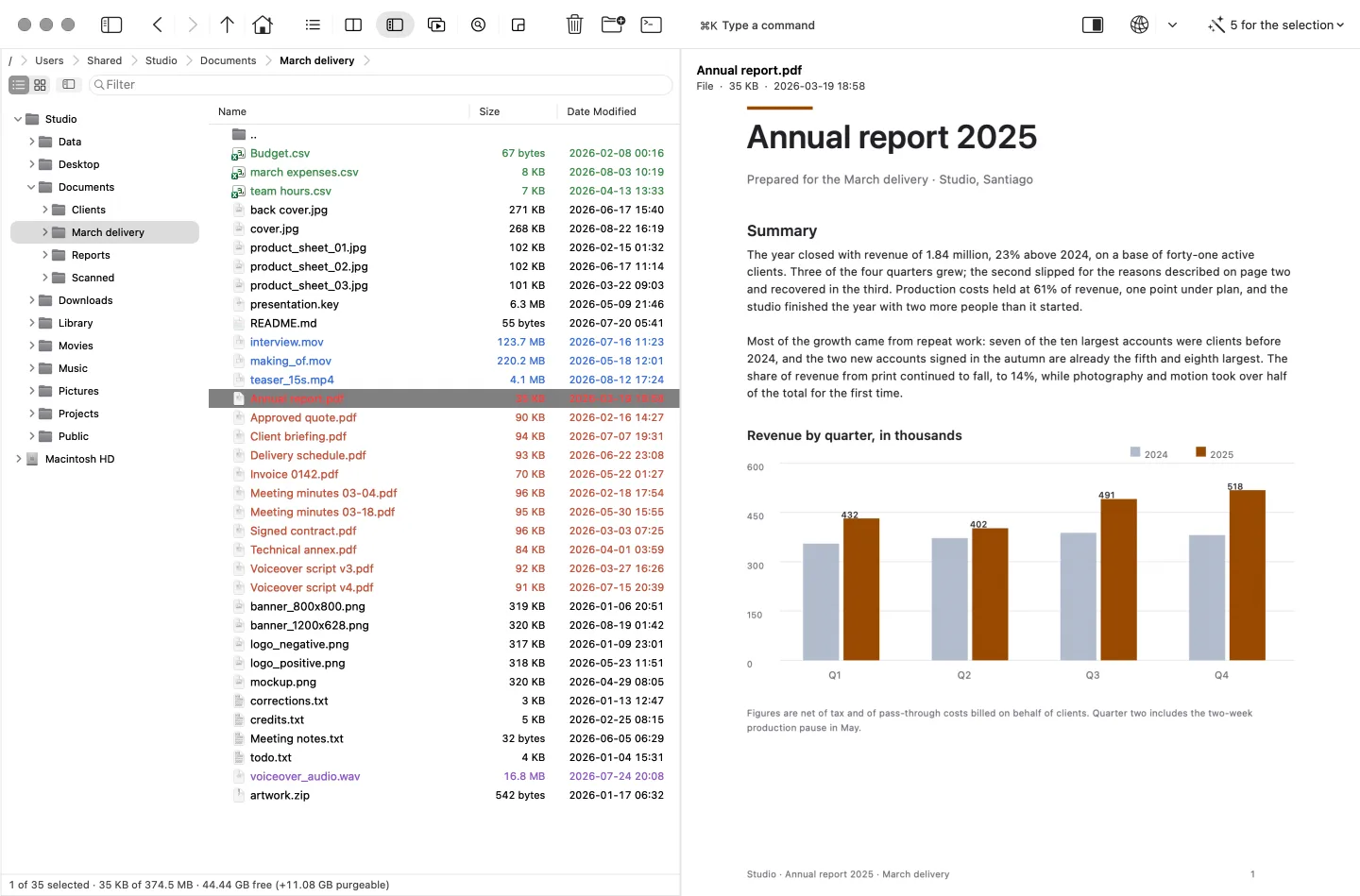
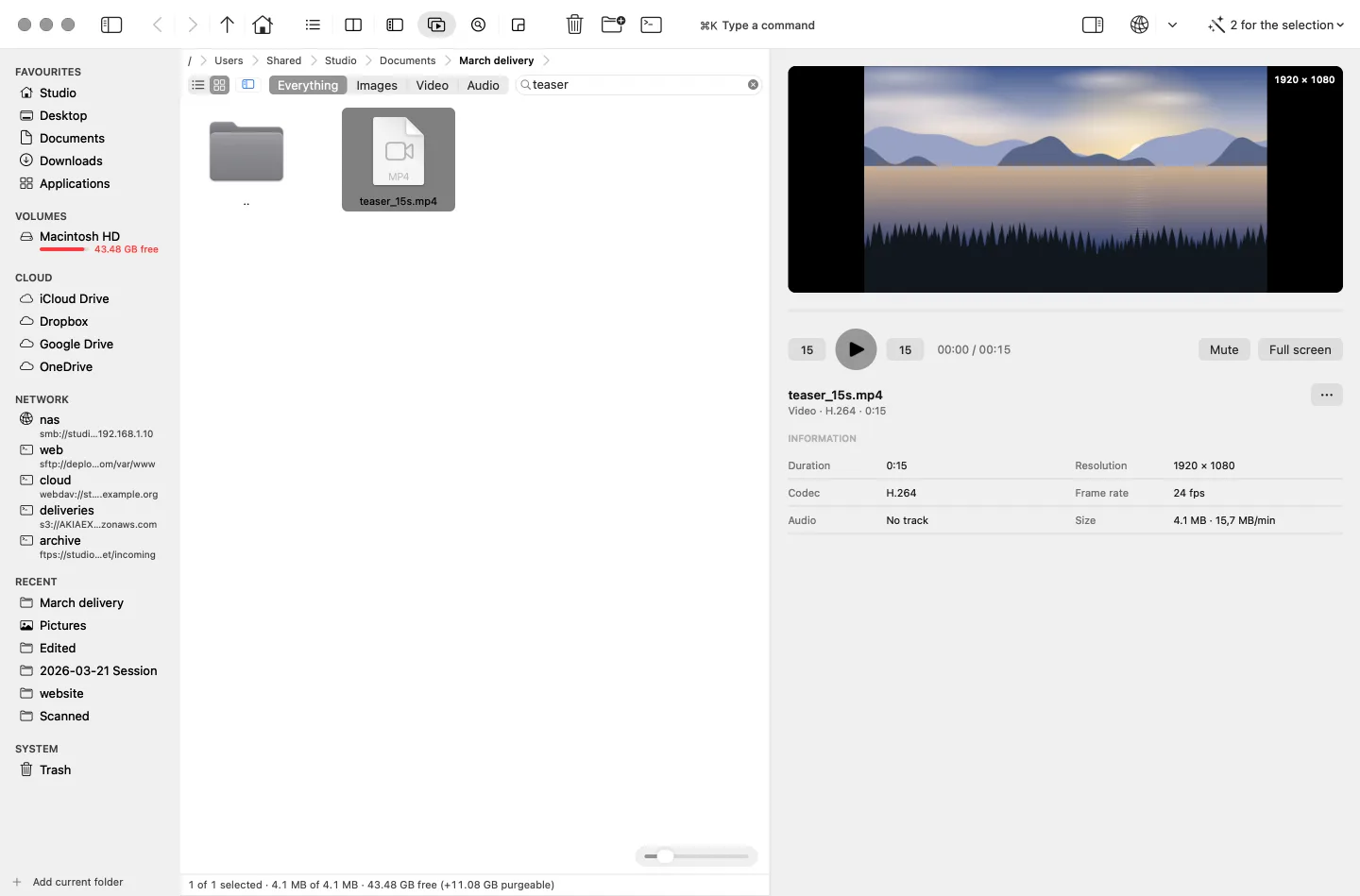
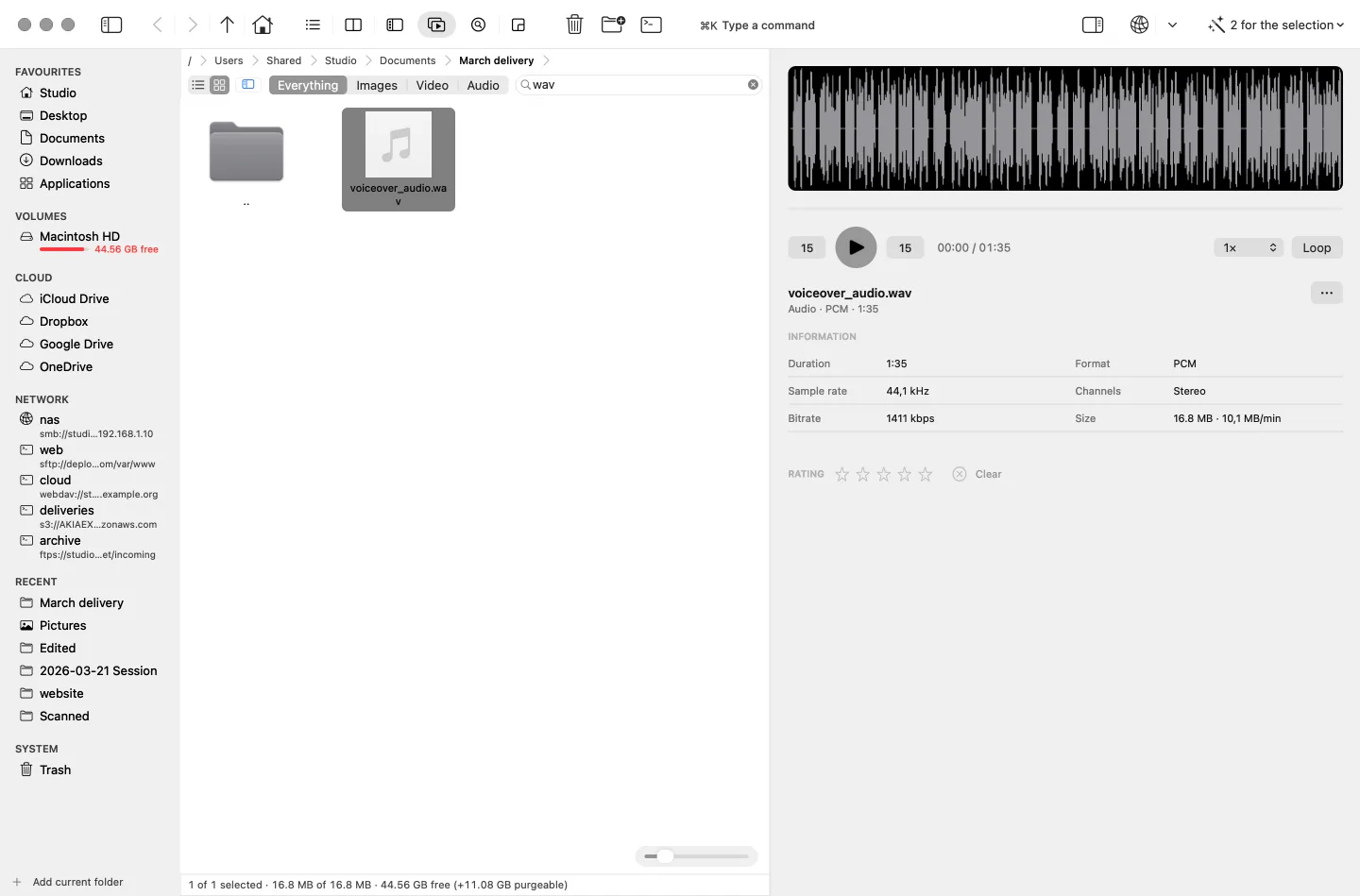
Three ways of arranging the window and three jobs that arrange it for you. The same folder stays loaded through all six, which is what makes the difference legible.
Branch view
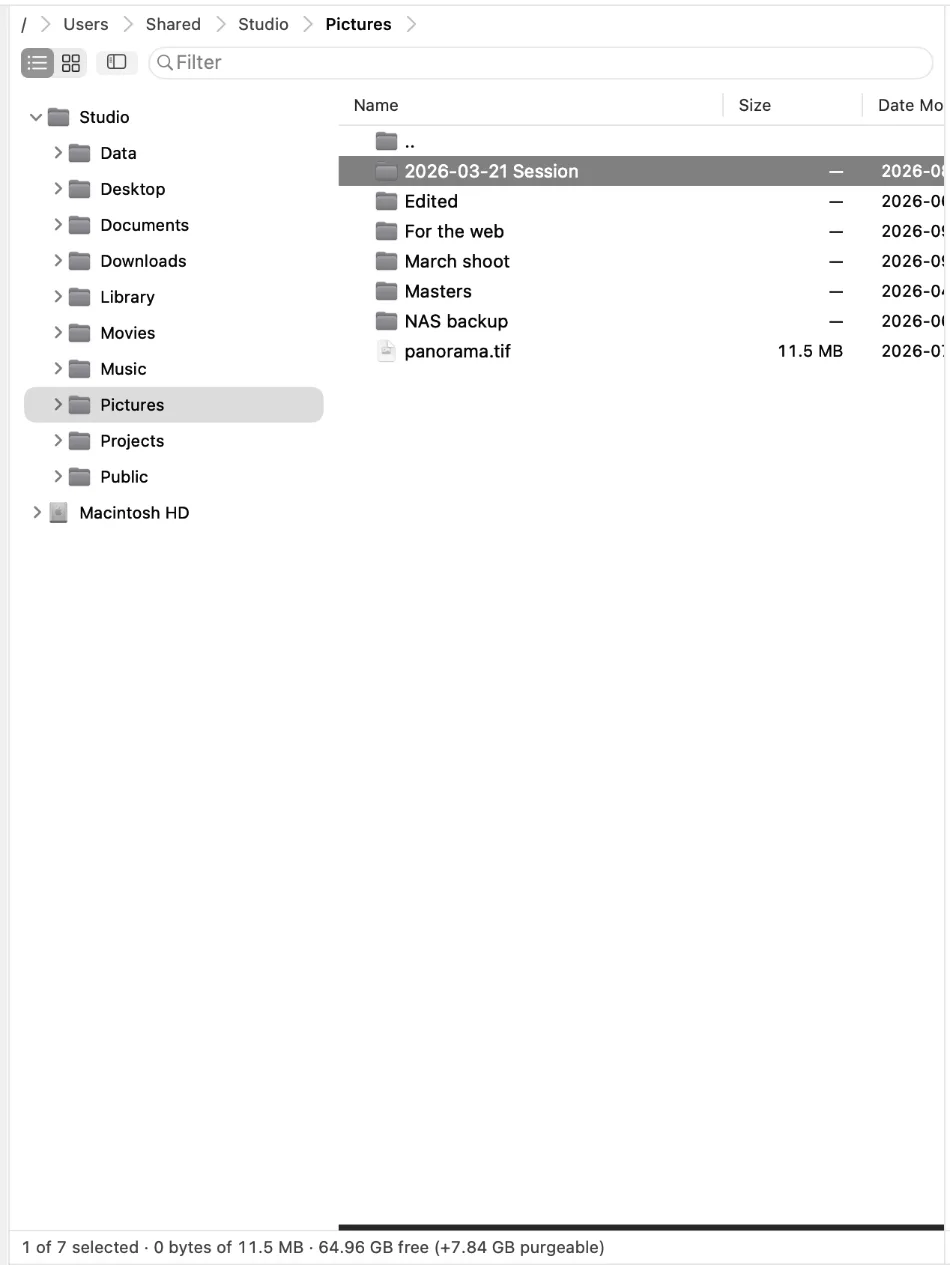
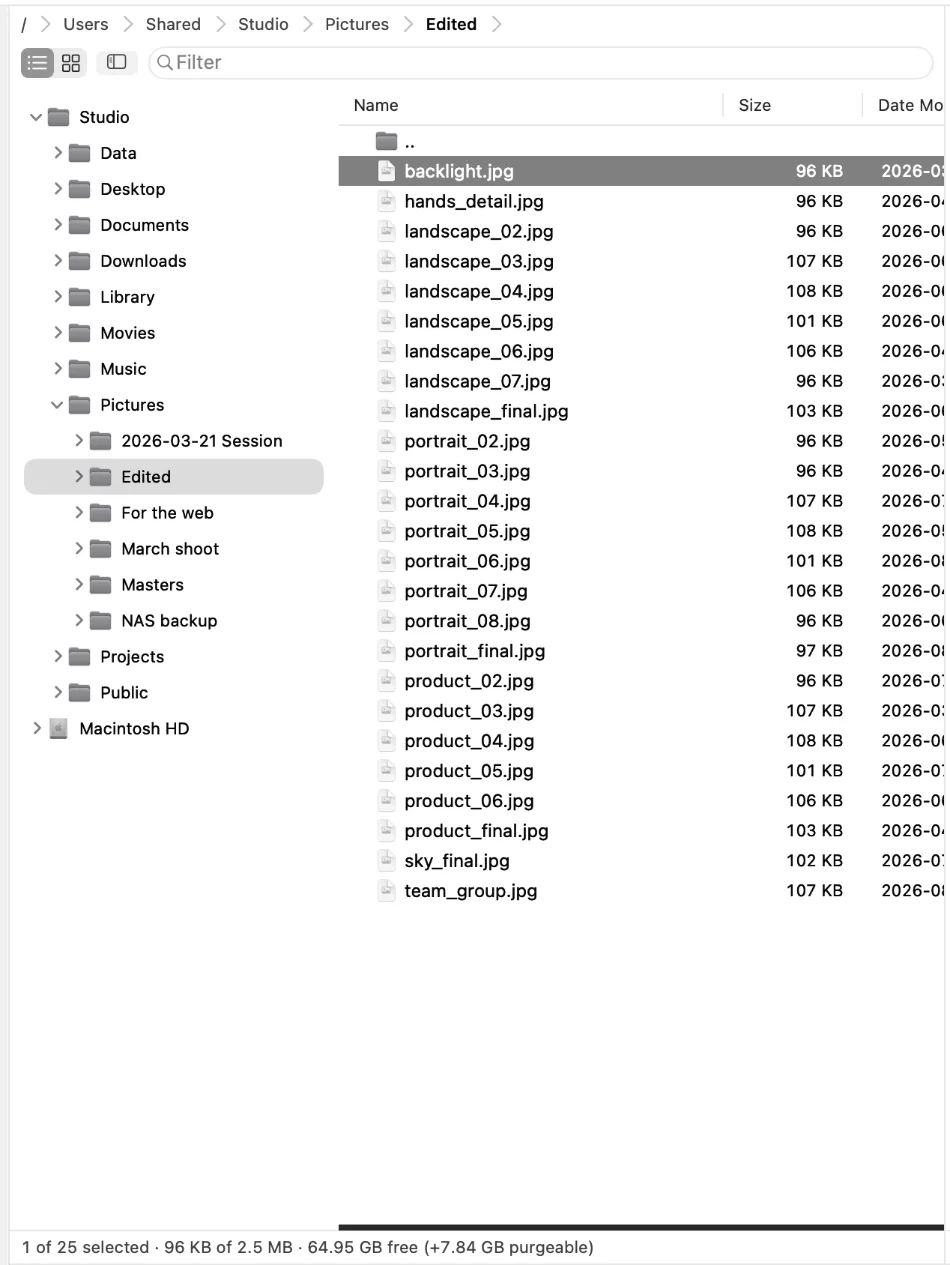
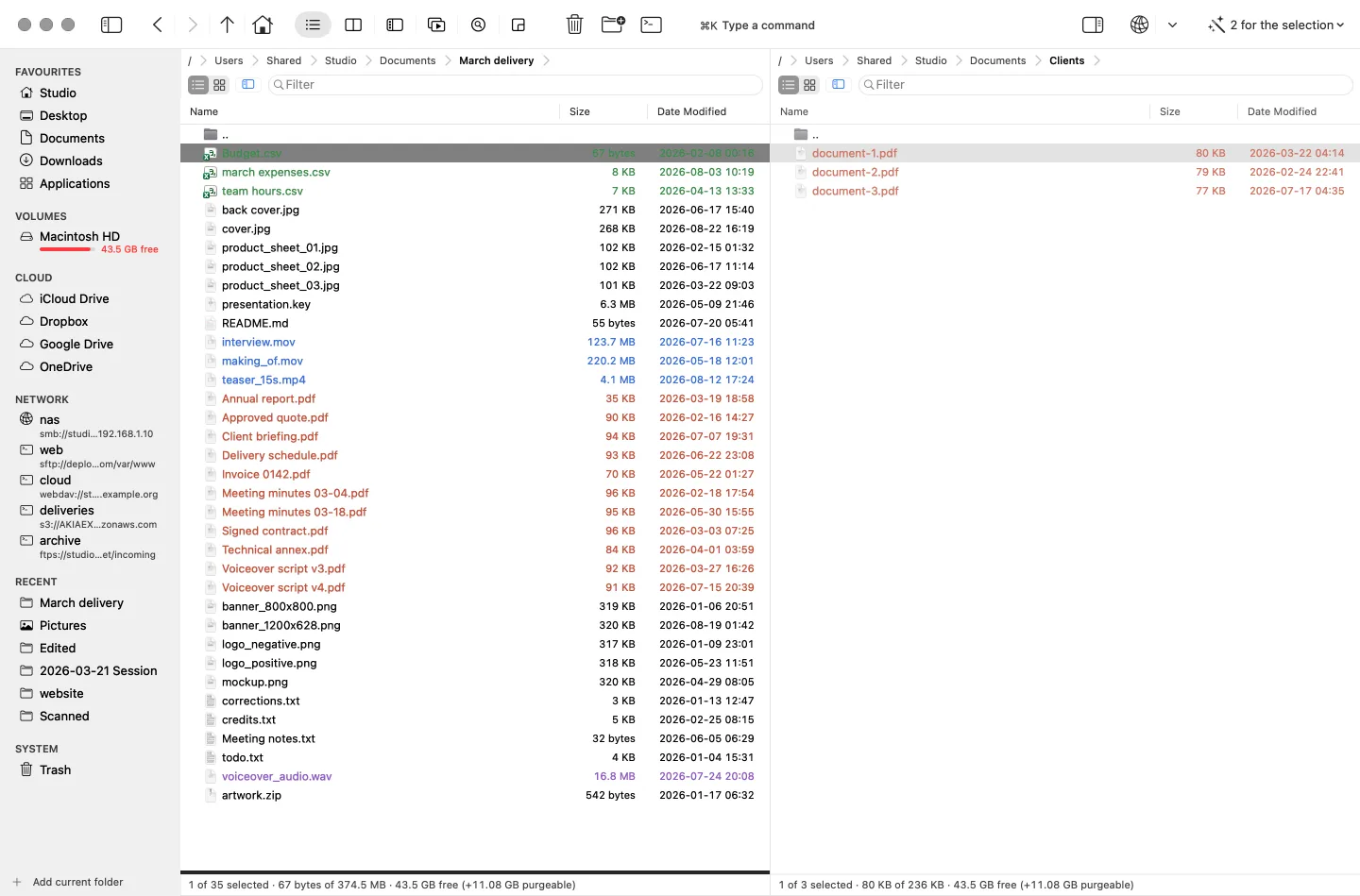
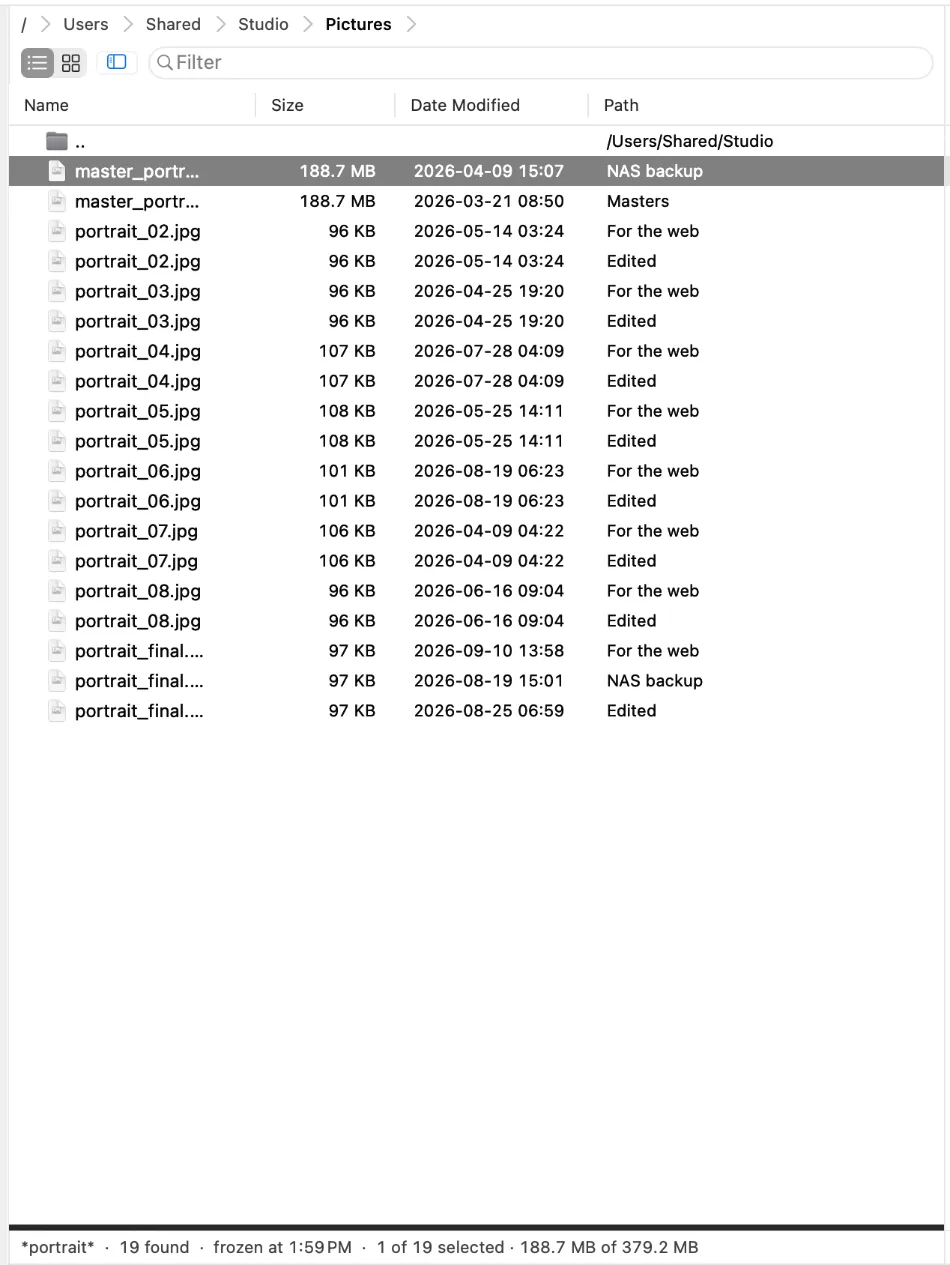
The folder tree stays where it is, as the map. The listing goes flat: every file in every branch as one list, with the path as a column. One key in, one key out.
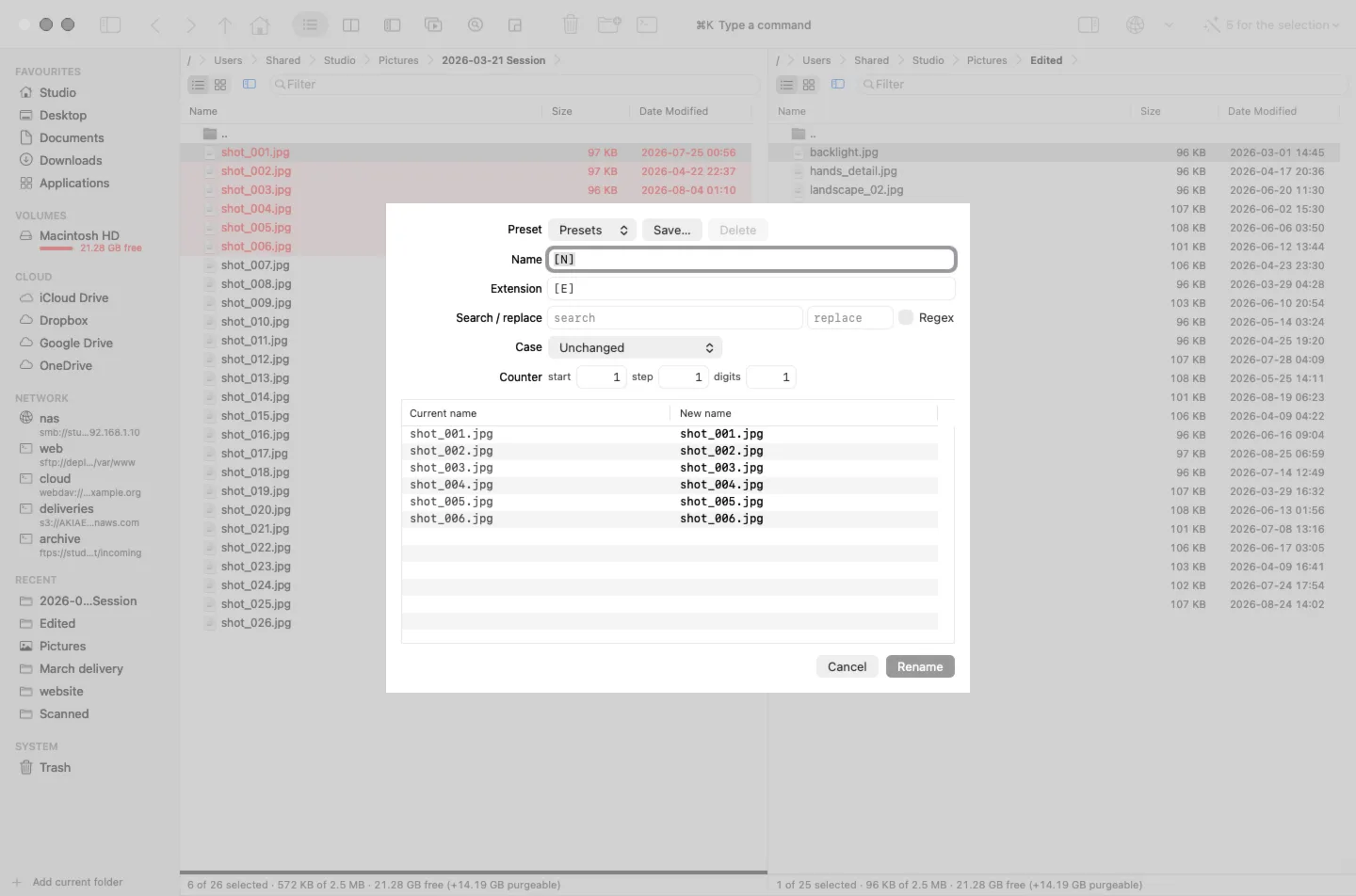
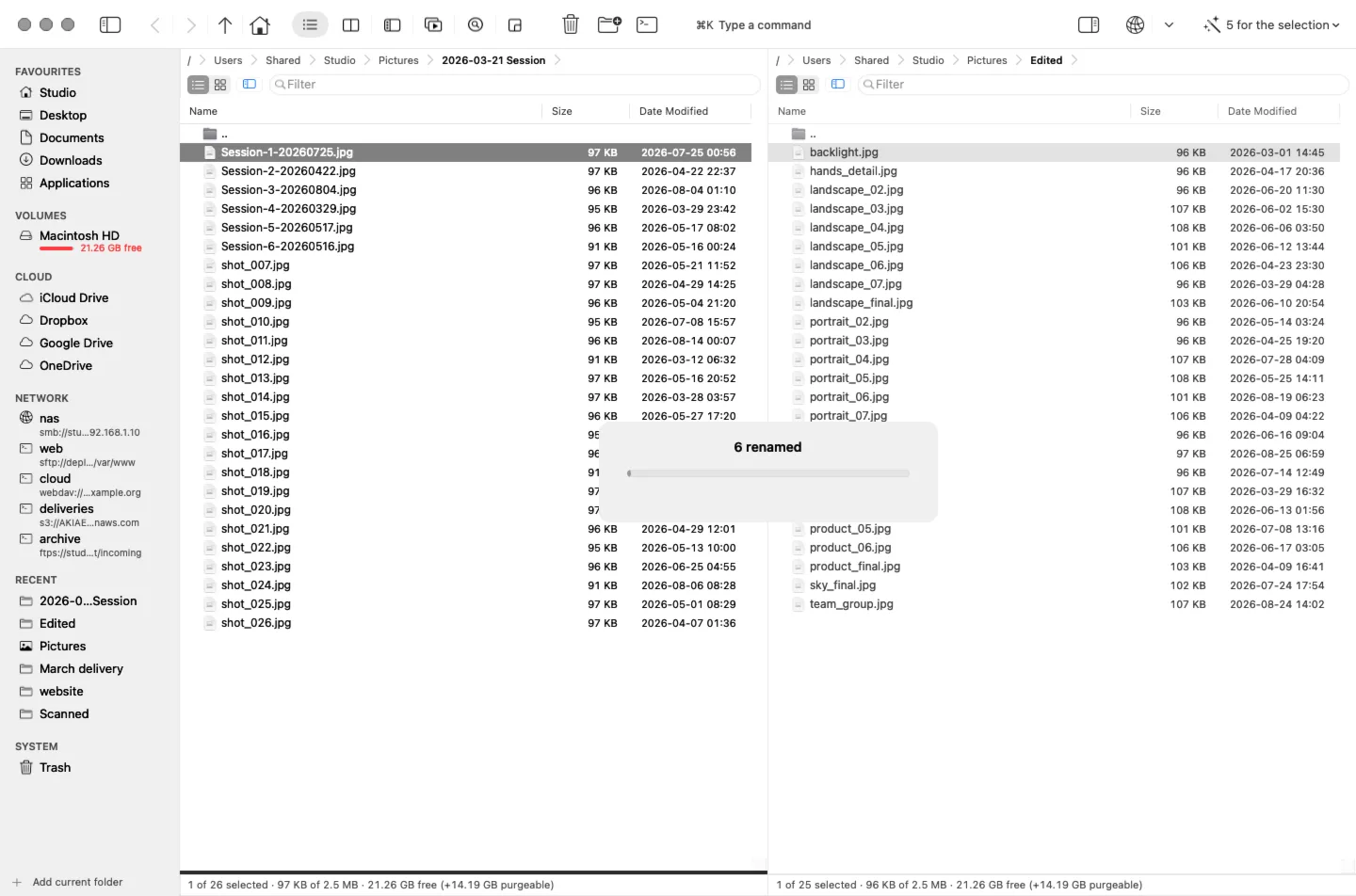
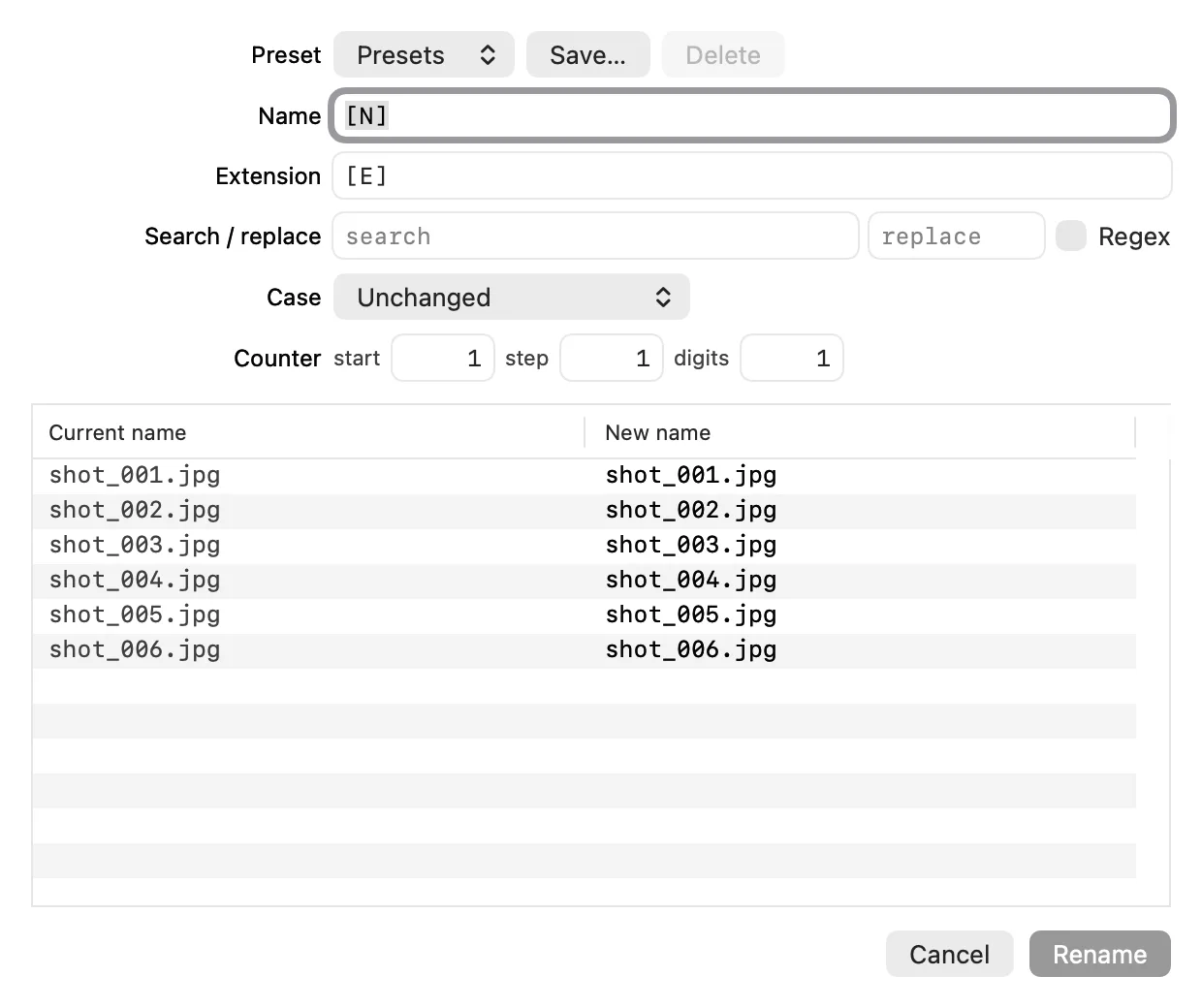
In bulk
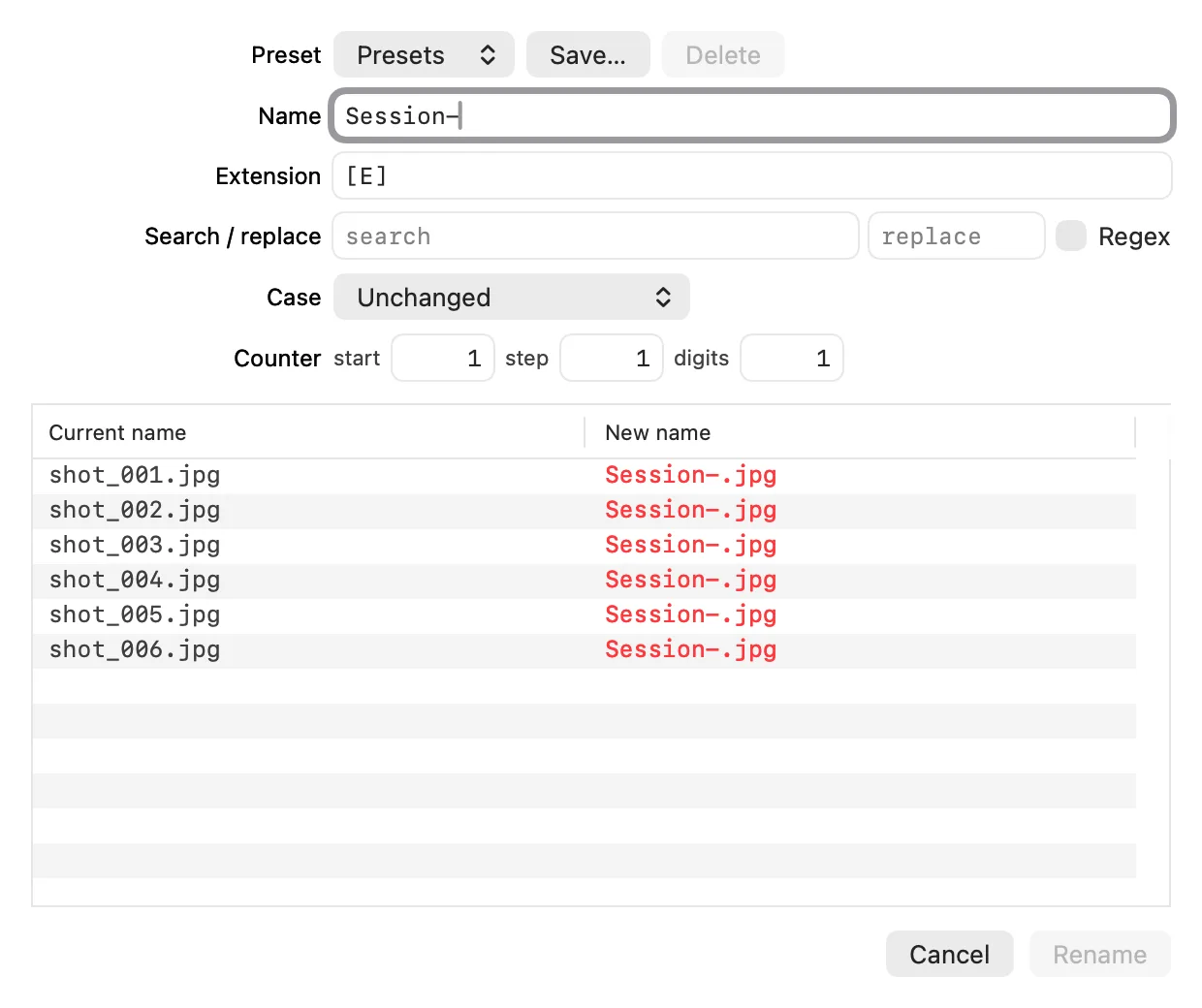
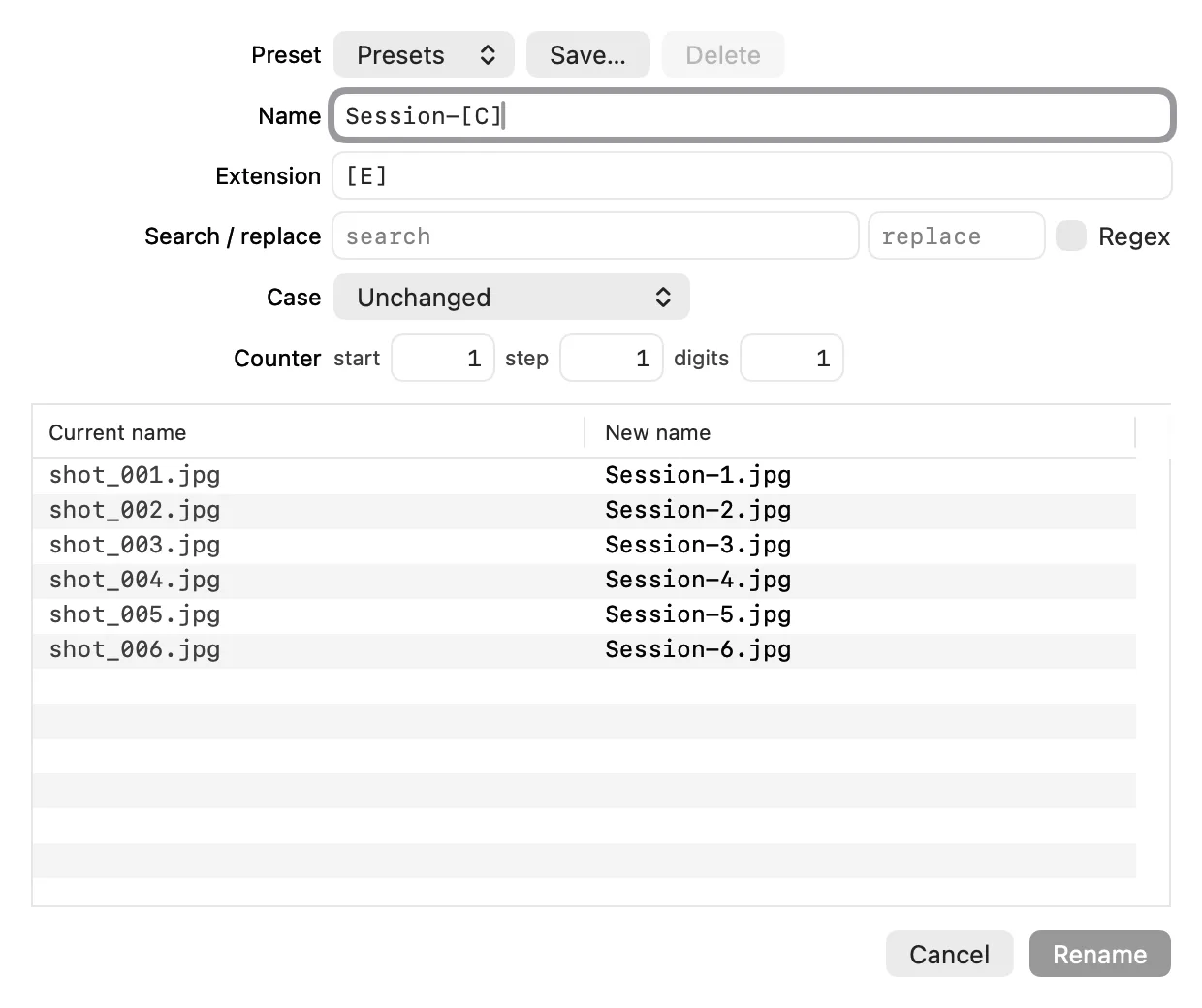
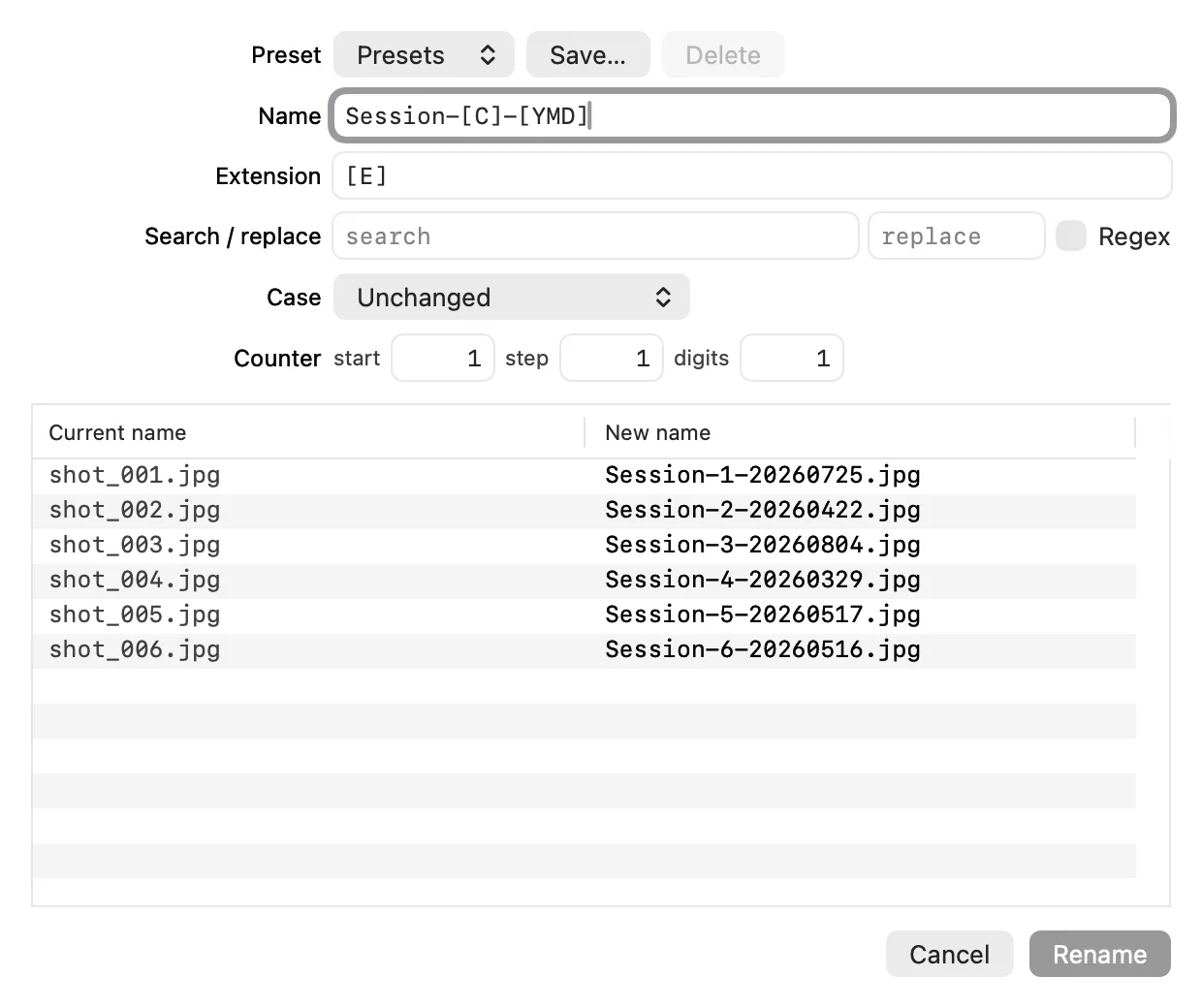
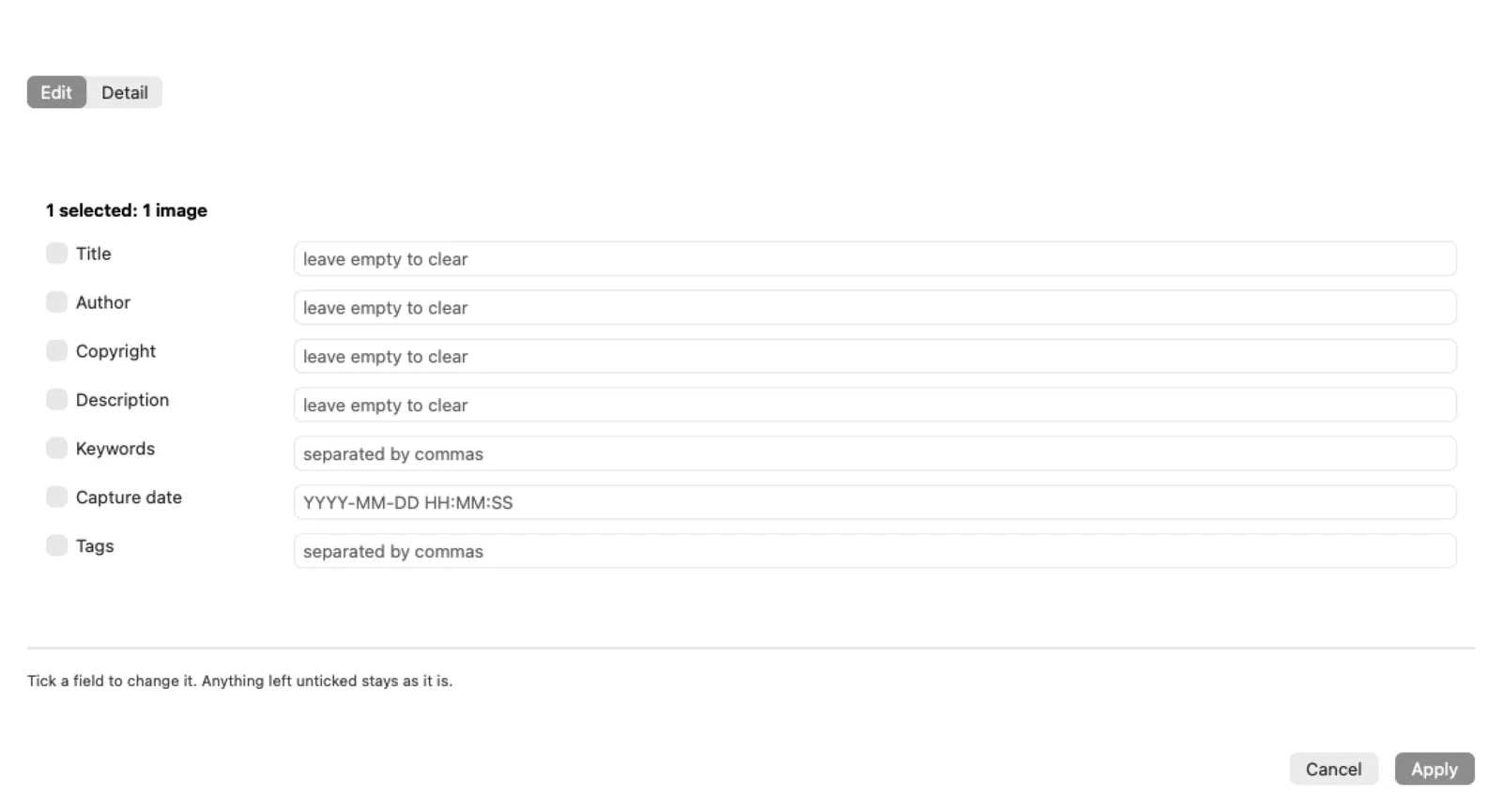
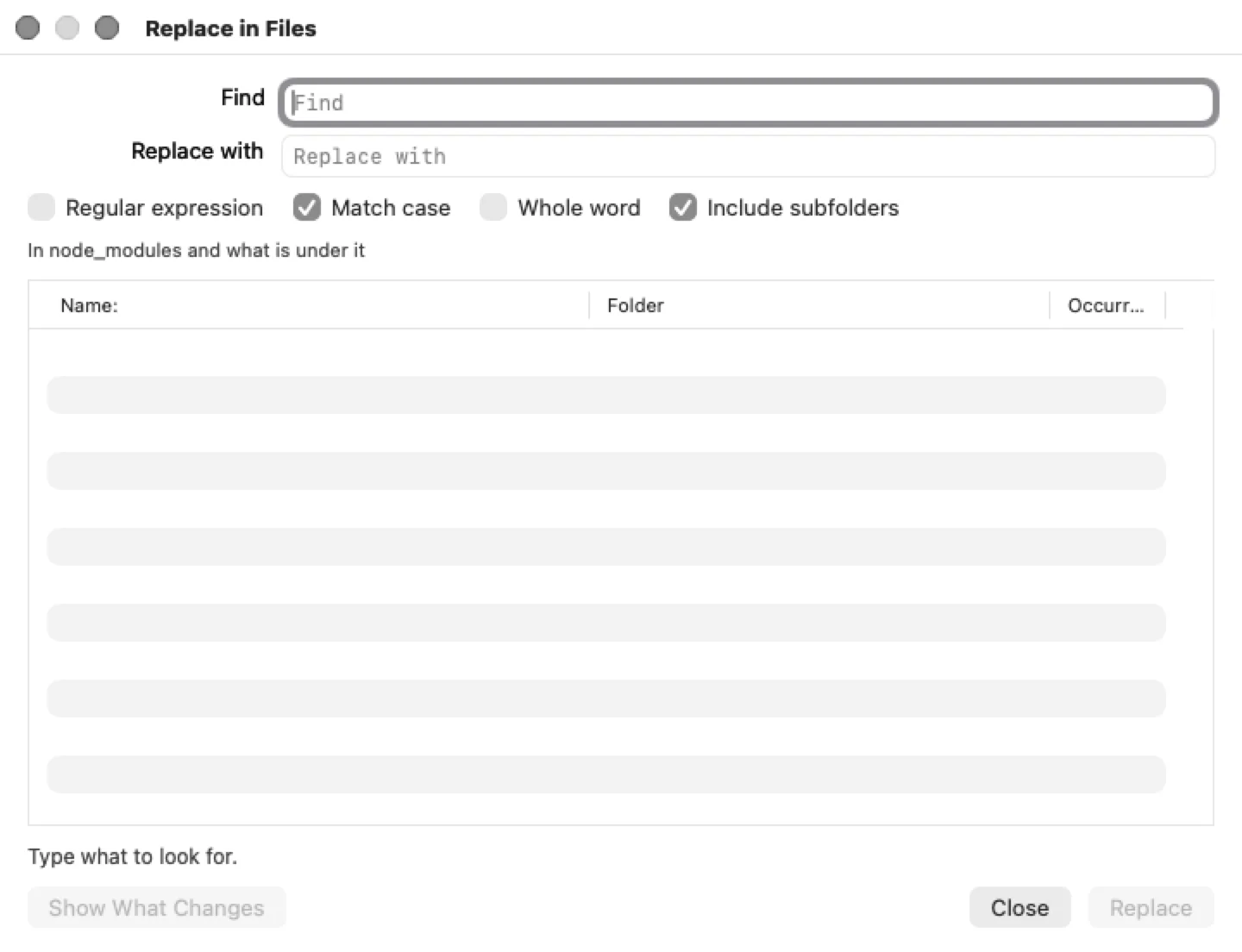
Counters, dates, substrings and regular expressions — and the table underneath showing the new names as you type the template, before a single file is touched.
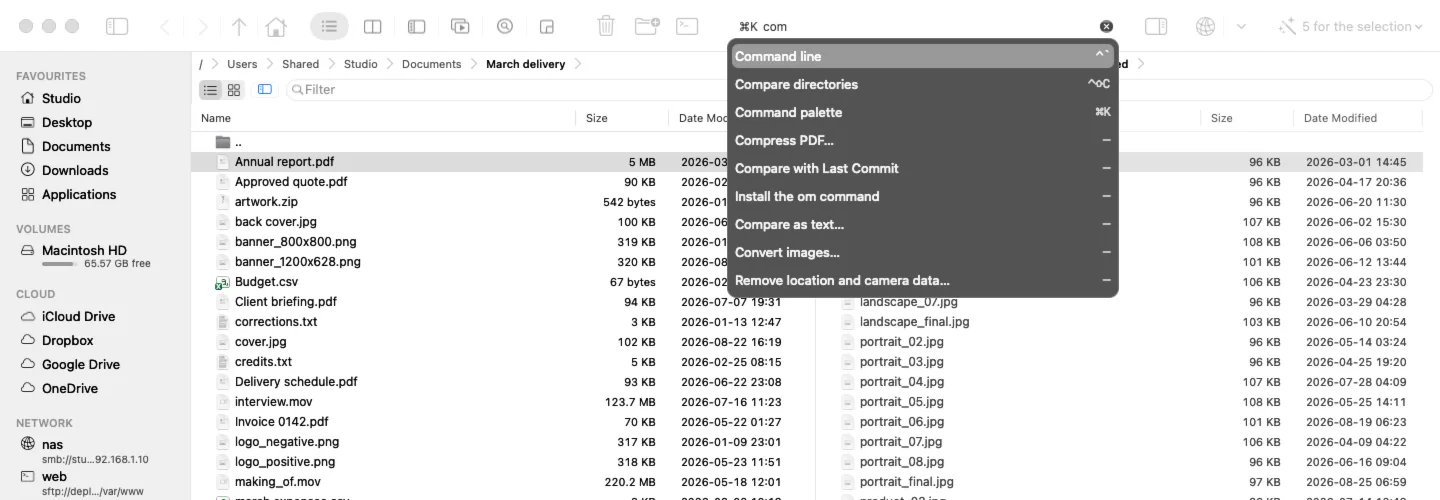
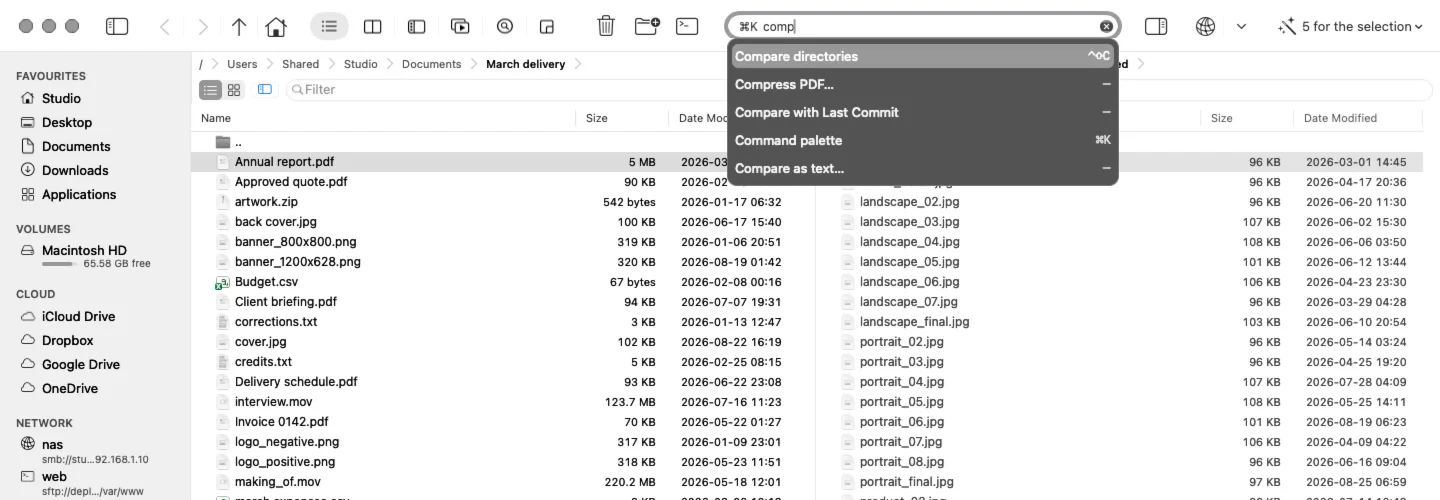
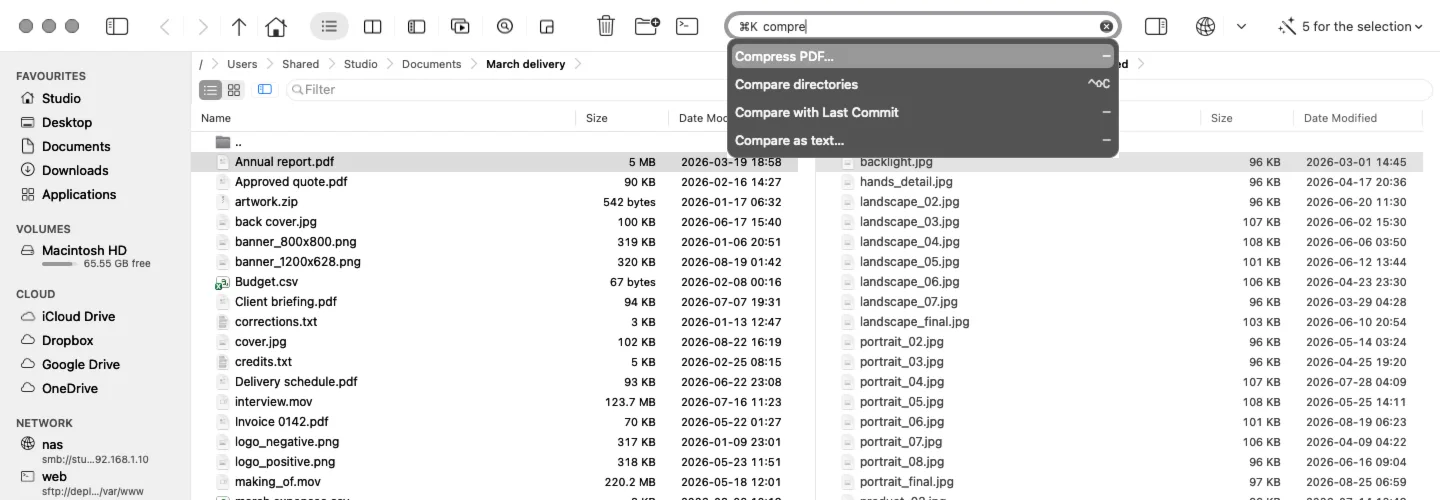
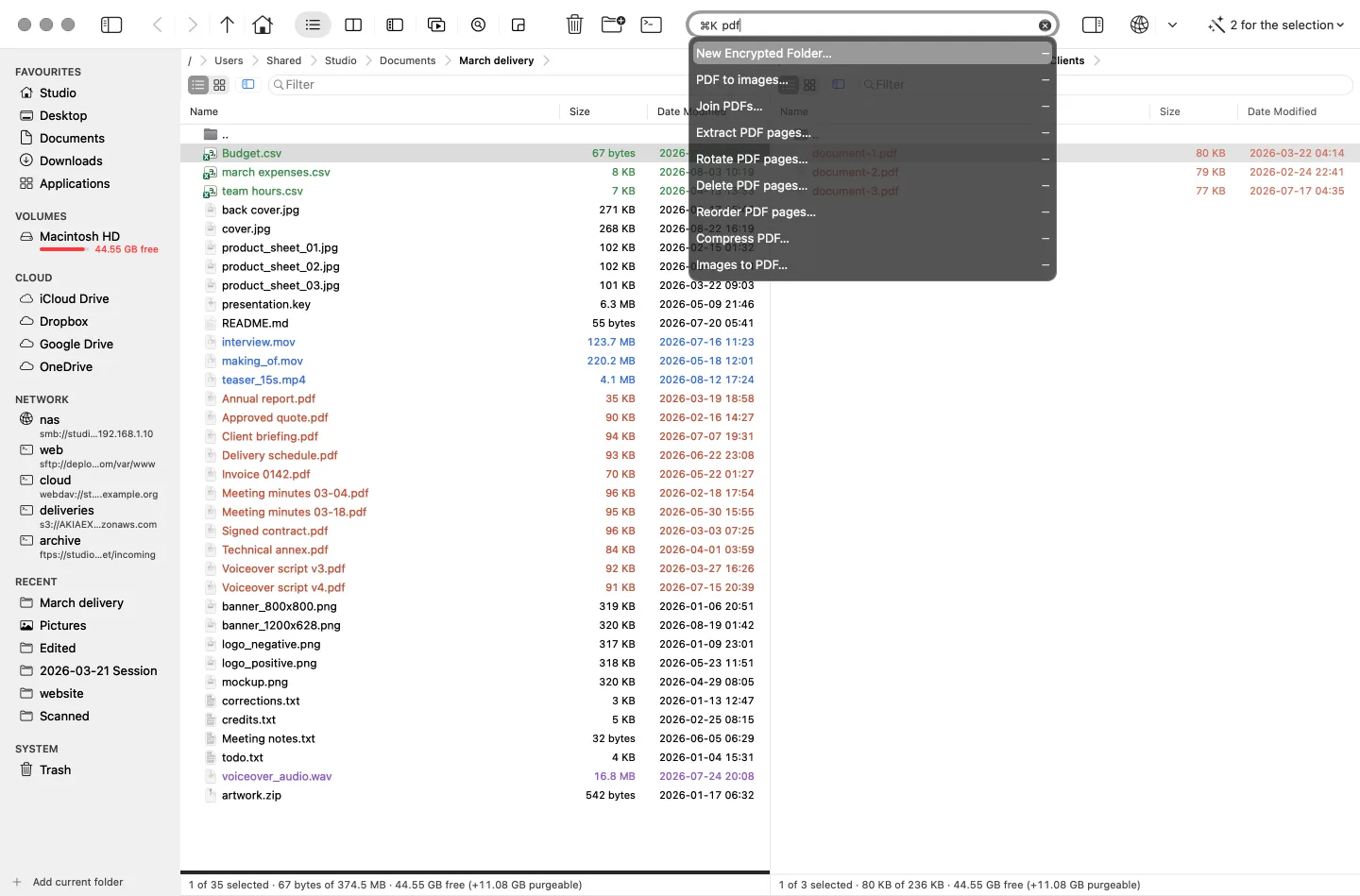
⌘K
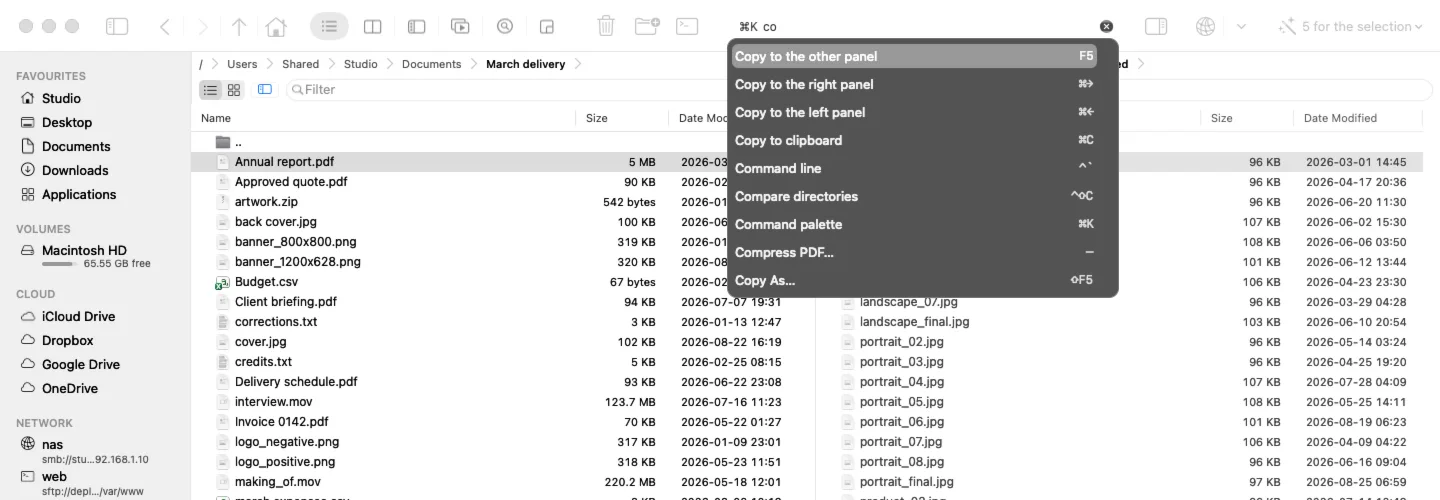
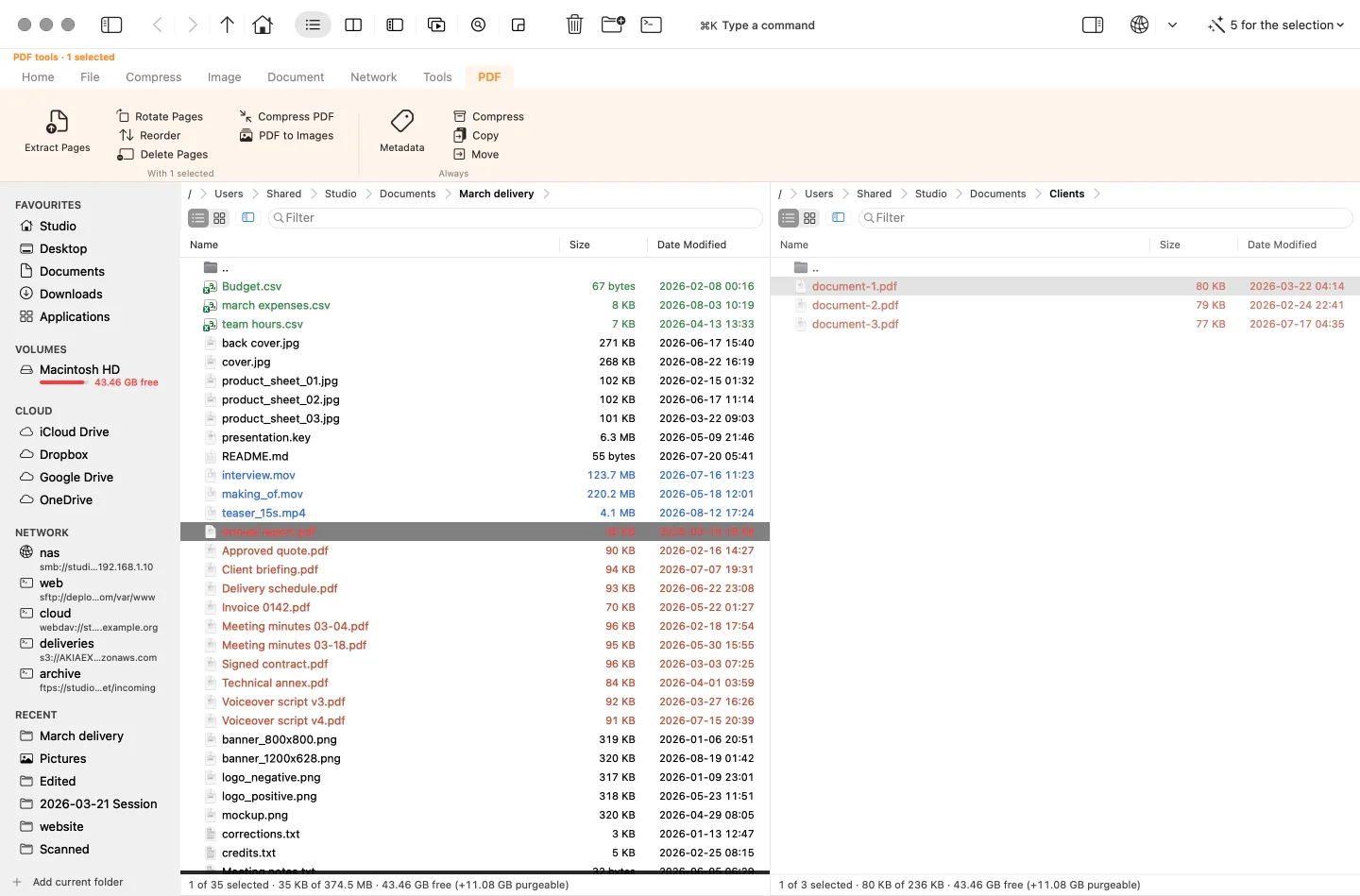
A hundred and sixteen commands, and forty-eight of them live only here and in the menus, on purpose. Nothing worth doing should depend on remembering a chord.
Make it yours
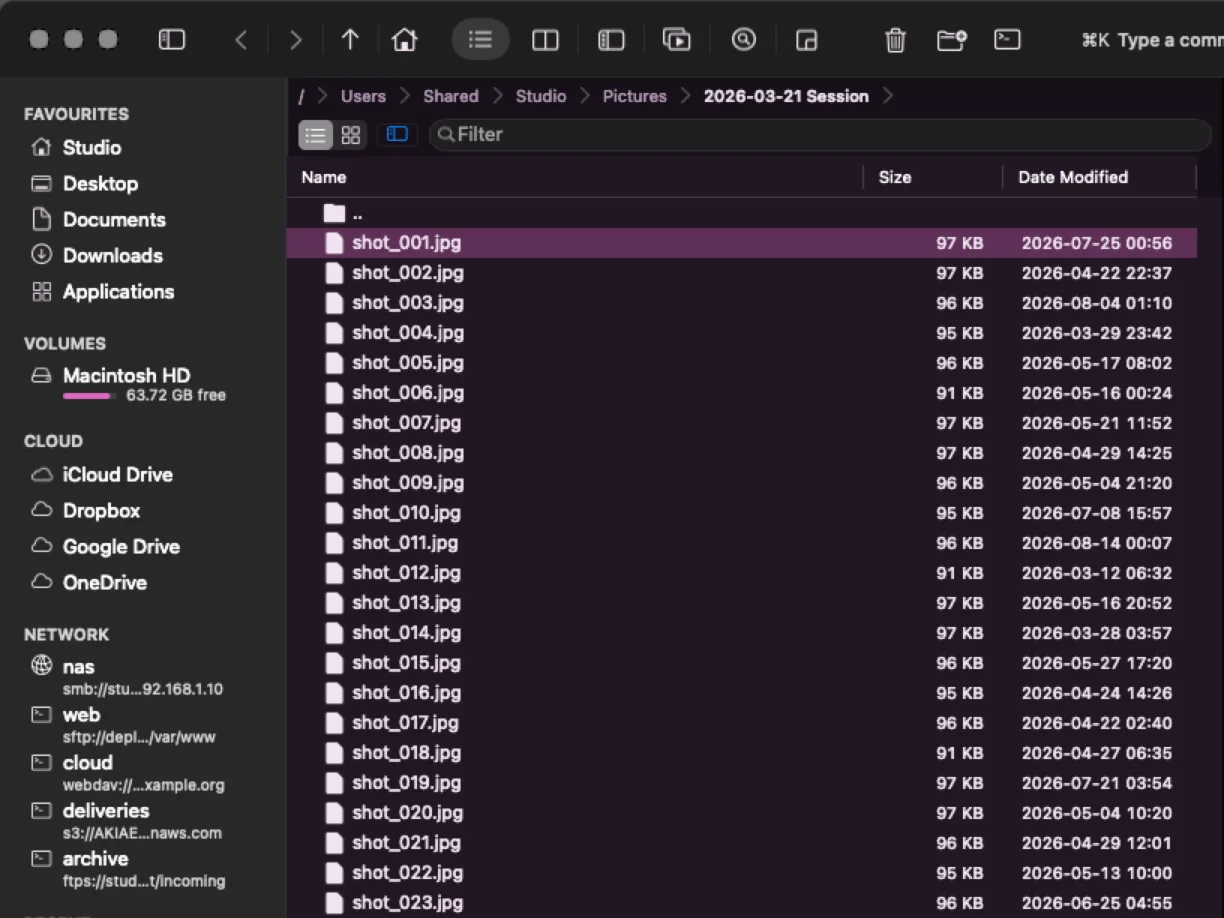
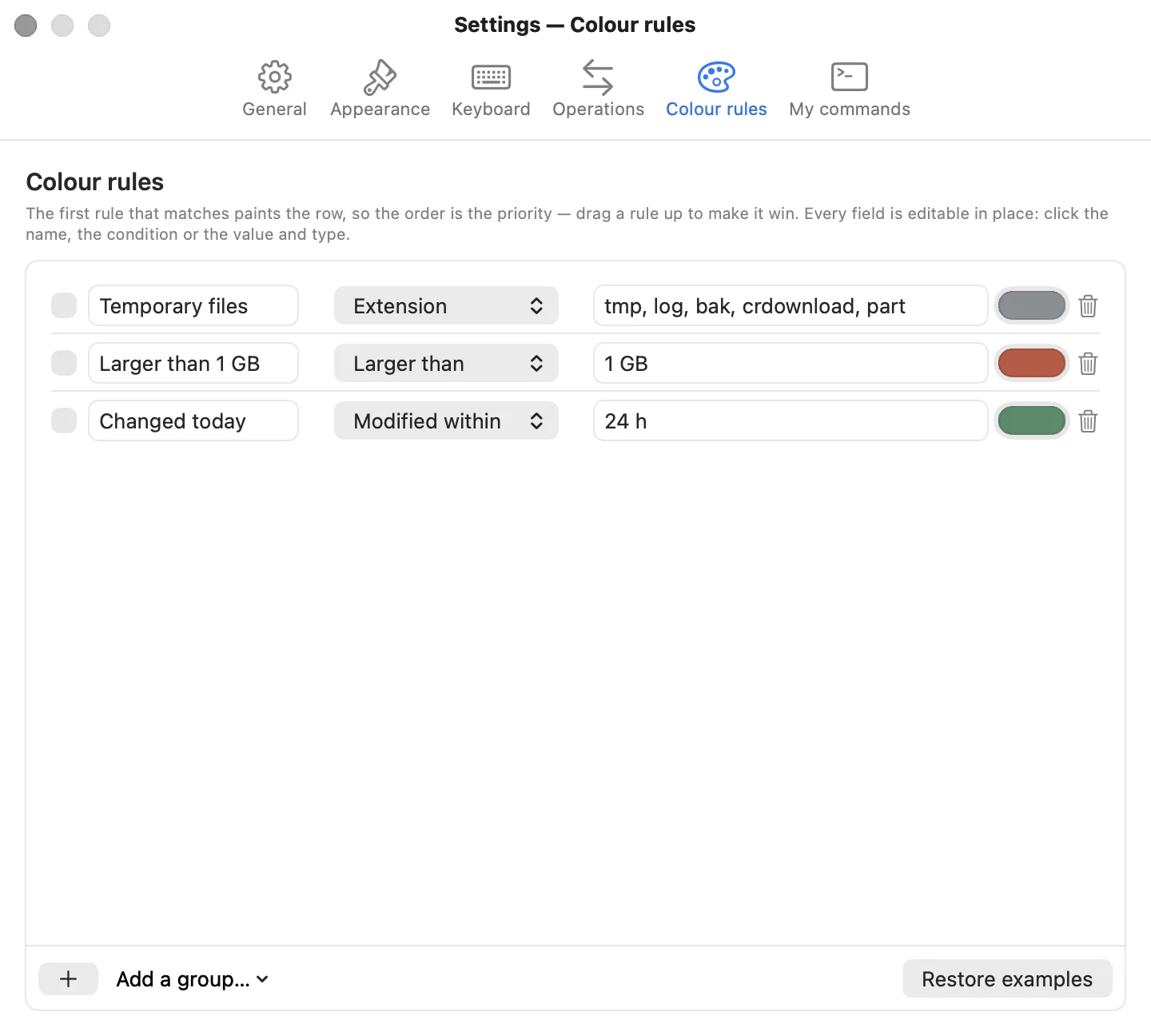
Nine dark, three light and one high-contrast. Not a light/dark switch — a set of rooms to work in.
Make it yours
The same key that makes rows taller makes thumbnails bigger, because it does what you are looking at.
Six ways people actually use it. Pick the one that sounds like your afternoon.
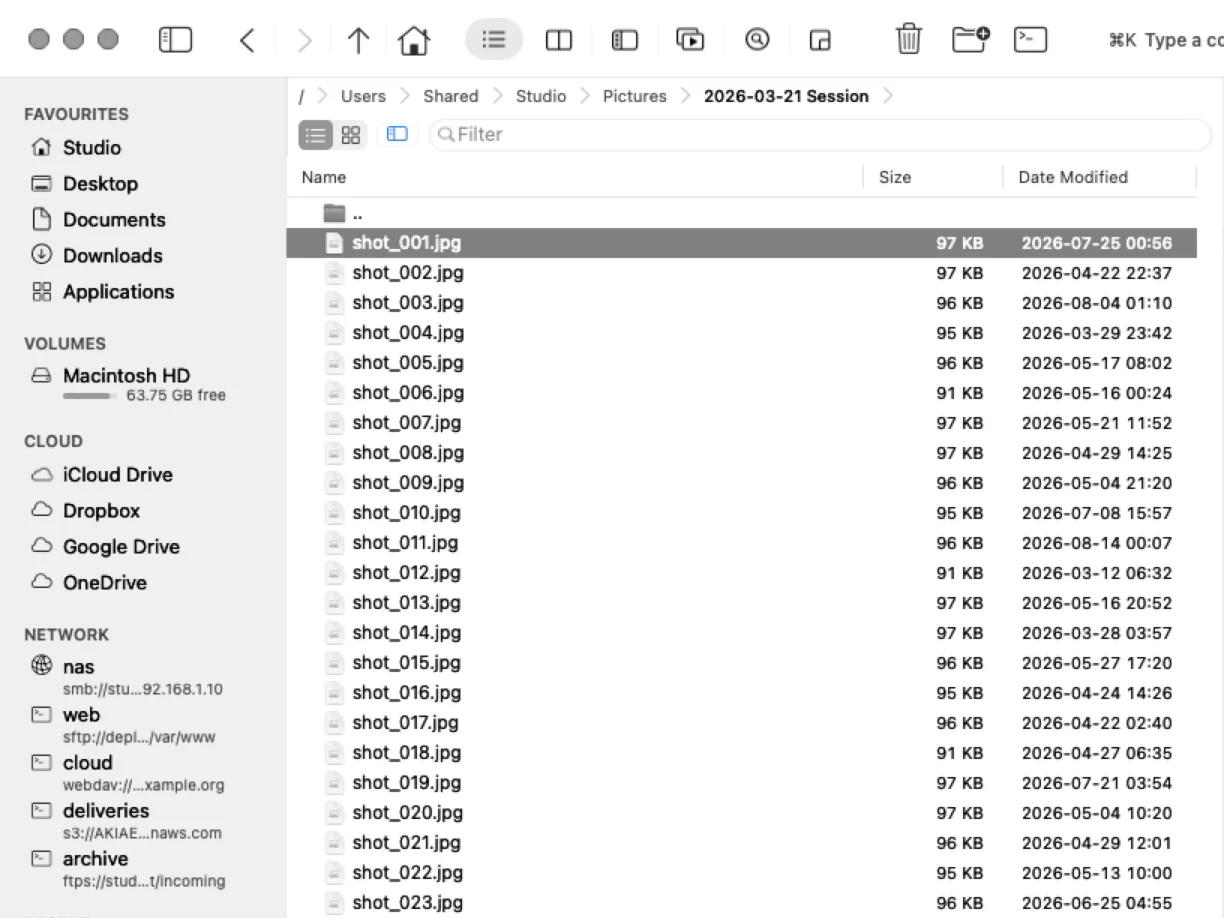
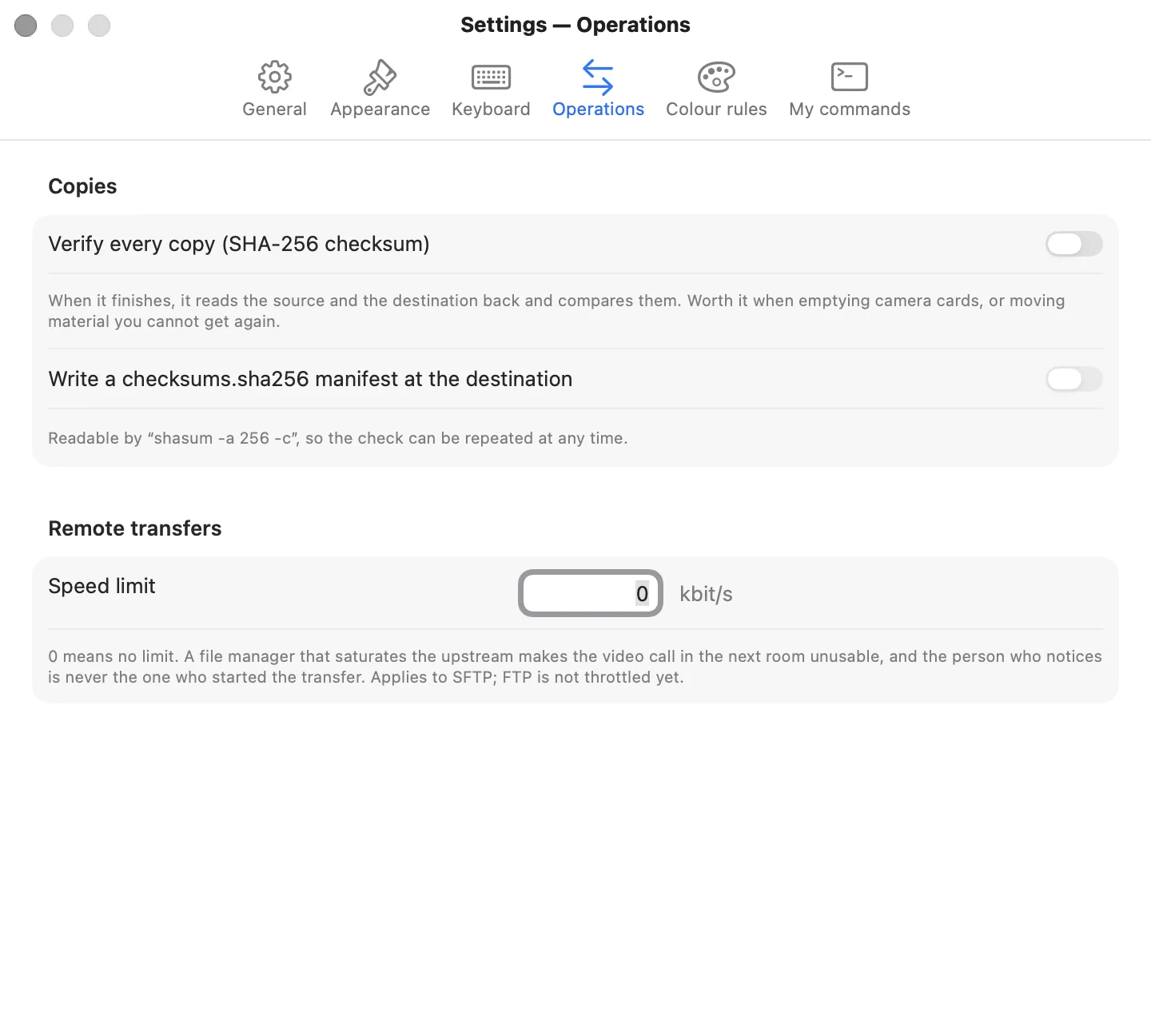
Three cards, a working drive and a backup drive. The one thing that cannot happen is formatting a card without knowing exactly what arrived.
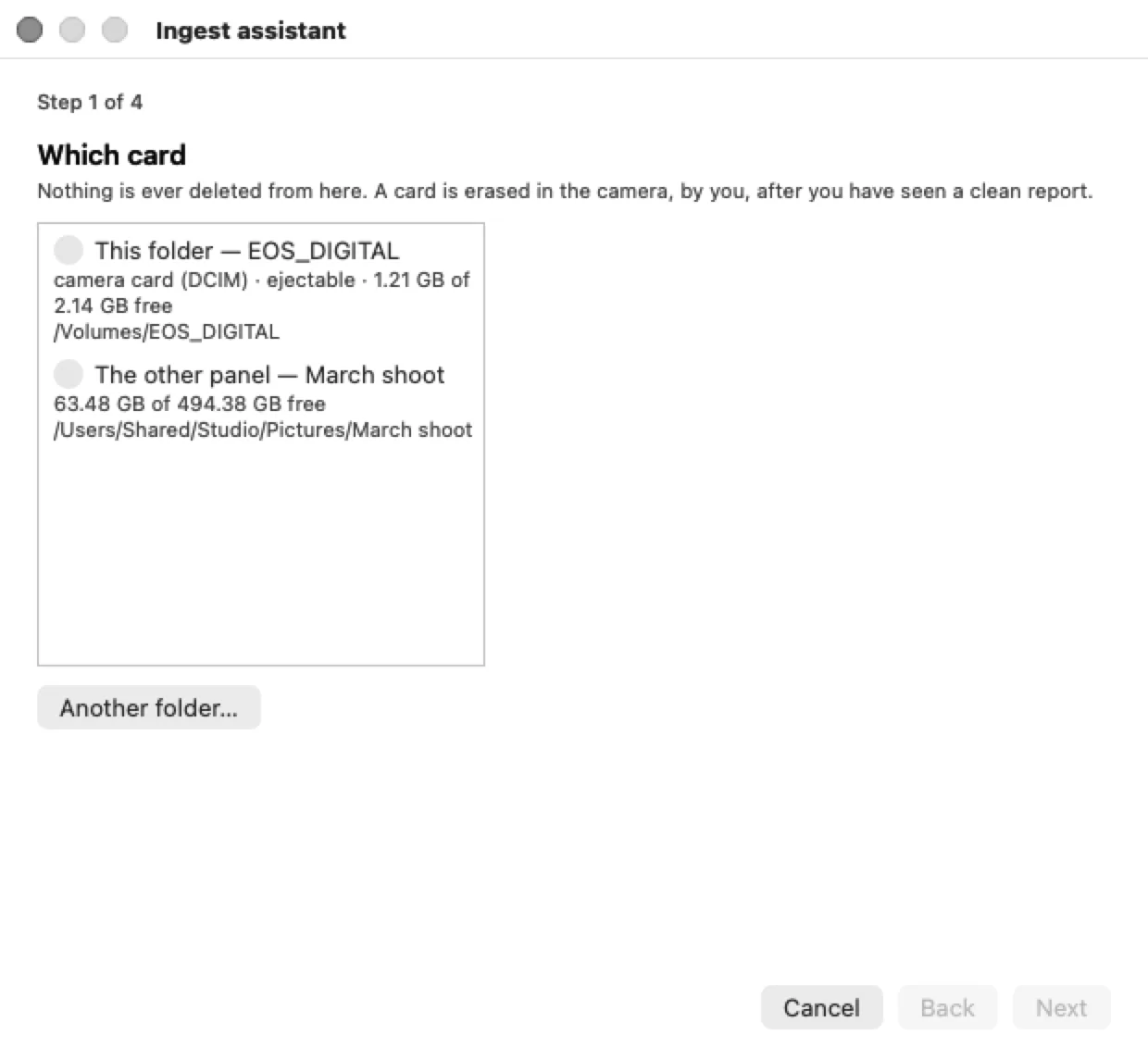
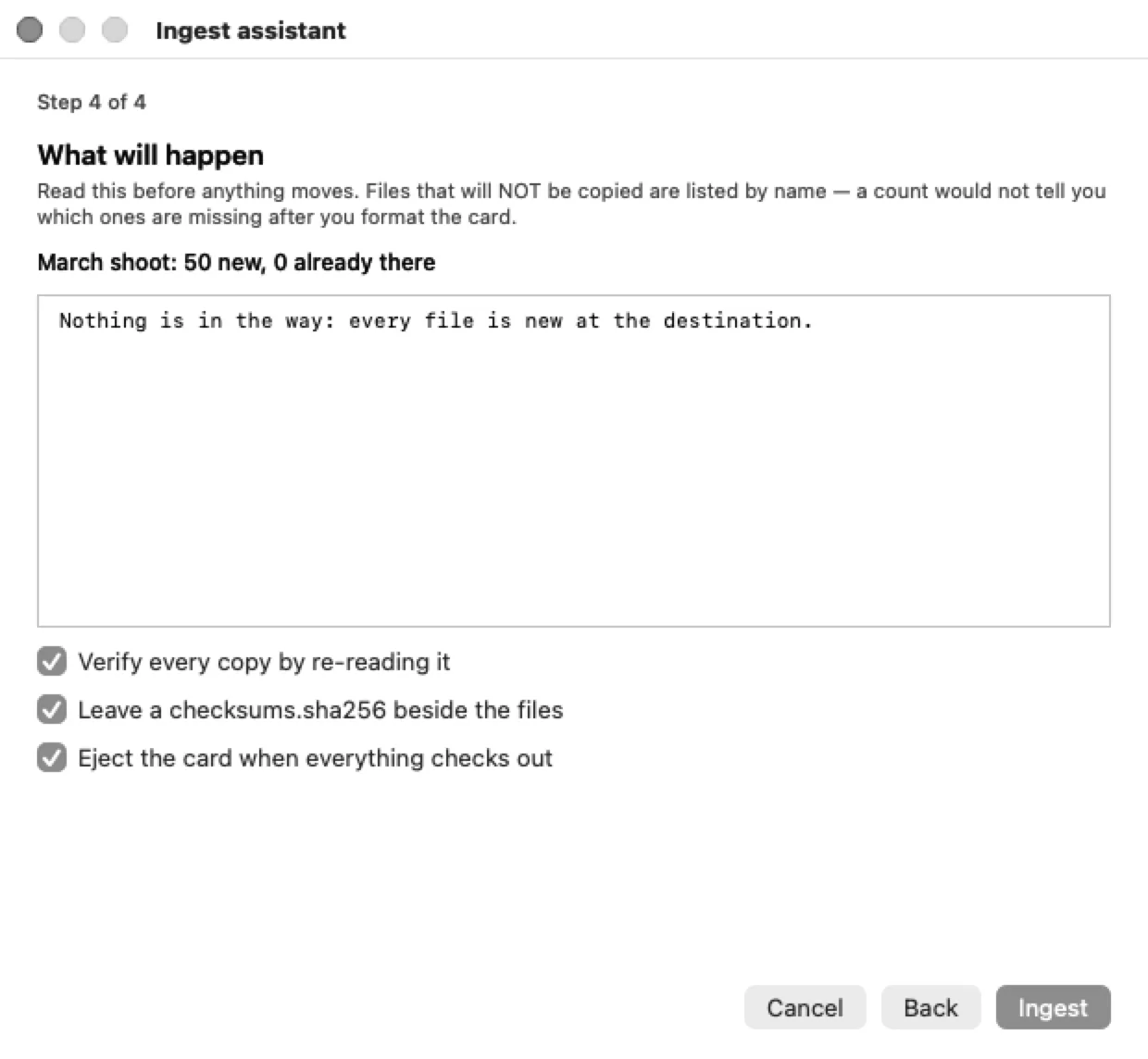
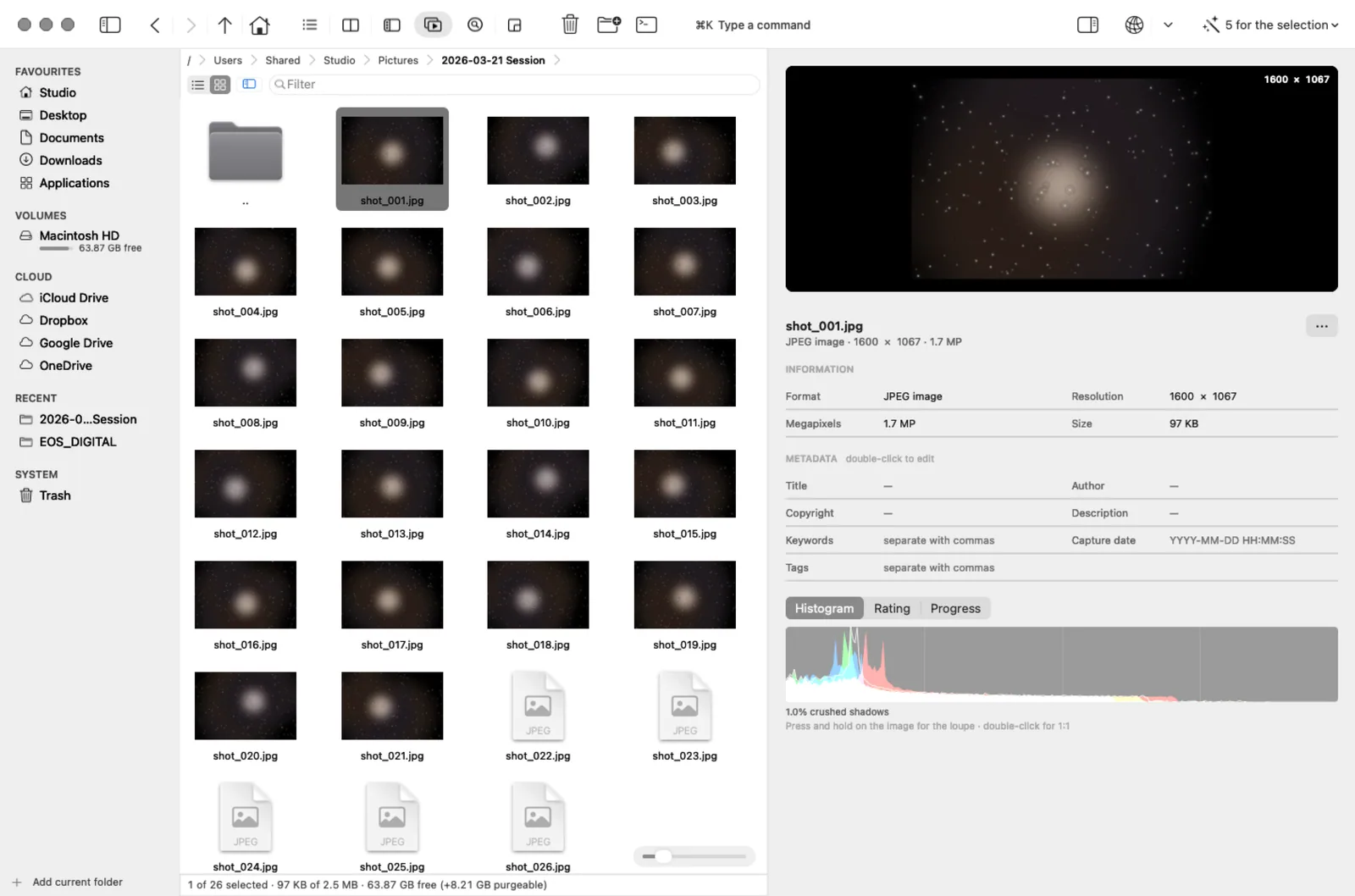
The card is only offered for ejection if the report came back clean. Nothing is ever deleted from the source — you do that, in the camera, after you have read what arrived.
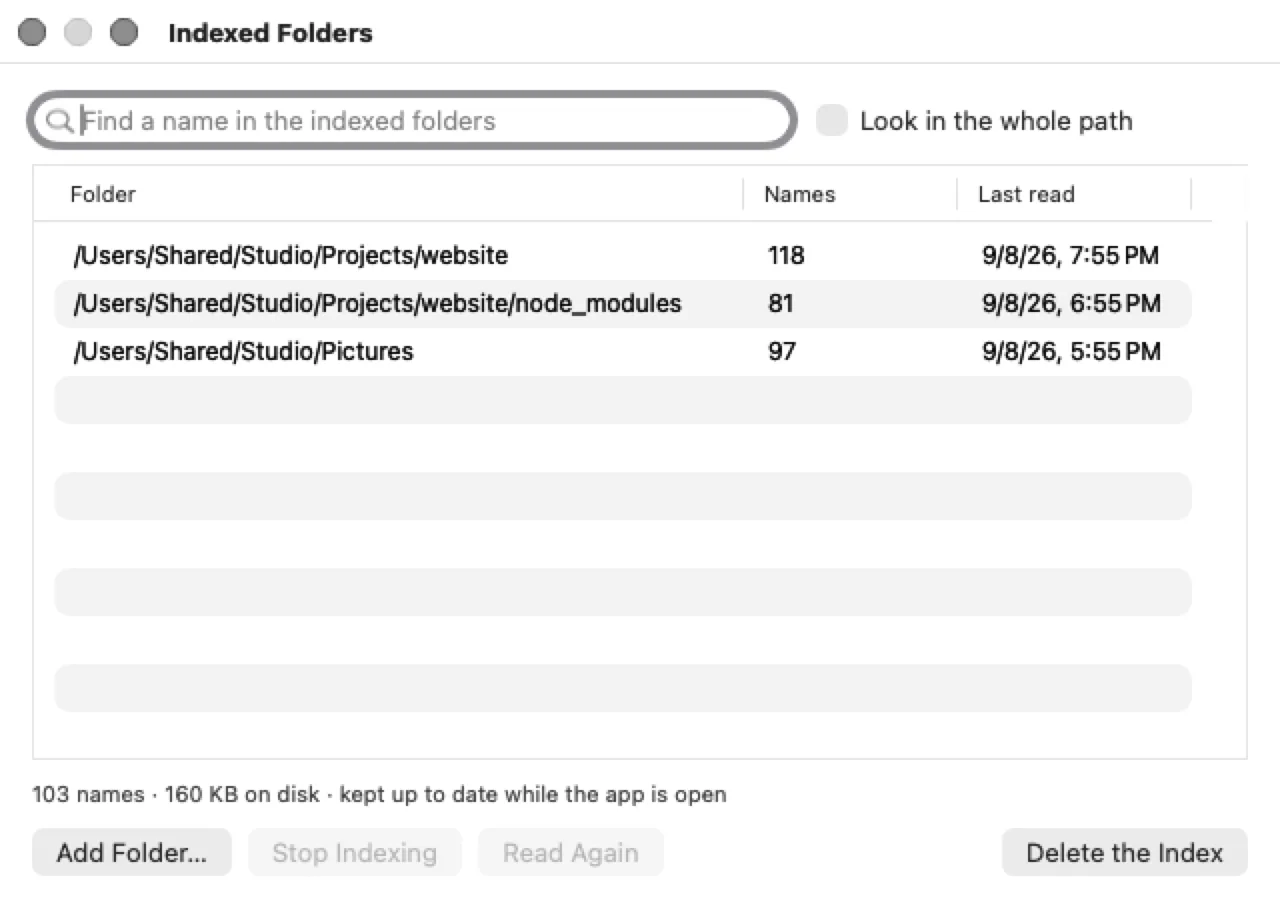
Your work lives in folders the system's search skips by design, and on an external drive it does not index at all.
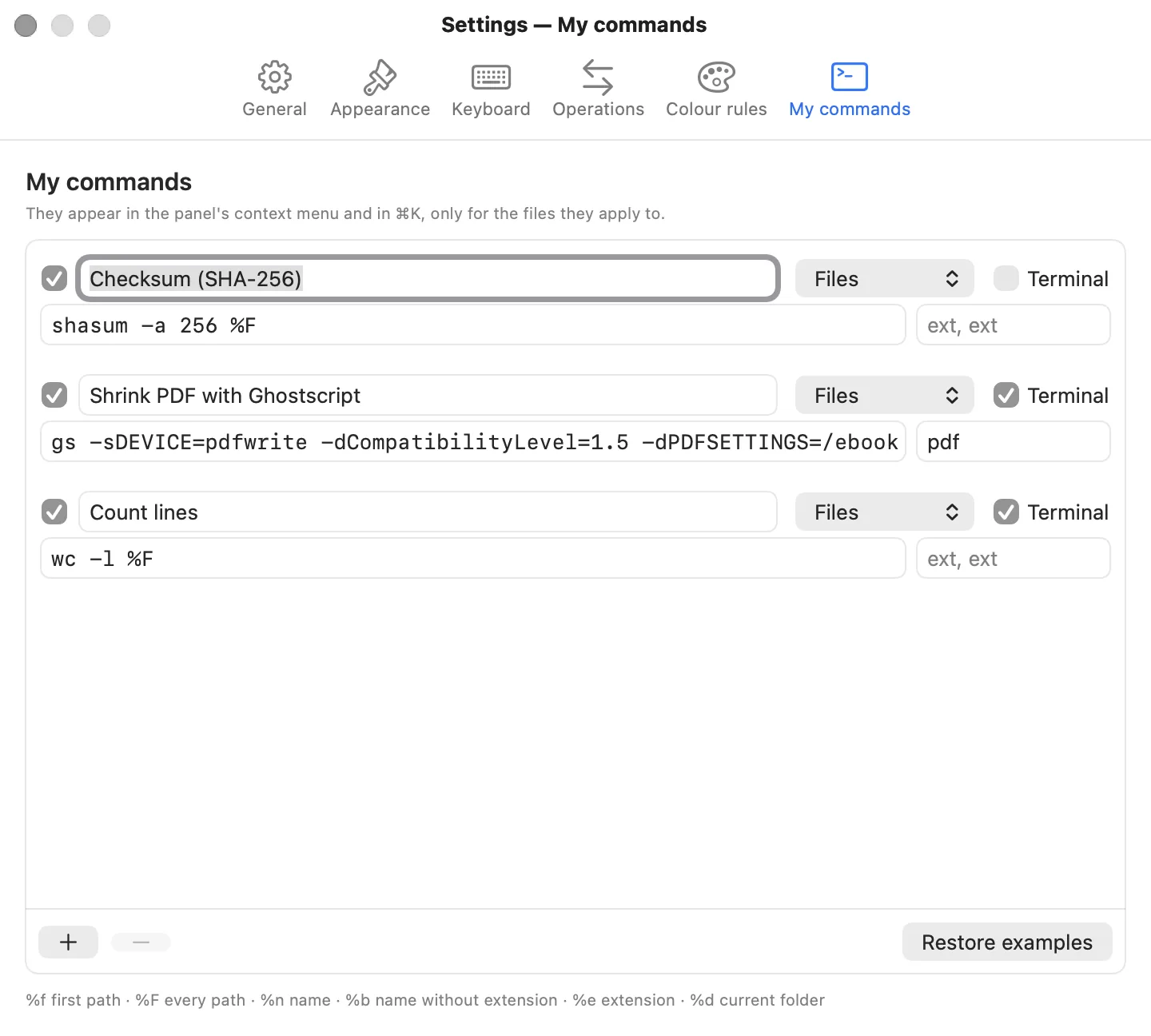
The terminal is not left out either: open a shell in the panel's folder, a command line where cd moves the panel instead of dying, and an om command that drives the app from the shell.
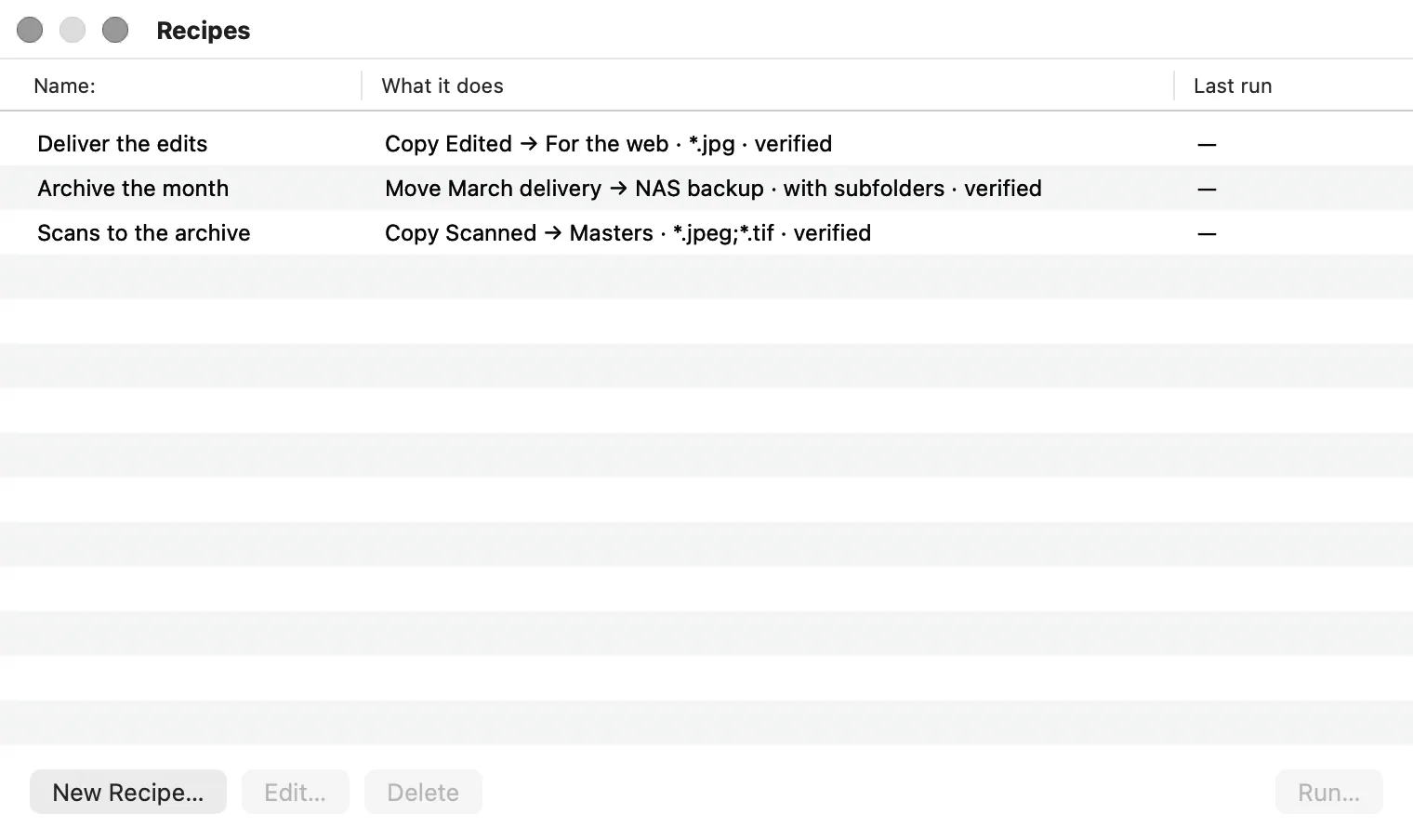
Finished material has to reach a server, and again next month, and you cannot sit and watch a progress bar.
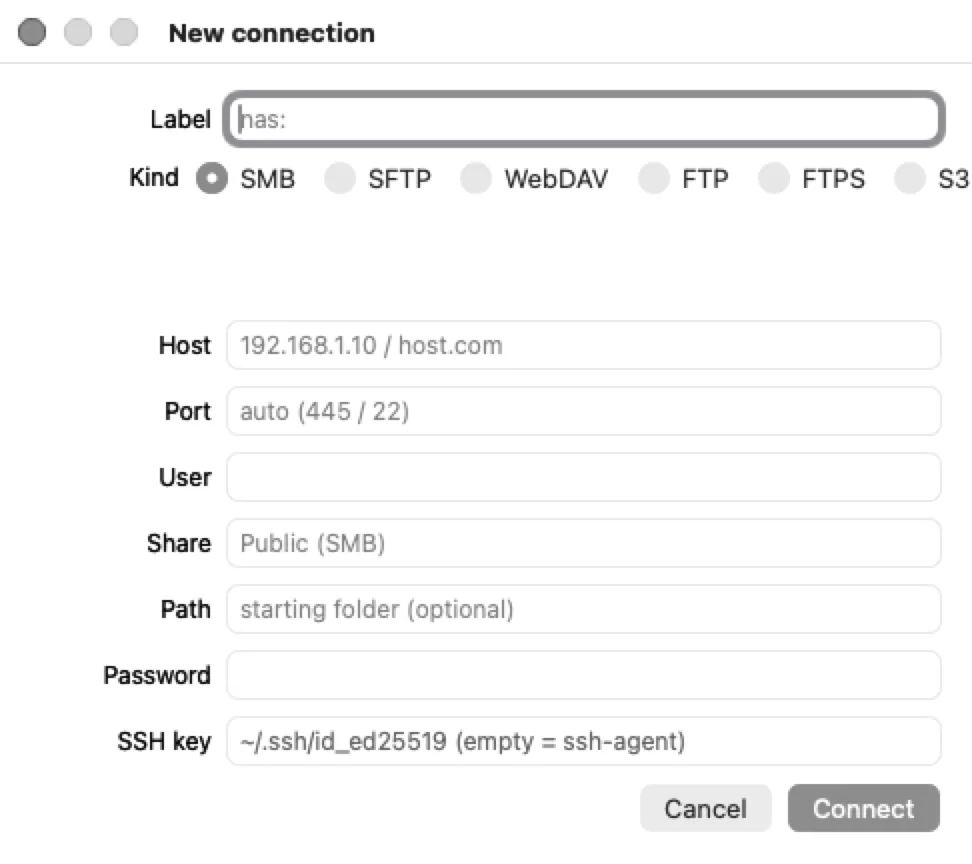
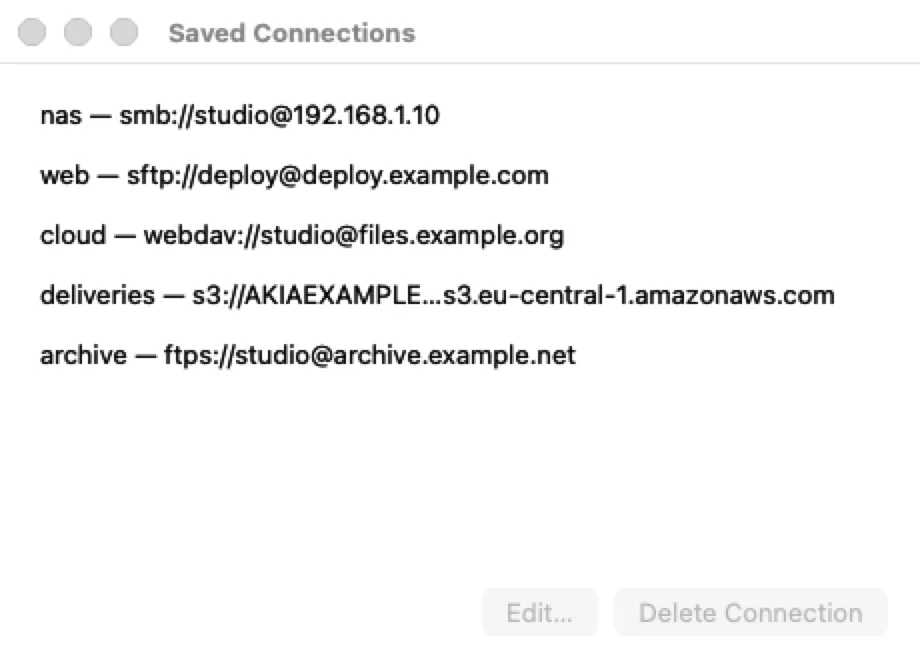
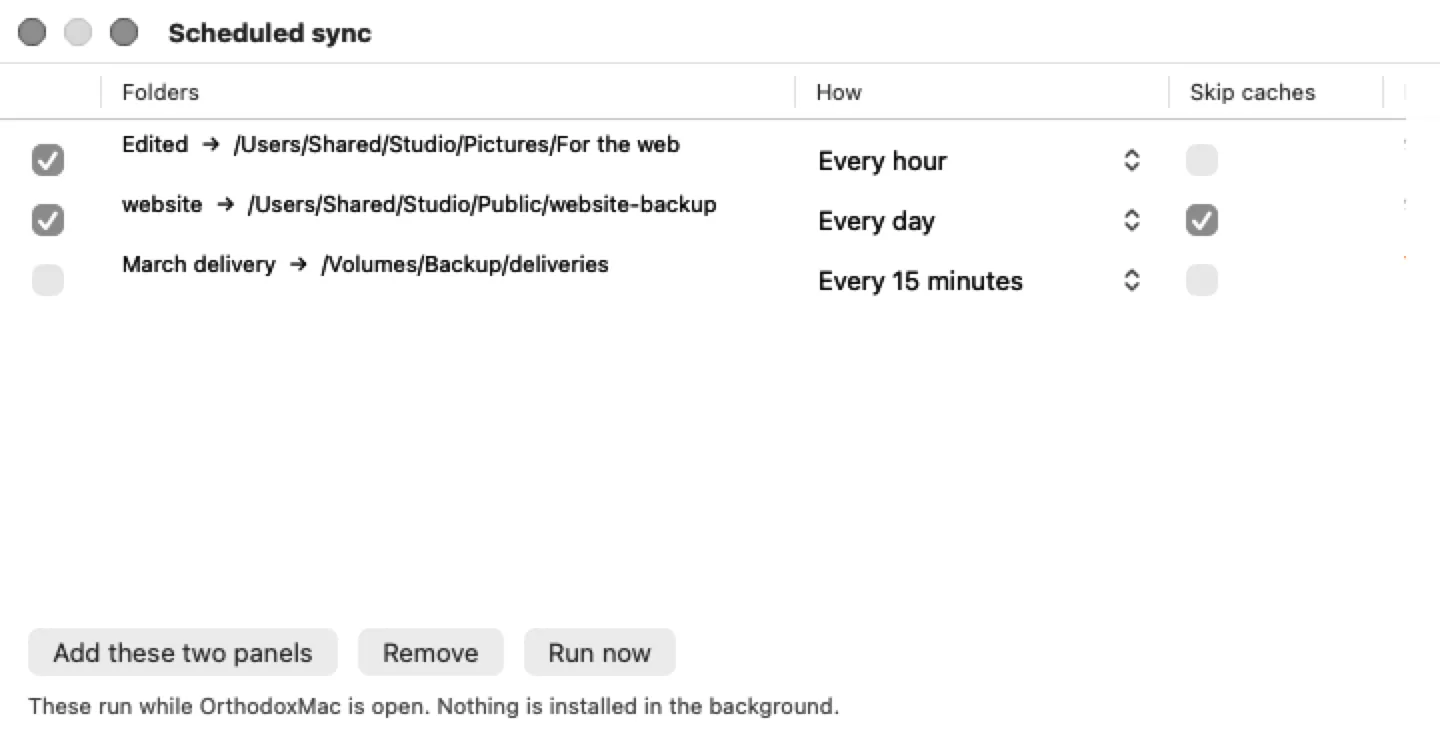
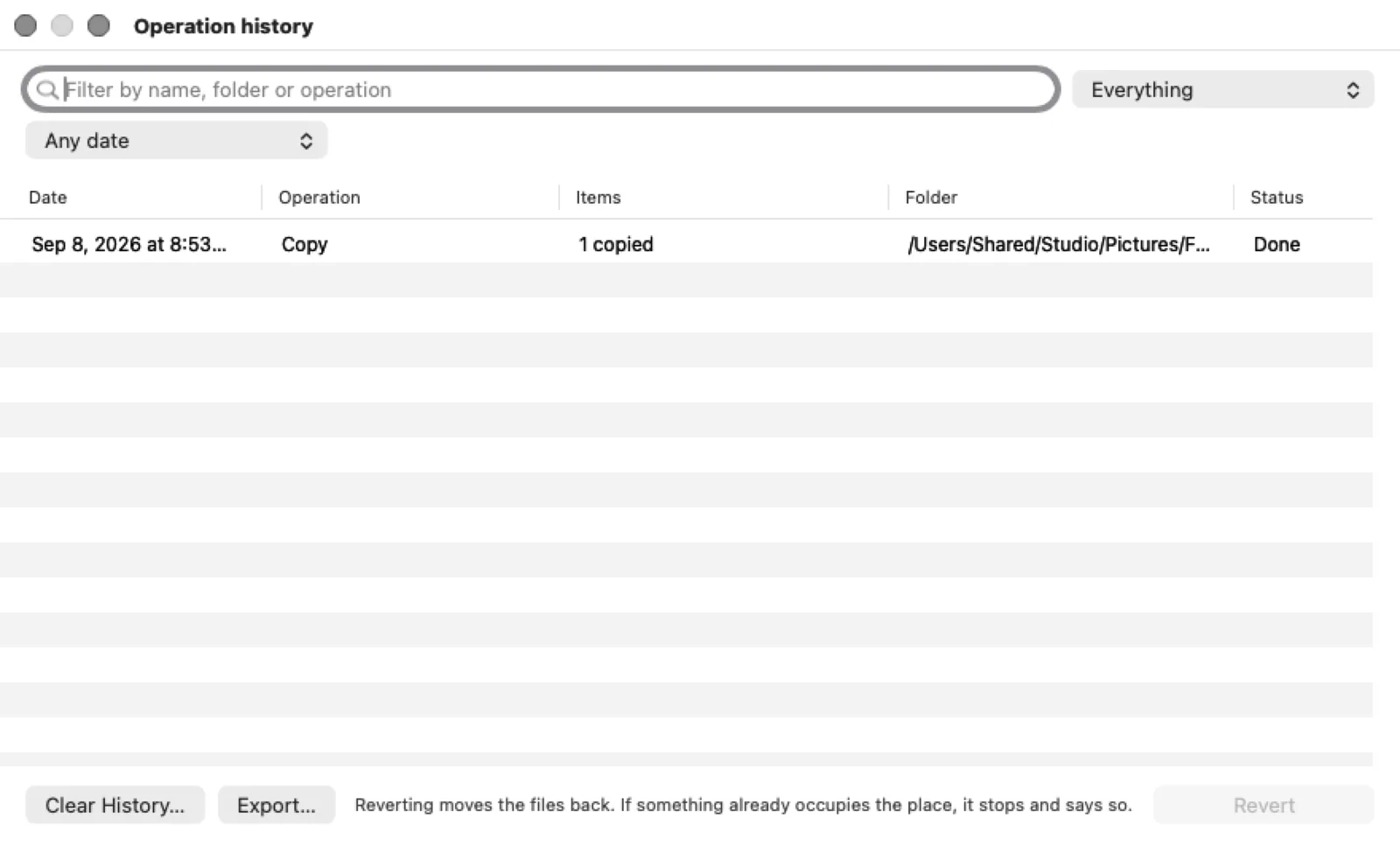
The queue pauses and resumes, and every transfer lands in the history with how many files, where to, and how it ended.
A forensic job, a contractual delivery, an archive somebody will audit three years from now. The question is not what is in it. It is how you prove it.
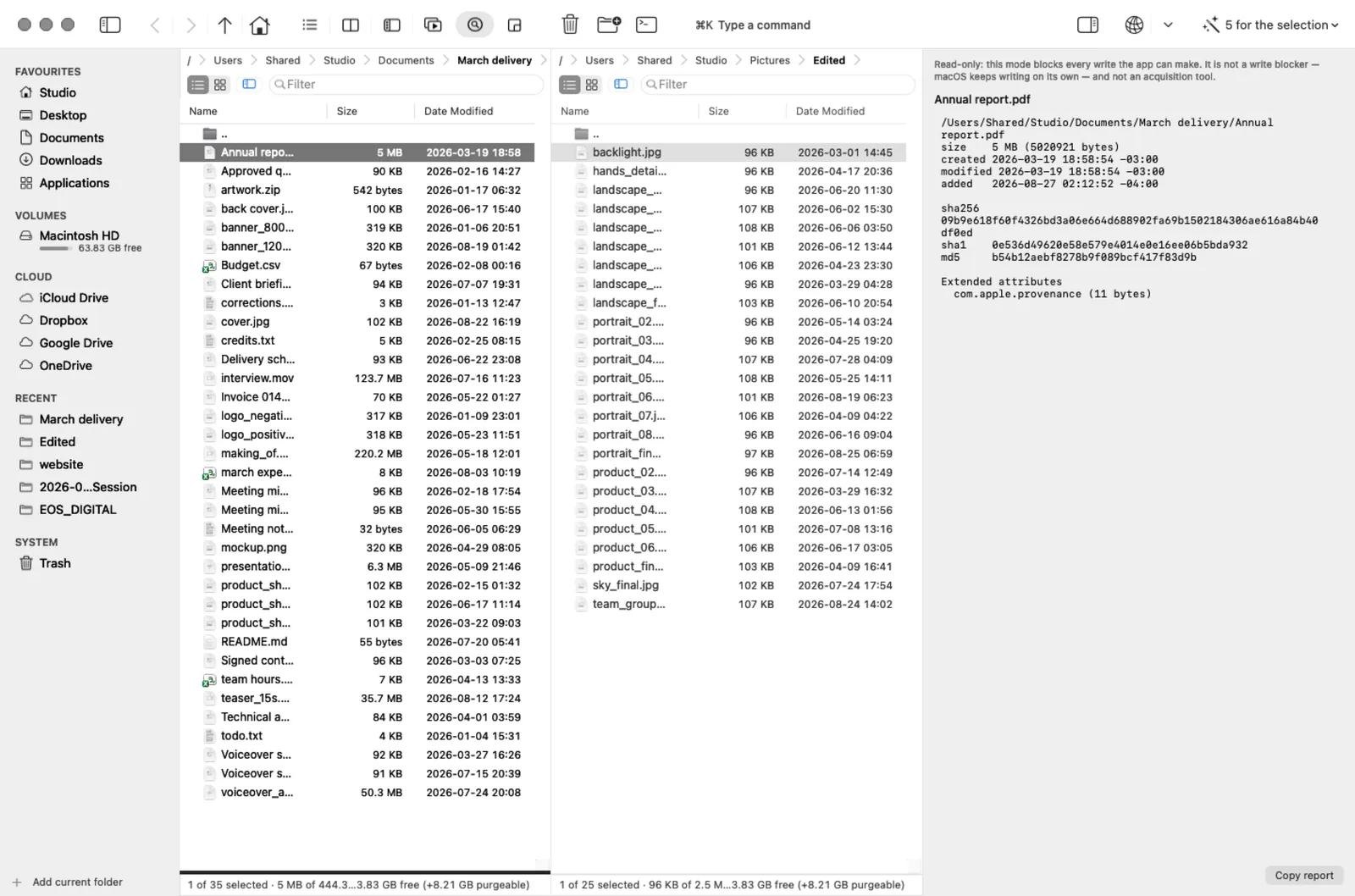
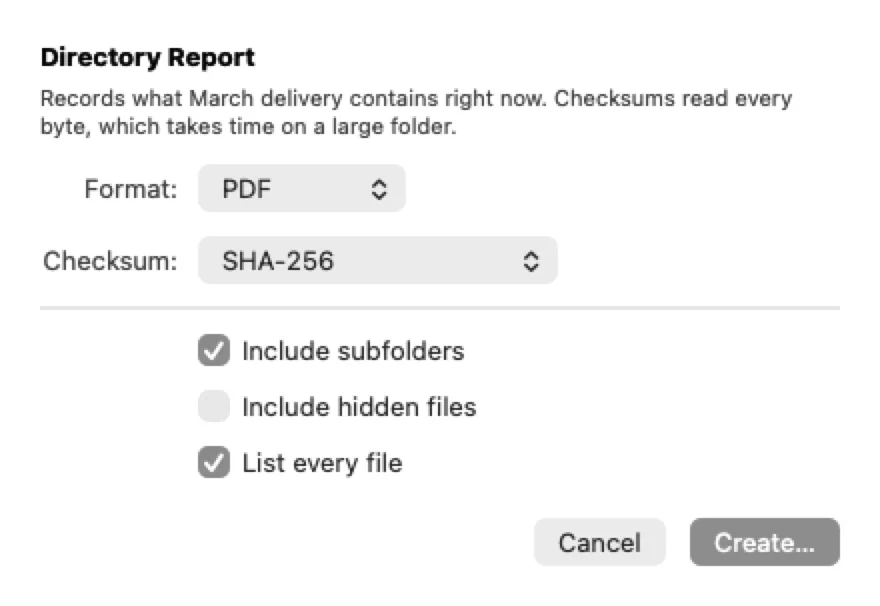

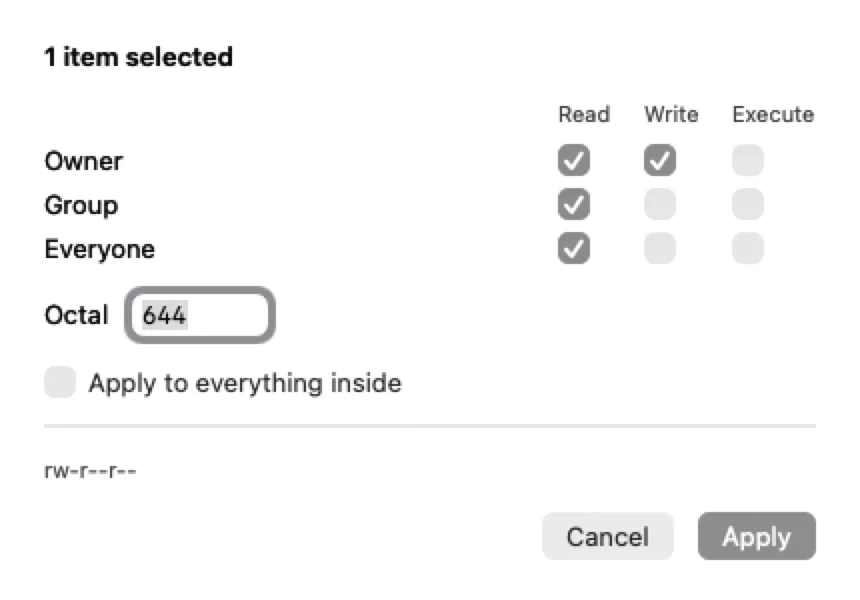
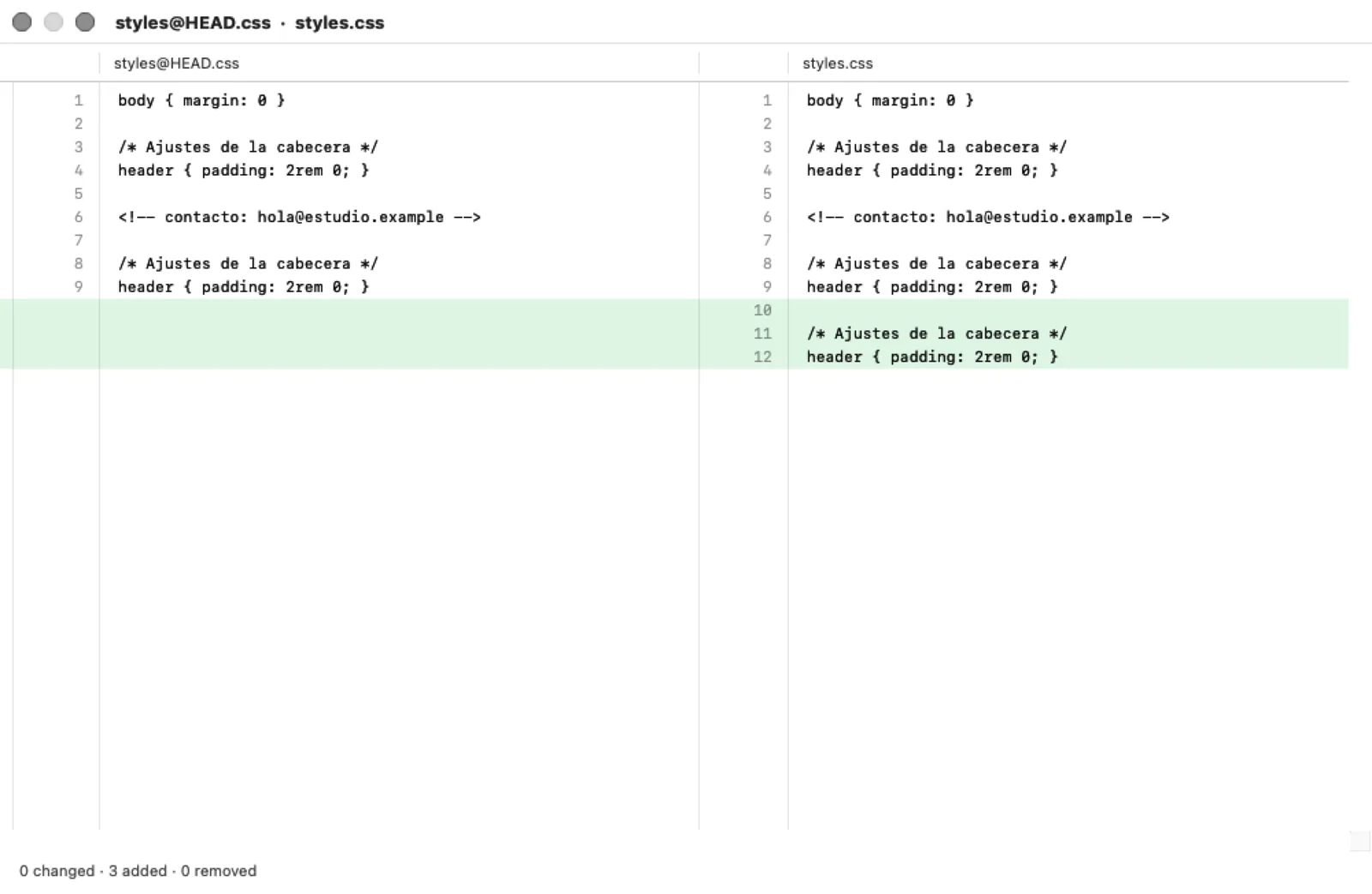
Verifying against a manifest re-reads every file and says what stopped matching. Two reports of an unchanged folder differ in one line: the timestamp.
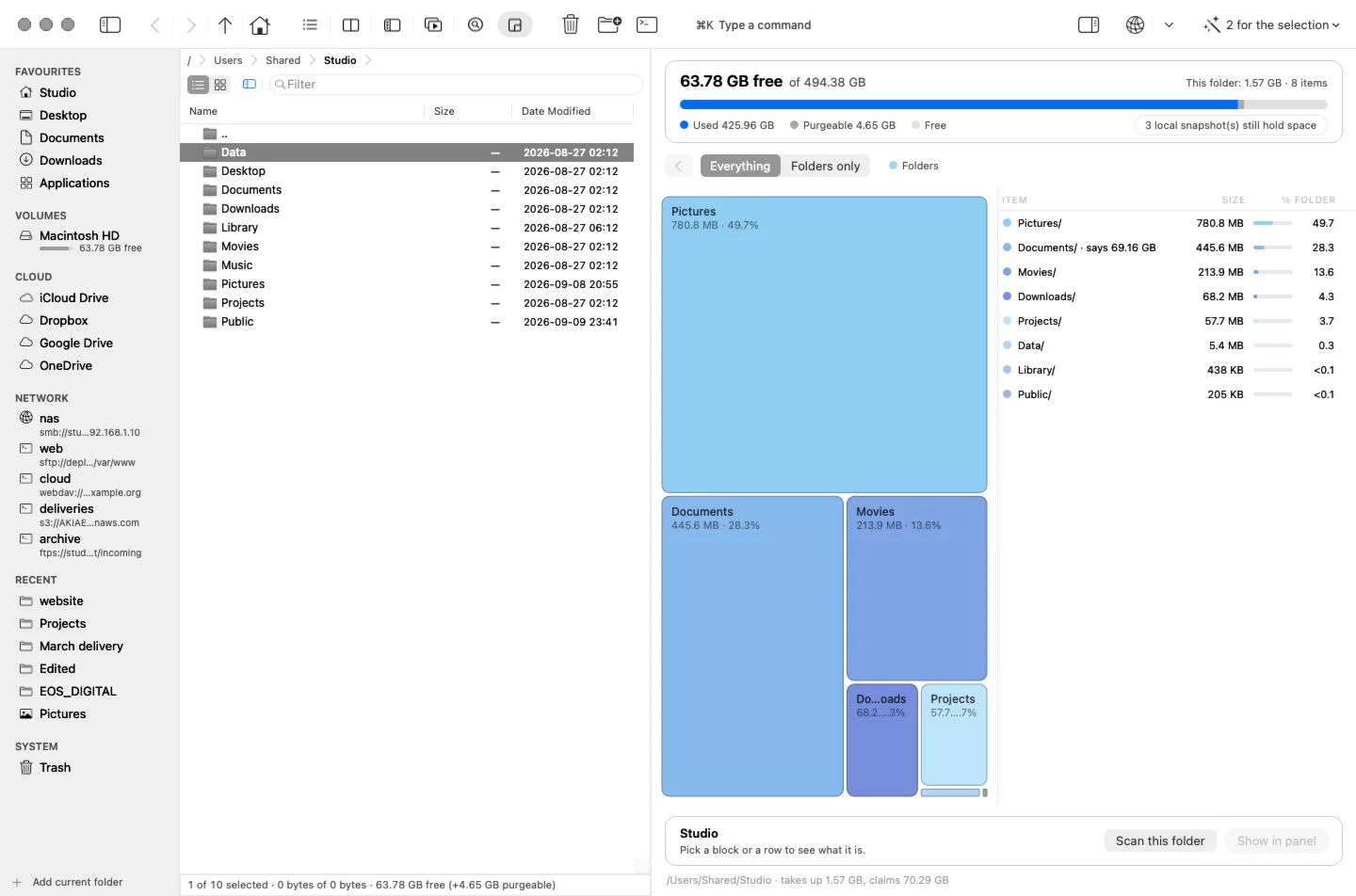
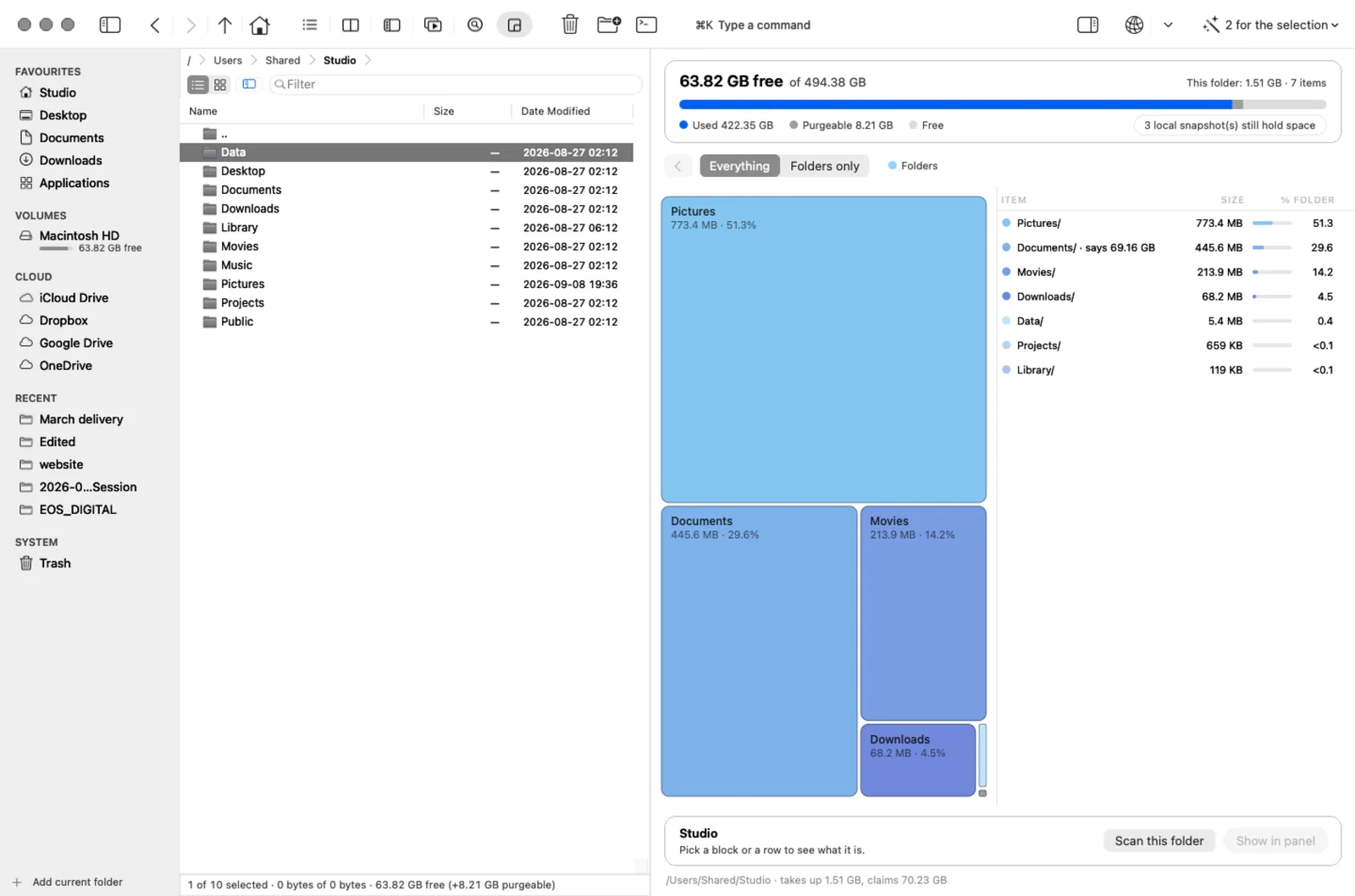
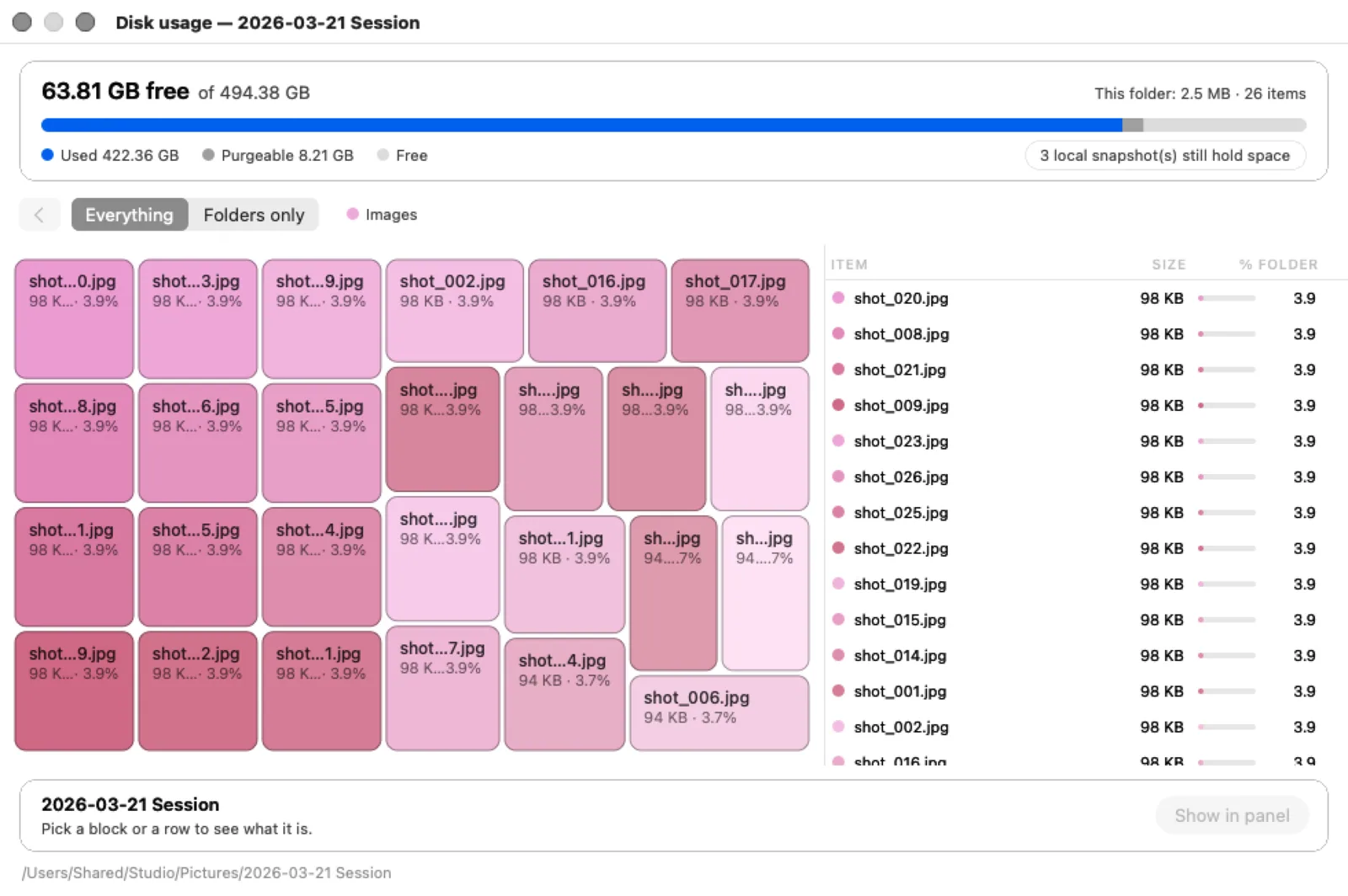
The system's warning does not say what is taking the space, and deleting blind is how something that mattered gets lost.
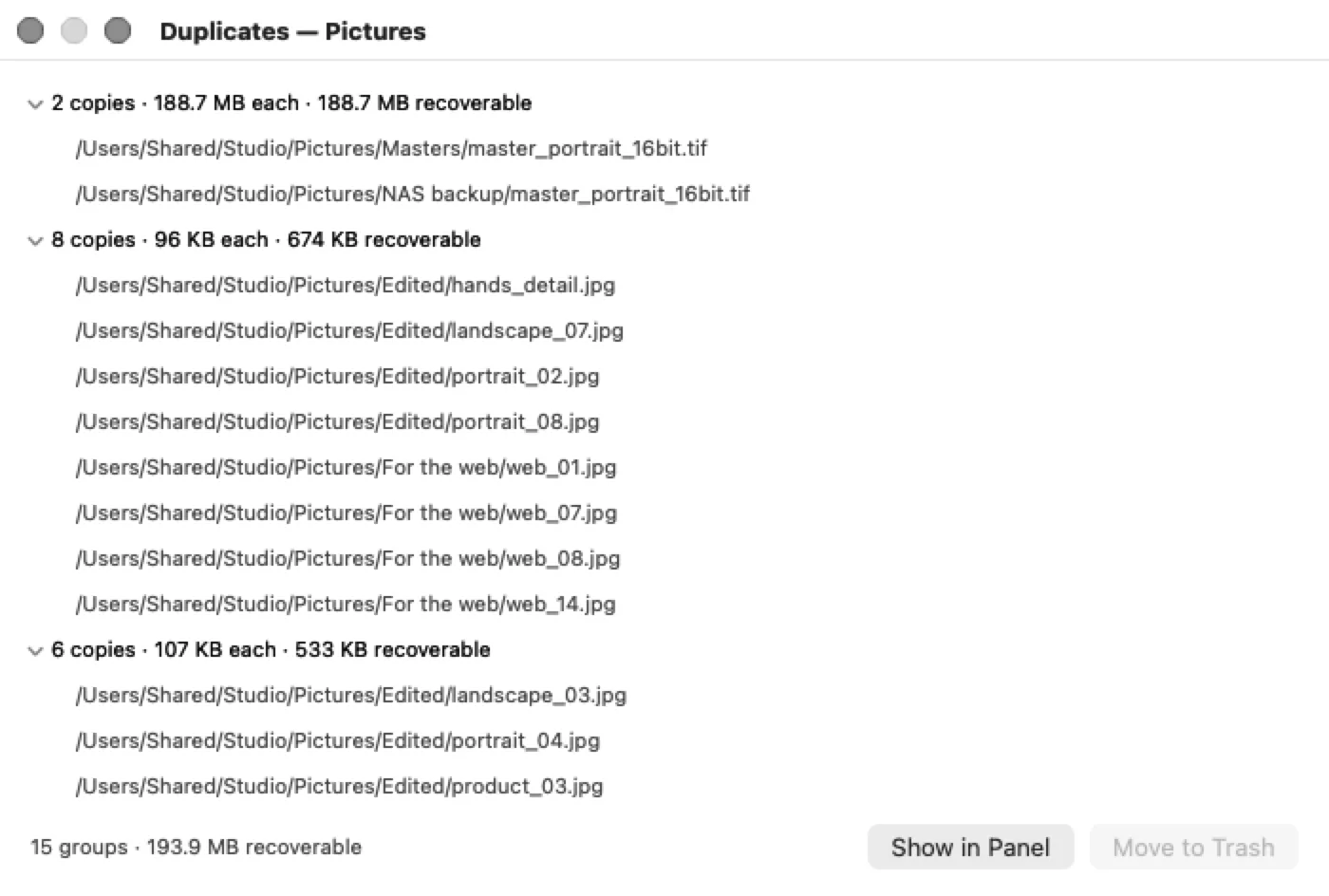
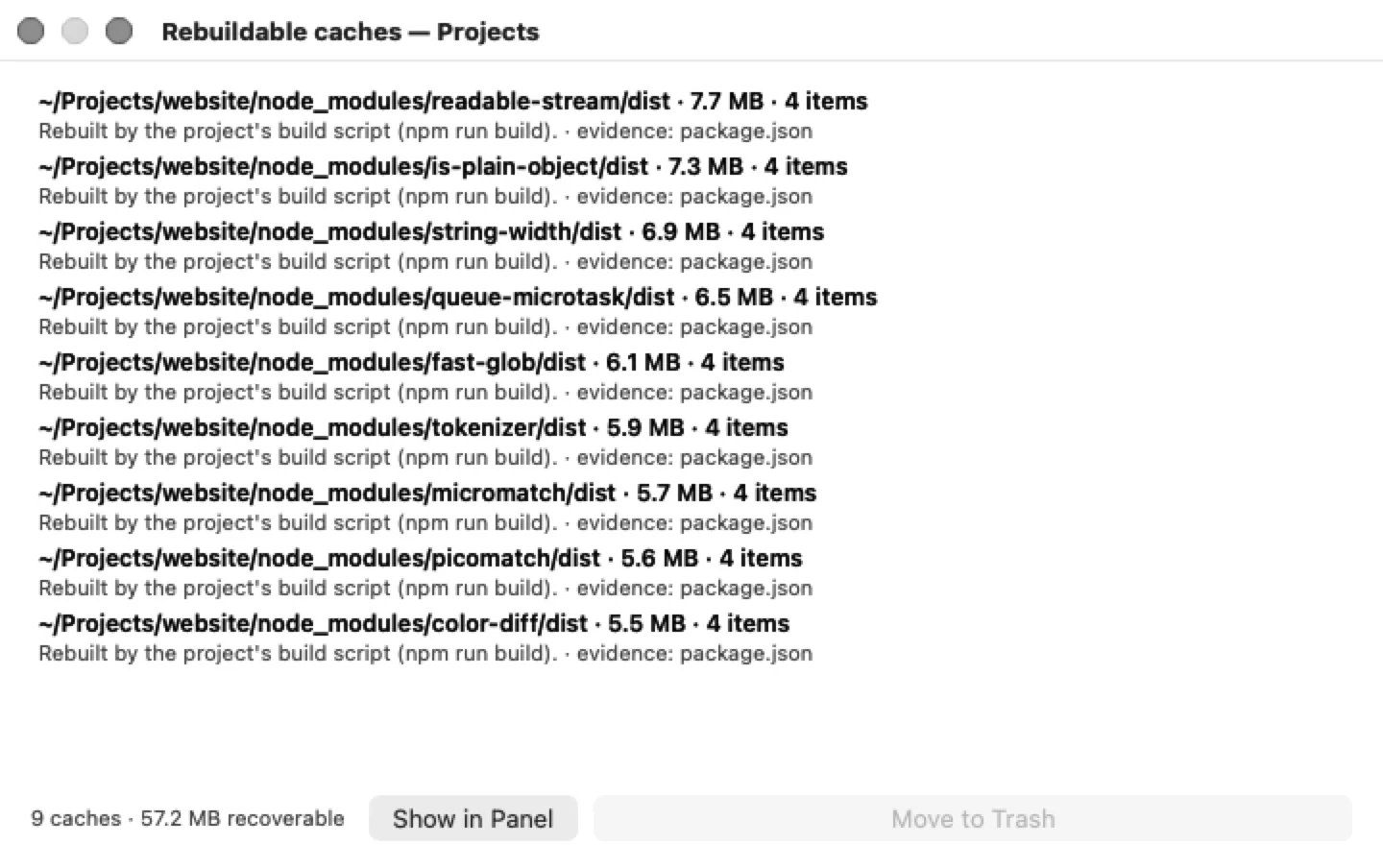
Removing an application takes its leftovers with it — preferences, caches, support files — and shows you the list before anything moves.
Twenty years of fingers trained on F5, F6 and Insert, and a Finder that has none of the three.
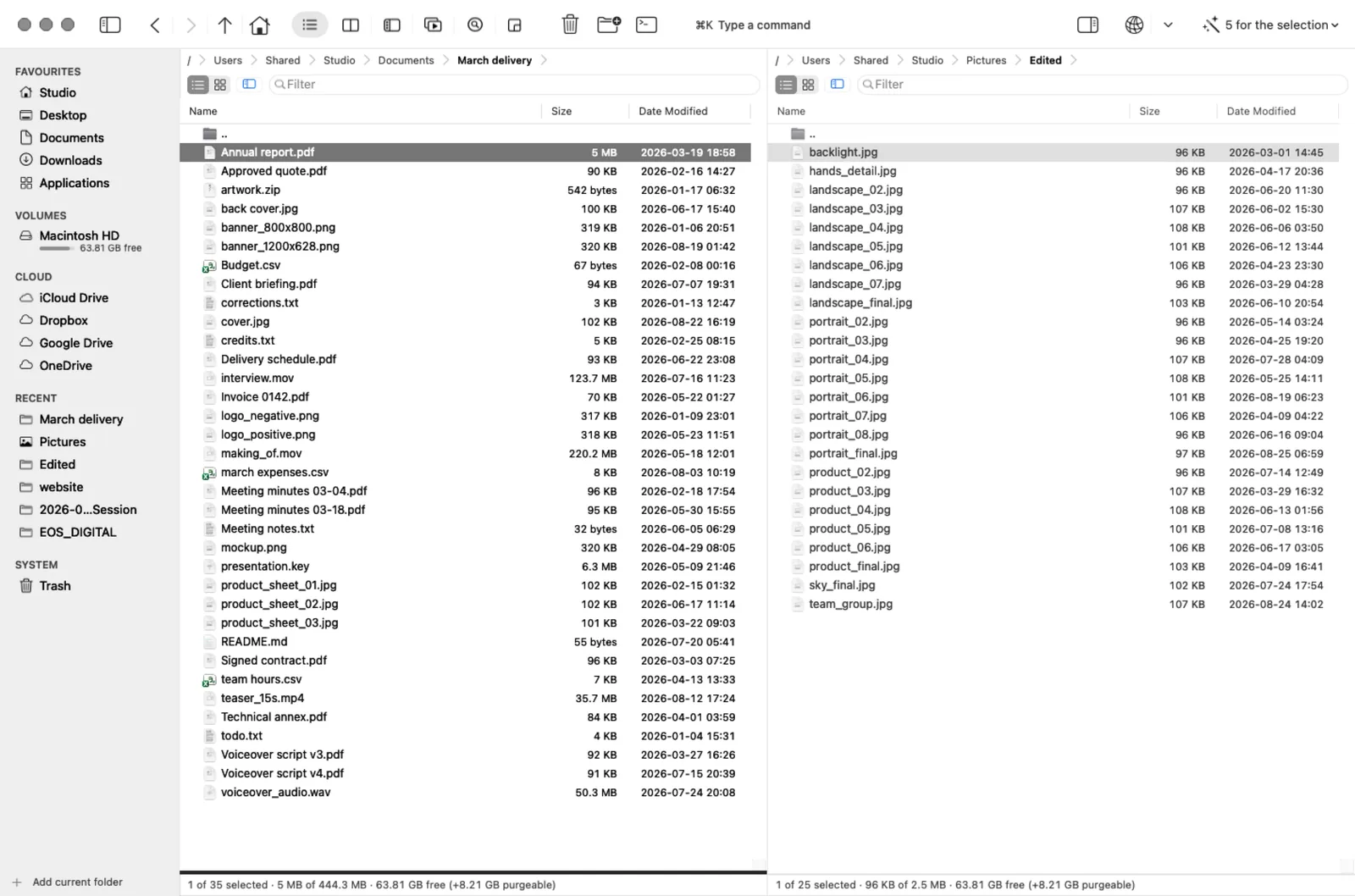
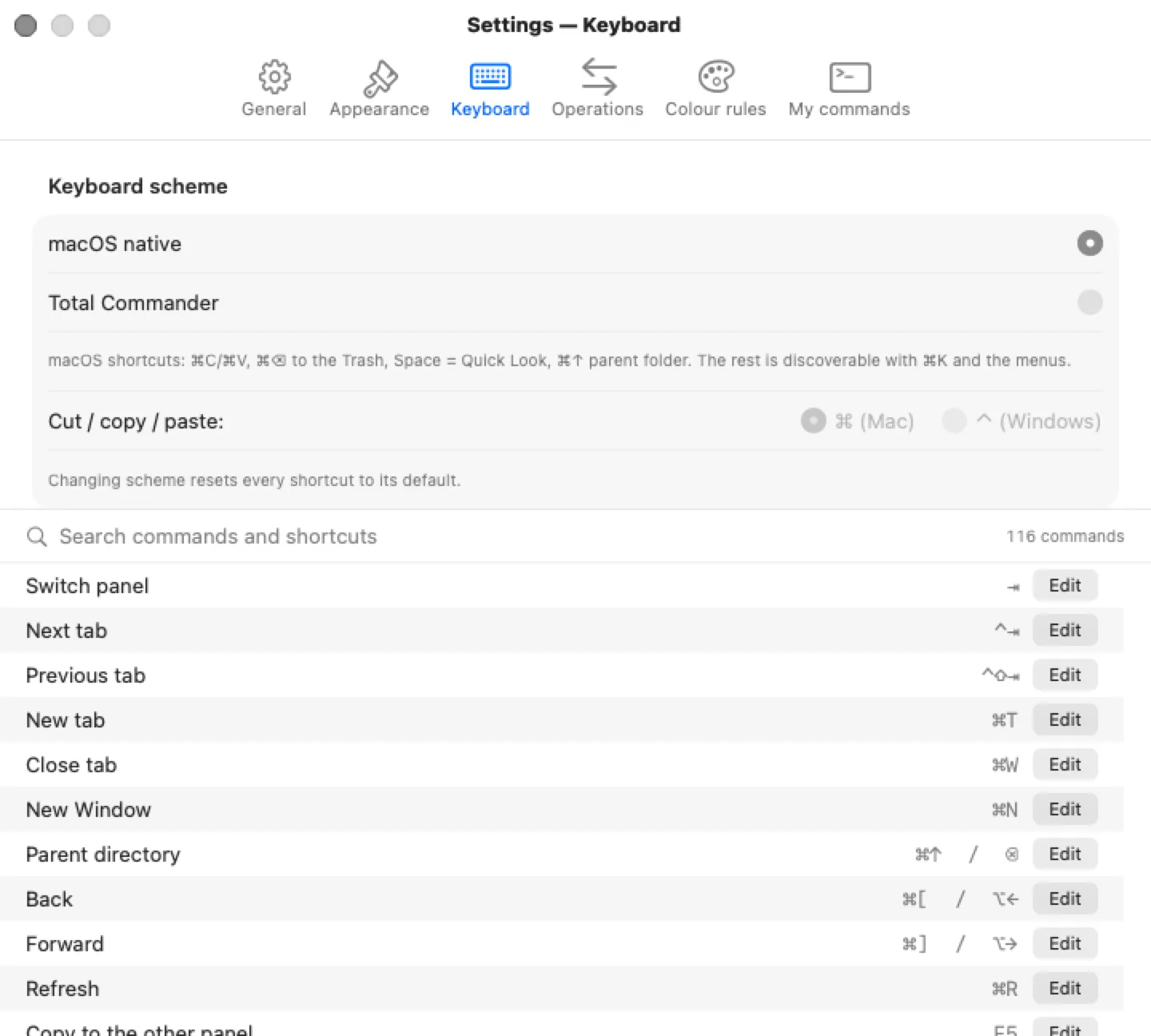
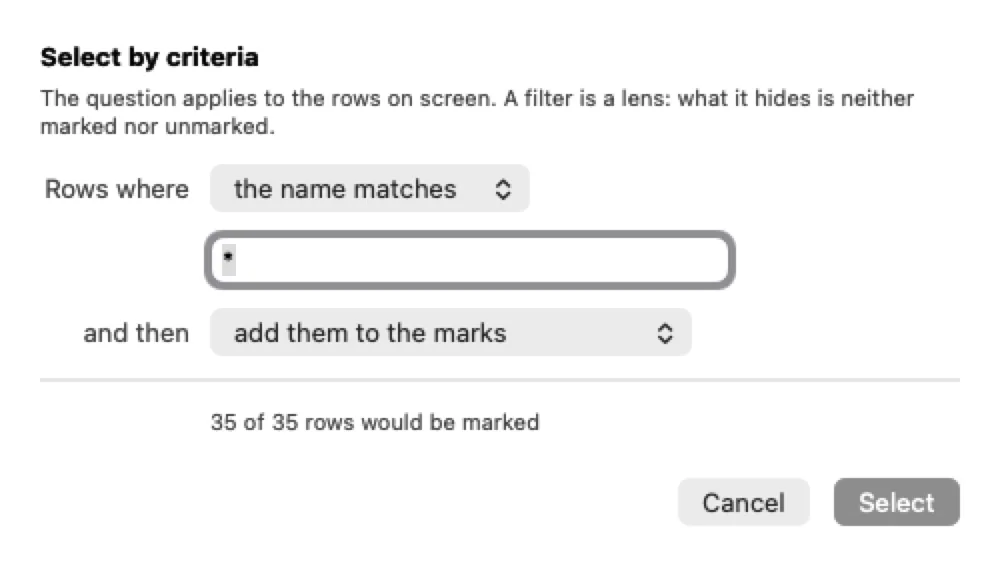
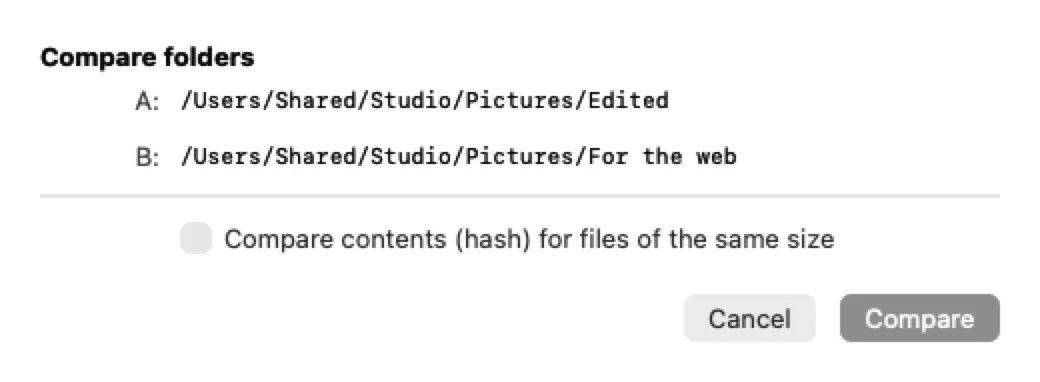
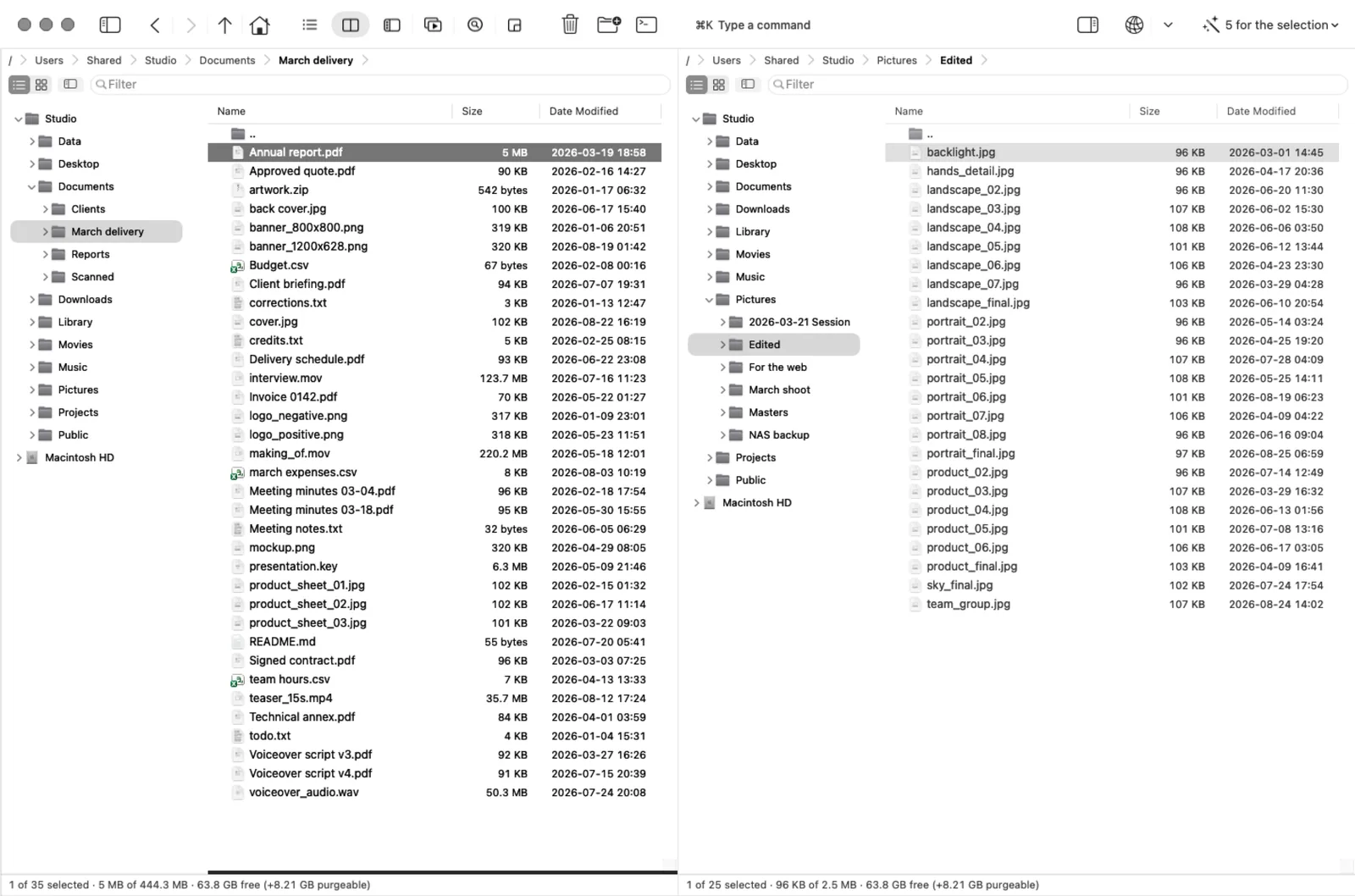
The preset is not a separate compatibility mode: it changes the keyboard and the wording, and everything else in the app is still there.
A selection, not a list. The complete one is at the bottom of this page, grouped by what each command is for.
Published on purpose. Finding out after paying is how a refund starts, and every one of these is a decision rather than a gap.
A plugin API needs ABI promises, isolation and
review of somebody else's code, and the first plugin to corrupt your
files would rightly be this app's problem. It is scriptable instead:
your own shell commands, AppleScript, Shortcuts and an
om command.
The sandbox is incompatible with the job — full disk access, network volumes, the Trash, scanning volumes. Signed with a Developer ID and notarised, sold directly.
Deciding a deletion from a file that was never there needs a change database, and guessing wrong deletes somebody's work. Mirror and update, both with a dry run first.
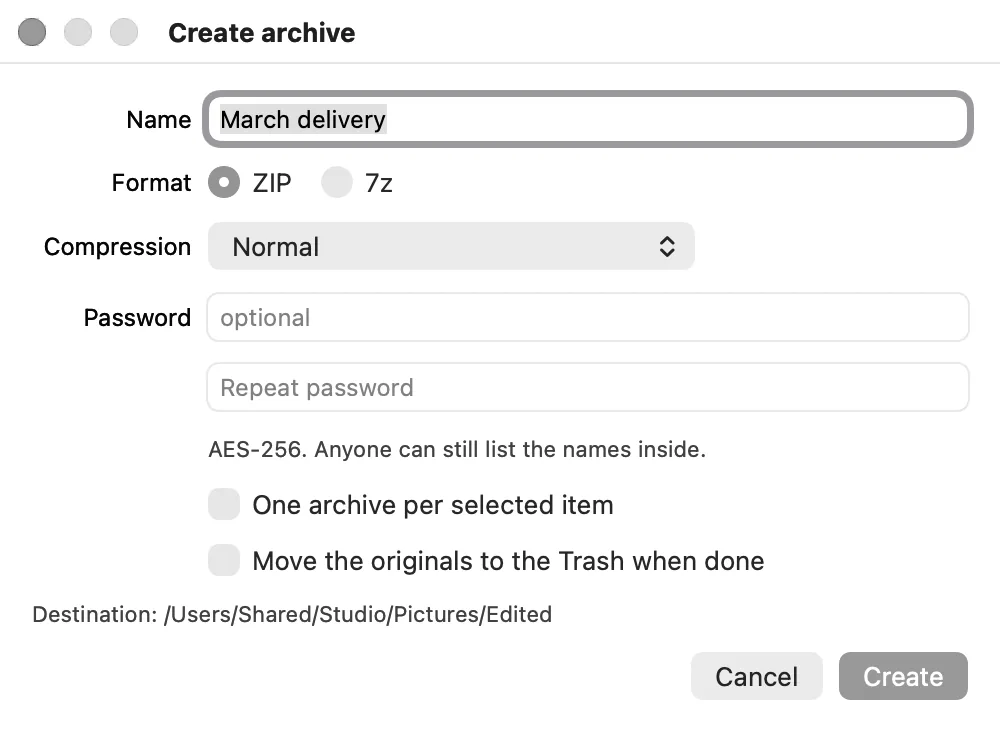
Reading, yes. Writing needs a licence nobody can grant to a closed product. Zip and 7z are created here.
Nothing, unless you ask for it.
No analytics, no crash pings, no “anonymous usage data”. There is no server to send it to.
Passwords for servers you asked it to remember. Nothing about your licence or your trial goes near it — a file manager has no business in the place you keep your bank.
Asked once, off unless you say yes. HTTPS, and it never downloads or runs anything.
Ed25519, verified on your Mac. No activation call is required to work.
The numbers are read out of the source when this page is built, so they cannot quietly stop being true.
US$29
Not a subscription. Fourteen days free, everything available. When the trial ends the app keeps opening and reading — it turns read-only, it does not lock you out of your files.
The checkout could not open. It may be a script blocker; write to support@orthodoxmac.com and we will sort it out.
No. One payment, and the version you bought keeps working. A future major version is a paid upgrade, not a renewal you forget to cancel.
The app keeps opening, navigating, searching and previewing. Writing turns off — copies, moves, deletes, renames. It does not hold your files hostage and it does not quit on you.
No. The licence is a signed value checked on your Mac. It works on a machine that has never been online.
The sandbox cannot do this job: full disk access, network volumes, the Trash, scanning volumes. It is signed with a Developer ID and notarised by Apple, so it opens without a Gatekeeper warning.
Turn on the Total Commander preset and F5, F6, F7, F8, Insert and the numpad marking come back, along with the function key bar. You can also pick Ctrl instead of Cmd for copy and paste.
Fourteen days with everything available — no feature is held back during the trial, because a trial that hides the good part is not a trial.
If you are reading this before it is on sale, you are probably here to test it. This is what you would be testing.
A case that ran but had no rule to be judged against is counted apart, because counting those as passes inflates the report and makes it useless.
A hand-written list of commands stops being exhaustive the day somebody adds one. The build fails if a command appears with no case covering it.
In the first pass, four of the failures were the harness and looked exactly like product defects. Every case carries the line that reproduces it.
What you did, what you expected and what happened — and Help ▸ Report a Problem writes the version, the build and what the app believes about itself, which answers half the questions before anyone asks them.
116 commands. 48 of them have no shortcut on purpose — they live in ⌘K and the menus, because the long tail should be discovered, not memorised.